Agents
AI agents normally involve a fair amount of programming and tweaking. Because we have already done the hard part of embedding the Agent directly into the system's core network, the clever stuff is already set up and ready to roll out as soon as you set some basic information for the Agent.
Agent initial setup
|
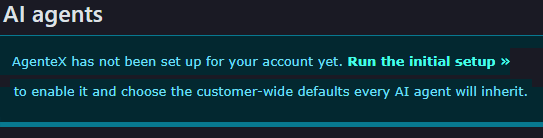
When you first enter the Agent screen, you will be required to set up basic customer information.
Click on 'Run the initial setup' to complete this process. |
|

Subscription
|
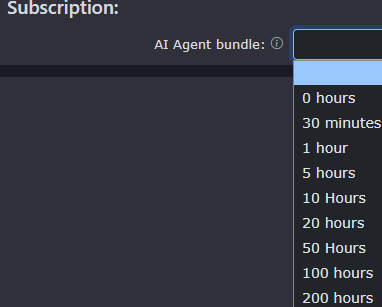
To enable any agents, you must first choose an agent bundle. You can revisit this section at any time to upgrade later.
Select an option to reveal the cost options.
|
|

Customer Defaults
| These settings will become the default for all agents built on this customer's account. Agents can override these defaults by selecting their own settings. |
|
|
|
This is the name of the customer's account and is only used for reference. |
| Company Name is the default name the agent will use when greeting a caller. It is worth remembering to write the name as you want it said. So in this case, Simply Cool Ltd should be written as Simply Cool Limited to stop the agent spelling out L T D as individual letters. This, of course, is easily changeable, so you can adjust it as you go along to get the best results. |
|
|
|
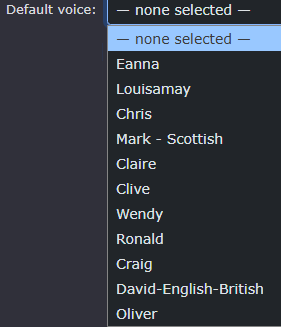
The Default voice will be used by all agents if no voice is selected on a per-agent basis. There are many to choose from. |
|
When you have selected a voice, a play |
|
|
|
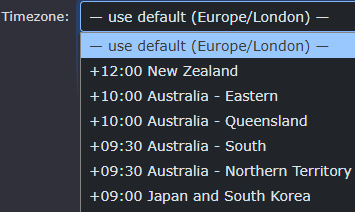
Timezone works with your default business hours and helps agents understand the time. The default for the system is Europe/London GMT, but you can select other time zones if need be. |
| This enables or disables all agents on the customer's system and stops agents from taking calls. The default is 'Active' |
|
|
|
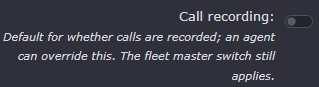
The call recording system will capture all calls made and received by the agents. It is on by default. |
|
In preparation for changes to EU law, you may be asked to announce that the caller is speaking to an AI Agent. |
|
|
|
In preparation for changes to EU law, you may be asked to announce that the calls are recorded. |
|
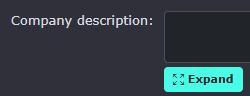
The company description is the set of details that agents will use as background to help them understand what to say when answering a call. This is particularly useful if the agent is working as a Receptionist.
The Expand button just makes the screen bigger so it is easier to read all the information provided in the company description |
|
|
|
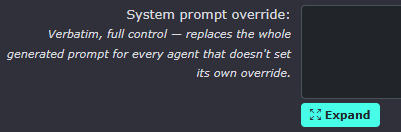
System prompt override. This will replace all the clever, predetermined network control over the agent's performance. These settings can be removed if any issues occur; however, we recommend trying the default system prompt first before overriding for all agents. This setting is recommended for expert setup only.
The Expand button just makes the screen bigger so it is easier to read all the information provided in the system prompt override. |
|
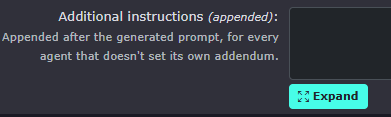
Additional instructions. These are appended to the default prompt. This is a good way to provide a bit more clarity on how you want the agent to respond or act.
The Expand button just makes the screen bigger so it is easier to read all the information provided in the additional instructions |
|







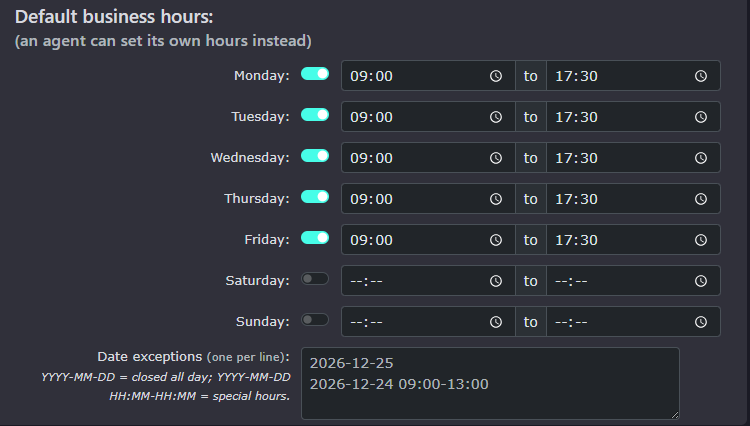
Default business hours
| The default business hours are the times you want agents to respond to calls during working hours. Outside these working hours, the agent may just take messages or simply say that you are closed. |
|
|
|
Toggling the switch to off will close your office for the day. |
| You can also add special days, such as bank holidays. |
|
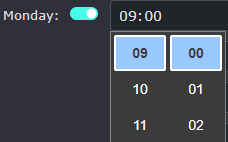


Keep in mind that all these defaults can be overridden by any and all agents. This is to set up the most frequently used settings to make each agent's setup easier.
Final steps.
| Finally, click Enable and Save Defaults to complete the initial agent setup. |
|
|
|
You can now return to the initial setup screen or return to the AI Agents list. |


Customer-wide knowledge sources
|
You can also add some company-wide knowledge sources. The agents will use this to build their LLM (Large language model), which is basically an understanding of their role. Agents can 'absorb' a lot of information to use whilst a call is in progress. The agent doesn't really absorb and hold the information. The LLM provides the agent with instant recall of information when a question is asked. it is all about the information at hand for the agent to recall and project the information provided. |
|
|
|
Wow, that was a lot of words. The AI agent that will read this in the next 12 hours should blush when it knows I am talking about them/it. |
|
|
To start a new knowledge source, click on the new button. |
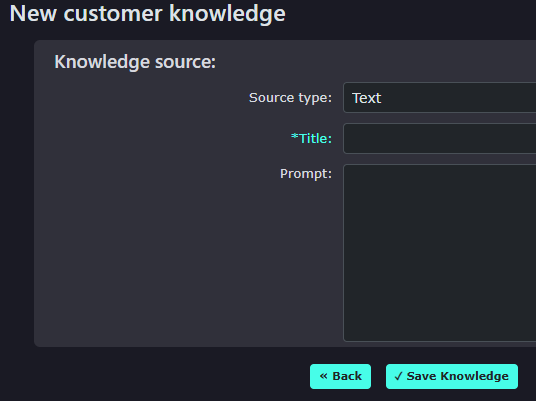
| You will now see the box with a few options. |
|
|
|
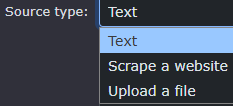
The source type
1. This can be simple text entered in the prompt box below. 2. Scrape a website will download information from a chosen website. 3. Upload a file like a PDF.
|
|
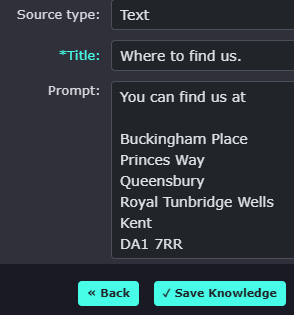
Text: This will be added to the LLM to help the agent locate the offices. |
|
|
|
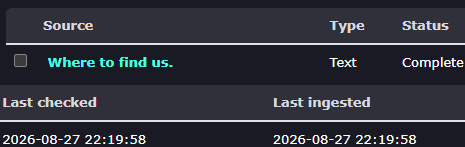
Once saved, you will see confirmation showing the text document name and the last time it was ingested into the LLM |
|
Scrape a website:
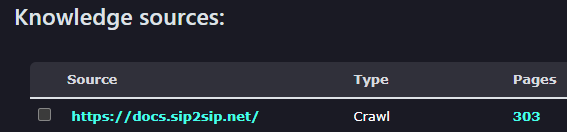
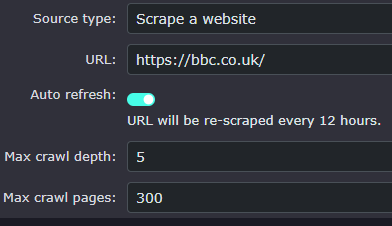
You can collect information from a website to build the knowledge base. Enter the website address, then select whether you would like the URL to be checked every 12 hours for changes. This is great, for example, if you have user guides online that are constantly being updated. You can choose how deeply you want it to collect information on each page, as well as the maximum number of pages. The defaults are probably what we would recommend leaving it set to.
|
|
|
|
The system will prepare itself to start collecting the information |
|
It will keep collecting page information until it either reaches its maximum request limit or has read every page of the requested website. |
|
|
|
Once completed, it will provide how many pages were collected, when it was last ingested and when it will run again. |
|
Upload a file:
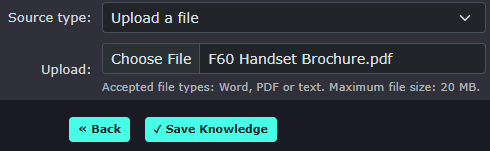
PDF's, Word documents and text files can all be uploaded |
|
|
|
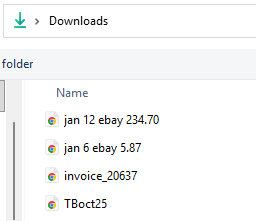
Clicking the Choose File button opens your PC's file system to find the document you want to upload. |
|
Once selected, press the Save Knowledge button. |
|
|
|
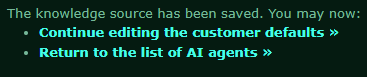
Click on Continue editing the customer defaults to see the knowledge base data again |
|
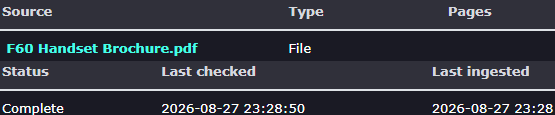
You will then see your document and the date and time it was ingested into the LLM. |
|







Other options for AI Agents
| At the bottom of the page, after saving the company's default settings. There will be the following options to gain access to the default company settings again |
|
|
|
Click on customer-wide defaults to open the customer default page and edit any settings you may want to change later. |


AI Agents
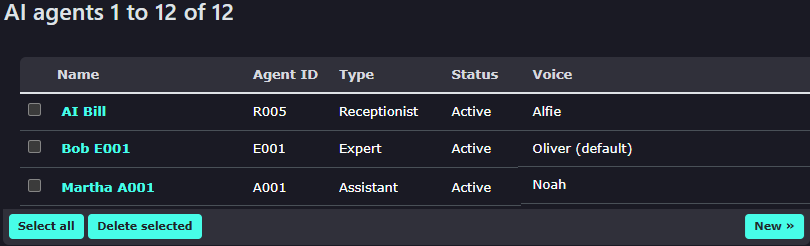
| AI Agents can be added by clicking the New button. |
|

AI Agent Settings
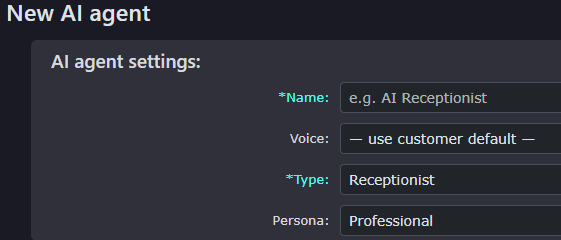
| Give the Agent a friendly name that you will refer to as the Agent. This will also be the call transfer caller line ID should the agent put a call through to your extension. |
|
|
|
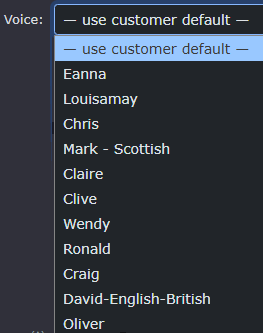
Choose a voice, or use the default voice. |
When you have selected a voice, a play  icon will appear, allowing you to listen to the voice before selecting it. Again, nothing is set in stone, so you are welcome to come back and make a change at any time. icon will appear, allowing you to listen to the voice before selecting it. Again, nothing is set in stone, so you are welcome to come back and make a change at any time. |
|
|
|
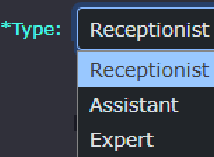
You currently have 3 Agent types to choose from.
|
|
Receptionist: This Agent will answer the call with your company greeting. Ask how they can help. Request the caller's name and company name, and automatically note their caller line ID. It will help the caller be transferred to their requested party, provided that the requested party has an extension in the system and is accepting AI-delivered calls. This is how Managing Directors are kept safe behind an AI receptionist. If a call can't be warm-transferred to an extension, it will offer to put the caller through to the requested person's voicemail or personal AI assistant. |
|
|
|
Assistant: This Agent is used for the whole customer's system personnel assistant. Each extension user can utilise the Agent as their own assistant. It will greet the caller, announcing that they are Paul's, Stephen's or Stacey's personal assistant. Once this option is enabled, the extension settings or the 'For Extensions' tab in the AI section will need to be updated to enable the Assistant for each extension/user. |
|
Expert: The expert is an Agent that will require a lot of knowledge to be uploaded. It will answer the call, announcing that it is the expert for whatever title you have given it. It is designed to answer many questions, perhaps about a particular product or subject. It will also transfer the call to a department, such as Sales or Support, when it detects that the caller may need a little more help.
When selecting the Expert, an additional box will appear requesting a subject name. This is so that the AI expert will announce they are the 'Portal Expert' if you enter the word 'portal' here.
|
|
|
|
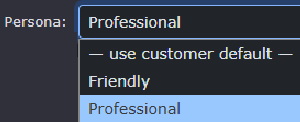
Choose the persona you would like your Agent to have. You can choose between Friendly and Professional. It's worth trying both to see which you like best. |






Behaviour flags
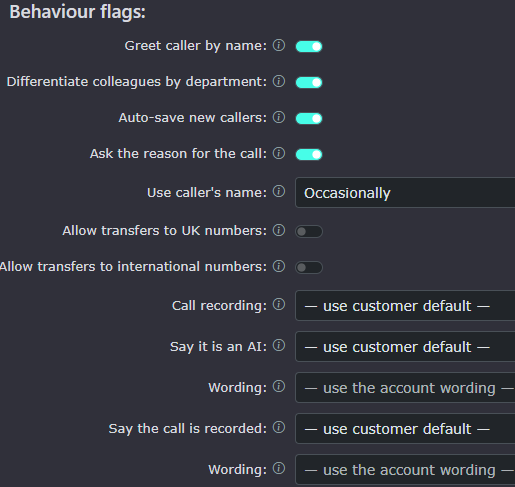
| Remember, you have already set your defaults in the company settings, so you do not need to make any changes to quickly enable your AI Agent. |
|
|
|
If the caller's name is found in the Cloud Phonebook, it will be used to greet the caller. Please note that names will only be used if the caller is ringing from an 07 mobile number, as it is most likely the same person ringing each time.
NOTE: If the agent asks for the name, it will automatically be stored in the Cloud Phonebook for future reference. Any AI CPB entries will be marked with some stars so it is possible to identify which have been auto-created. |
|
Differentiating colleagues by department allows the AI agent to ask the caller whether they want a particular person with the same name as someone else in the company. The people in the company need to have the department enabled in the 'for extensions' section of the AI menu. The agent may ask something like, " Do you want Bill in sales or Bill in Development? |
|
|
|
This will create a Cloud Phonebook entry after each call the agent has received. |
|
This option will only be available in the Receptionist and Assistant agents.
The agent uses this information to provide additional details to the called party. An example may be: it's regarding the quotation, it's regarding an outstanding invoice. |
|
|
|
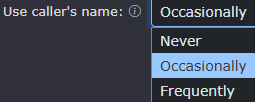
Using the caller's name lets you choose how friendly and personal you want the agent to be. We recommend a professional approach to use 'occasionally' and a friendly approach to use 'frequently'.
If you are worried about GDPR (General Data Protection Regulation), then Never could be the option for you. |
| This setting is only needed if you want the calls to be transferred 'off-network'. This will allow transfers to local, national, and mobile numbers within the UK. |
|
|
|
This setting is only needed if you want the calls to be transferred 'off-network'. This will allow transfers to international numbers. It is OFF by default to reduce the risk of 'TOLL Fraud' |
|
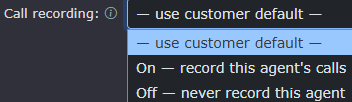
Call recordings: The customer default can be used for this agent, or you can choose to change it to on or off. This will then be permanently changed for this agent regardless of any changes made to the customer default settings. |
|
|
|
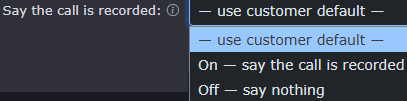
Say the call is recorded: The customer default can be used for this agent, or you can choose to change it to on or off. This will then be permanently changed for this agent regardless of any changes made to the customer default settings. |
|
Wording:
This will be the wording spoken to announce that calls are recorded. 'Please note, calls are recorded' |
|
|
|
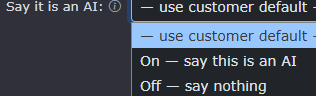
Say it is an AI agent: The customer default can be used for this agent, or you can choose to change it to on or off. This will then be permanently changed for this agent regardless of any changes made to the customer default settings. |
|
Wording:
This will be the wording spoken to announce that they are speaking to an AI agent. |
|









Call Transfer routing (optional)

|
This is only for additional guidance to the AI Agent for transferring calls. The agent is already aware of people's extension numbers and names, as well as departments that have been set up in hunt groups or queues with a relevant feature code pointing to them.
Tell the agent when to transfer a caller and where — handy for an expert that should send some callers on (e.g. talking about handsets: buyers → the Sales team, tech questions → the Support team). Give just the situation and the destination. Choose a team for a department/hunt group or a person for a named colleague. |
This option works with the 'for extensions' and 'for feature codes' within the AI section.
It allows for additional routing when a caller mentions something specific, such as an invoice; therefore, it would make sense to transfer to the accounts team. |
|
|
A few examples to give some guidance. |


Opening hours & out-of-hours:

|
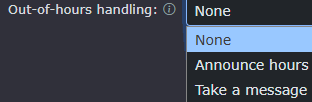
You can specify what you would like the agent to do inside and outside opening hours.
Announce hours:
Work with the Business hours you have set, either in the customer's default settings or within this agent.
Take a message:
Will take a message and email it to the default email address |
|
Business hours:
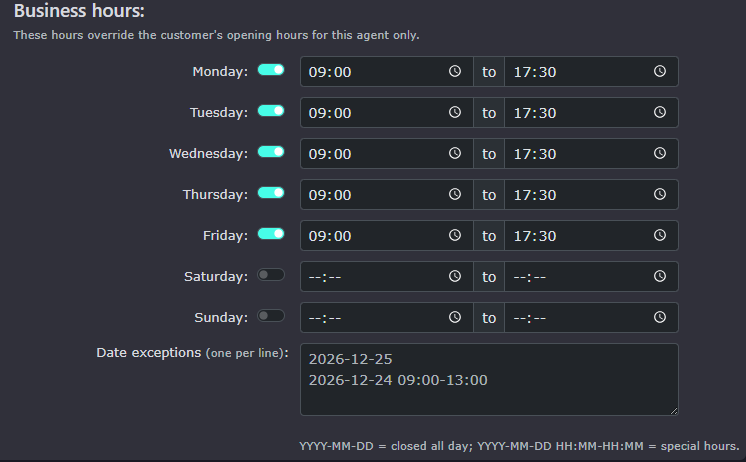
| If the 'set business hours for this agent is switched on, you can set new times for this agent rather than using the default in the customer's settings. Handy of this agent works differently to any agents using the default business hours. |
|

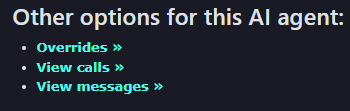
Other options for this AI agent:
Overrides:
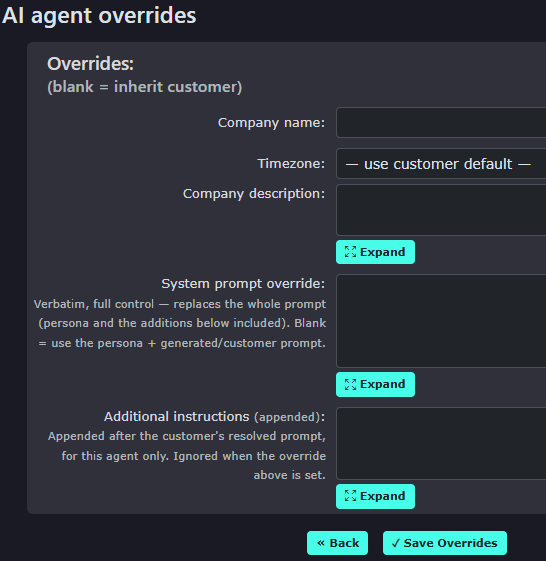
| You can leave this completely blank to use the customer's default settings. |
|
|
|
If you want to use a different company name, you can enter it here. |
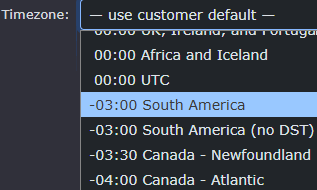
| If you want the agent to operate in a different timezone, you can make your selection here. |
|
|
|
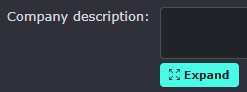
To enable a new company description, you can enter that here; use the expand button to load more information in a bigger window, |
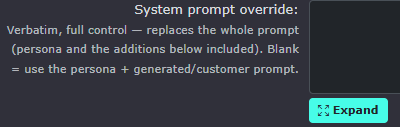
| System prompt override. This will remove the default and its functionality. This is only recommended to be changed by an AI-trained expert. It clears all the preset settings that have been configured for the agents to work well within the platform. |
|
|
|
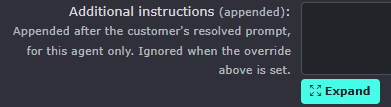
Additional instructions:
Again, not required by default but could be used to provide extra information when callers are answered. Maybe if someone asks about the Christmas special, then transfer them to the Santa's Grotto department. :-) |


View Calls:
| Calls that only relate to this agent work the same as Calls in the main menu under the AI section |
|

View Messages:
| Messages that only relate to this agent work the same as Messages in the main menu under the AI section |
|

Knowledge sources:
| Knowledge sources: In agents, it works exactly the same as the customer default knowledge base, but this agent is the only one who can see these knowledge sources. |
|