For Extensions - Customer overview
AI for extensions
This section, 'for Extensions', enables the AI Agents to understand what is going on within the telephone system. How and who to transfer calls to, and what to do if the person isn't avaiable.

|
Extension: The extension shows the physical extension within the telephone system and the extension's default name. This is pulled from the description of that extension |
|
|
|
AI Enabled: This option allows the AI agents to see this extension. You may not want all extensions visible to the AI agents. Extensions such as meeting room, kitchen, or hallway phones may not need to be visible to agents. Disable this option to make it invisible to all agents. |
|
Accept AI calls: Allows the agent to see the extension and user as a known user. Sally and Mark in accounts are happy for calls to be transferred to them via the AI agent, but Paul, the Managing Director, does not wish to have calls put through to him. This helps the AI Receptionist determine what to do.
If someone calls and asks to speak to Paul, the Managing Director. The AI agent is aware of the extension for Paul but also knows that they should not have any calls put directly through to his extension. This is known as gatekeeper control. |
|
|
|
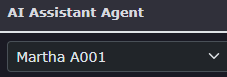
AI Assistant Agent:
If you have AI assistants enabled on the platform. Then you can choose if you want to use an AI Assistant. When enabling on an extension, it will remove the voicemail option within the extension. Any calls, whether placed via the agent, directly to the extension, or by another user, will be answered by the AI Assistant instead of the extension's voicemail. |
|
AI Description:
This is used to understand the name of the person using this extension. If you have more people with the same name, it's worth overriding the default name, like this name, which is greyed out (name taken from extension description), and entering a name the AI agent can use and understand. A good example of this is a guy called Luis, but this name was pronounced Lewis. So sometimes it's worth putting the name that the AI agent will understand better, including the surname. |
|
|
|
AI Email: This email address will be used to send any messages. If there is an owner of the extension, it may pull this from the owner's email address, which would be greyed out. If it is empty, then you can insert an email address here. |
|
Department:
The department is used to help identify a person, particularly if there is more than 1 person of the same name. The agent may ask a question such as, " Do you want David in the sales department or David in the support department. |
|







Other options
| Under other options within the AI for extensions, you will find the bulk change option. Click on bulk change to change lots of extensions together. |
|
|
|
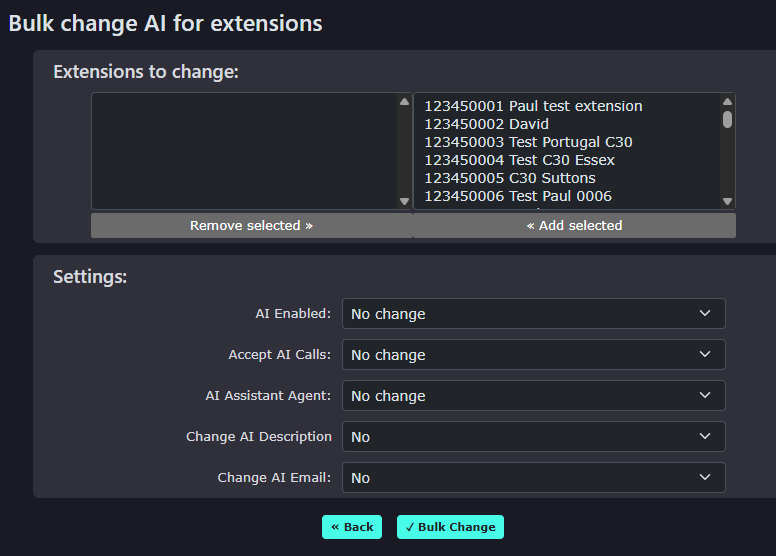
Bulk Change:
Select some or many extensions you wish to change.
Then select which options you would like to change for those extensions. A good example would be to use this bulk change to add AI Assistant to all extensions in one go. Allowing quick and easy access to the service. |