For Feature Codes - Customer overview
AI for Feature codes
This section, 'for Feature codes', enables the AI Agents to understand what is going on within the telephone system. Which Hunt Groups or Queues can calls be transferred to?
|
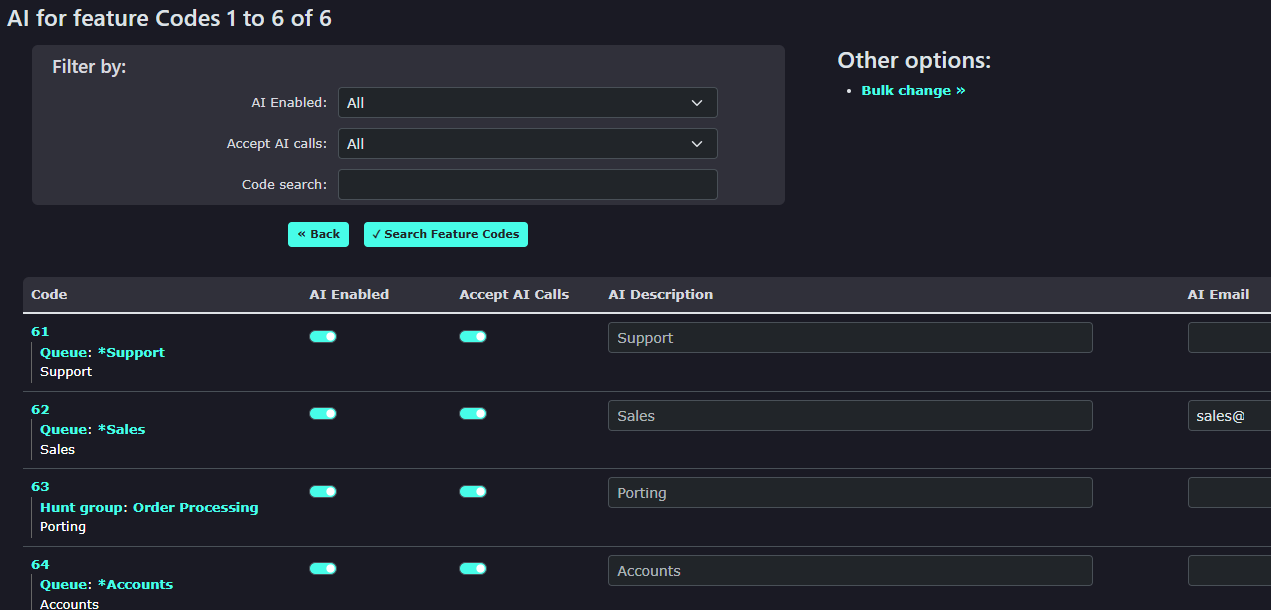
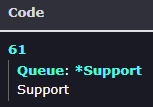
Code: The code is the feature code that you can use for the AI agent. You will notice that not all your feature codes will be visible here. Currently, you can only allow the AI to transfer a call to a Hunt Group or a Queue. This is done to prevent fraud.
The agent will perform a blind transfer; again, this is to keep the costs down for agent usage. For example, if an agent is waiting in a queue to be answered by a member of staff, the agent could wait a long time before being answered, only to announce the call. |
|
|
|
AI Enabled: You can enable or disable the feature code so that agents can't see it and therefore can't transfer to it. |
|
Accept AI Calls: You can allow or block calls from being transferred to the feature code. This is particularly useful if you want the agent to understand that a department like Support is known to the agent, but you don't want the agent to transfer calls.
For example, if you have a PAID support number you want people to ring, the agent needs to know the support department exists but must not transfer calls to it. Works the same way as 'for extensions', where you don't want the call transferred to the managing director. |
|
|
|
AI Description:
This is used to identify the name of the hunt group or queue associated with this feature code. You can override the name, which is taken from the description, to try to make it easier for the agent to understand. If the internal description of a hunt group were called "Tel support," it would make sense to give the agent the full name, like "Telephone support." This will allow the AI agent to determine the correct department to transfer calls to. |
|
AI Email:
This is the email address that will be used if the call can't be transferred for some reason. |
|



Filter by:
|
AI Enabled:
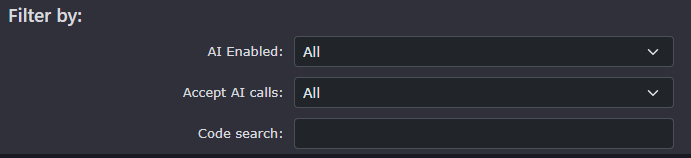
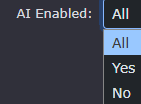
You can search by ALL, Yes or No. Once you have selected which feature codes you want the AI Enabled on, you can search for only those by choosing Yes. Making it very easy to ensure you have the right ones enabled. |
|
|
|
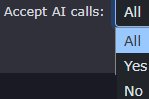
Accept AI Calls:
You can search by ALL, Yes or No. Once you have selected which feature codes you want to accept AI calls for, you can search only for those by choosing Yes. Making it very easy to ensure you have the right ones accepting calls. |
|
Code Search:
Allows you to search all the feature codes in the list. |
|

Other options:
Bulk change
|
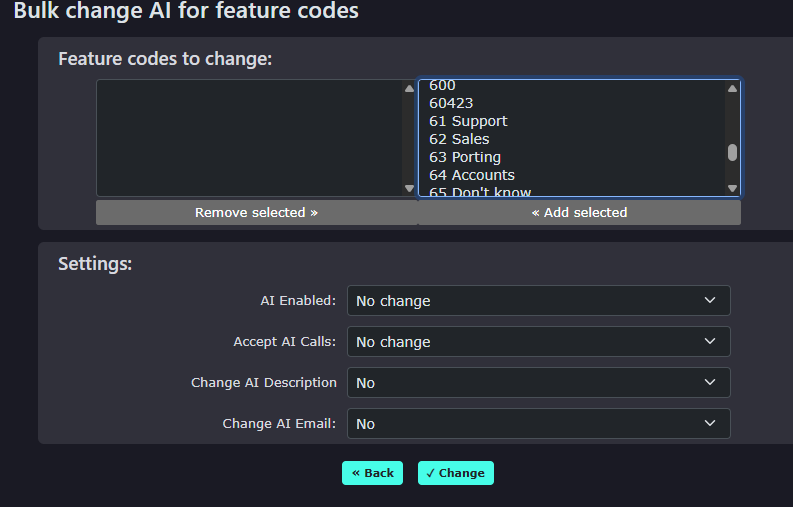
Feature codes to bulk change:
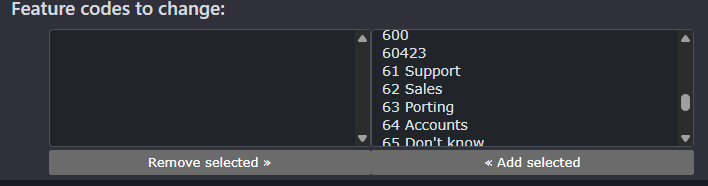
Select the feature codes in the right-hand column and add the selected to the left-hand column. These are the feature codes you wish to bulk-change. |
|
|
|
AI Enabled:
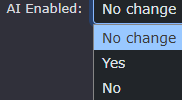
You can leave it as is by selecting no change, or select yes or no to change the selected feature codes. |
|
Accept AI Calls:
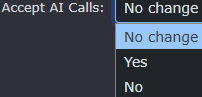
You can leave it as is by selecting no change, or select yes or no to change the selected feature codes. |
|
|
|
Change AI Email:
If you select yes, a new box will appear allowing you to enter the email address for the selected feature codes. |