Portal Screen & Dashboard settings.
The portal can be viewed in dark or normal mode for better visibility in different lighting conditions. You can also choose other settings to become your defaults.
This can be achieved by changing the settings via the cog at the top of every part of the portal.
Settings
|
|
In the top-right corner of the portal, you will see a cog icon next to your login details. Click on the cog to reveal more portal settings to make your portal experience easier. |

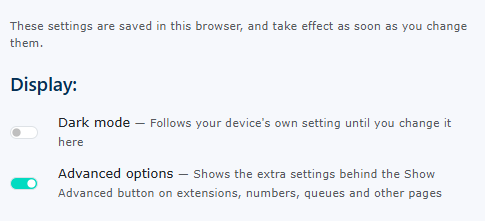
Display
|
Dark Mode:
Switch to dark mode using the slider to improve viewing over longer periods.
Advanced options:
Some pages have simple and advanced options that you can set on different pages. This can be chosen per page, but if you would prefer to have advanced options visible at all times, you can enable that on the settings page here.
|
|
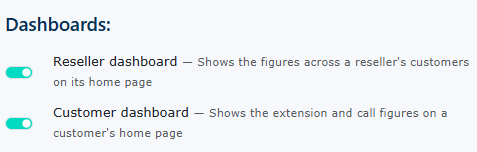
Dashboards
Depending on your user permissions, your portal login, and whether you are a reselling partner or an end-user customer, you will see either both dashboards or just one.
|
Reseller dashboard:
The reseller dashboard shows information about your customers.
Customer dashboard:
Shows related information about this customer only. |
|