Transferring calls
Transferring callings
Calls can be transferred to another internal party or an external 3rd party.
|
|
When you are in a call with another caller, the transfer button appears on the screen.
Press the transfer button, and the following dial pad will appear. |
|
After pressing the transfer key, it places the first caller on hold, and their details will appear at the very top of the dialpad screen. You can then enter the number to which you wish to transfer the call. Select from your Presence tab, Local Phonebook, Cloud Phonebook or one of your contacts in your favourites tab if you know the number. |
 |
|
|
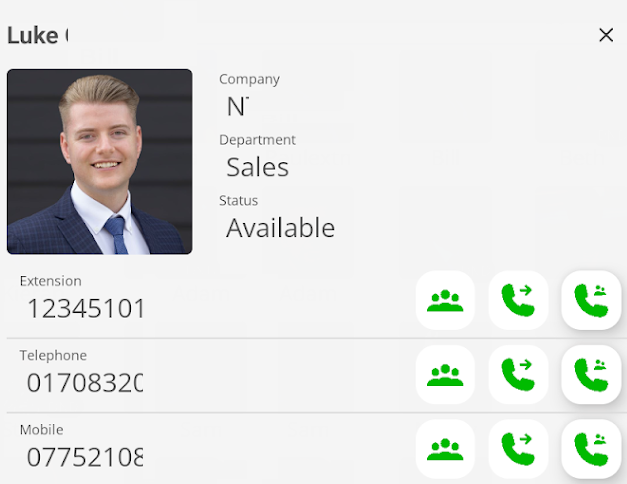
From within the presence tab and the person you have selected to transfer to, you can choose to transfer to their internal extension number, Telephone or even their mobile by selecting the
You can even choose to create a conference from here, too. |
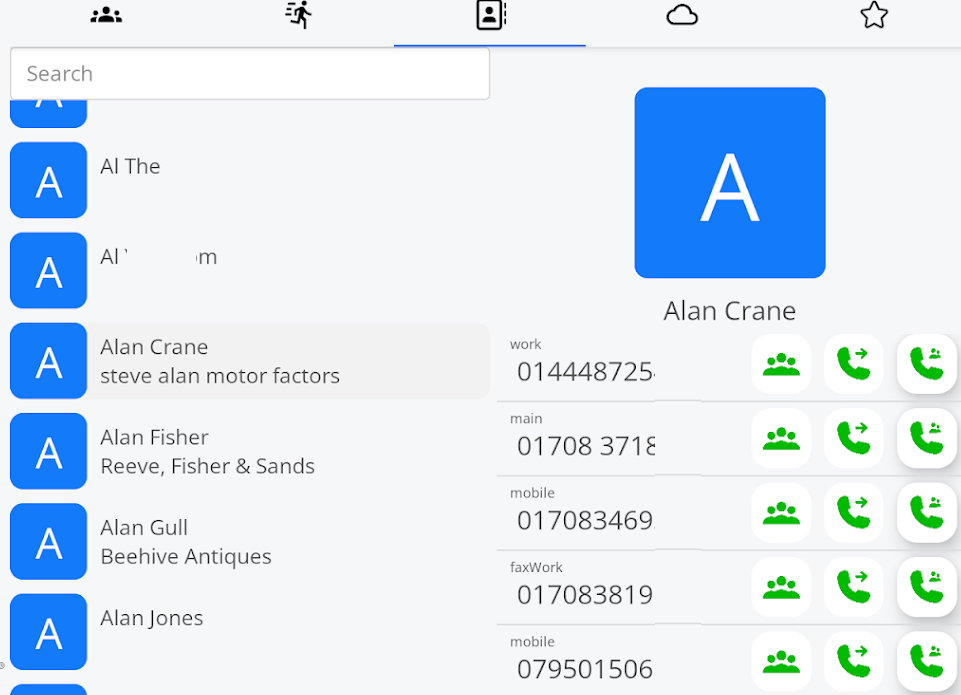
| Transfer from any number within the local phonebook contacts. |
|
|
|
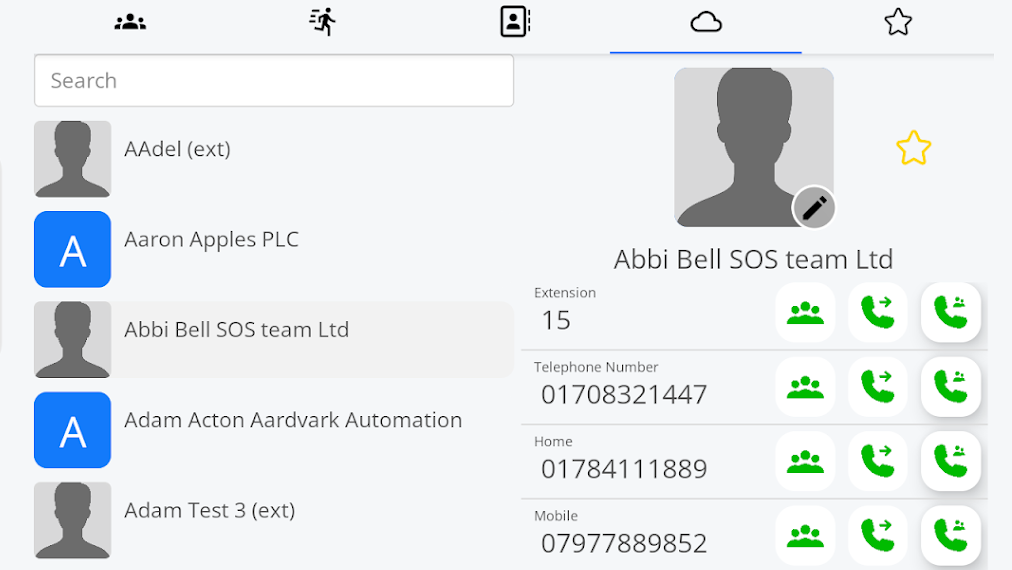
Transfer from any number within the cloud phonebook contacts. |
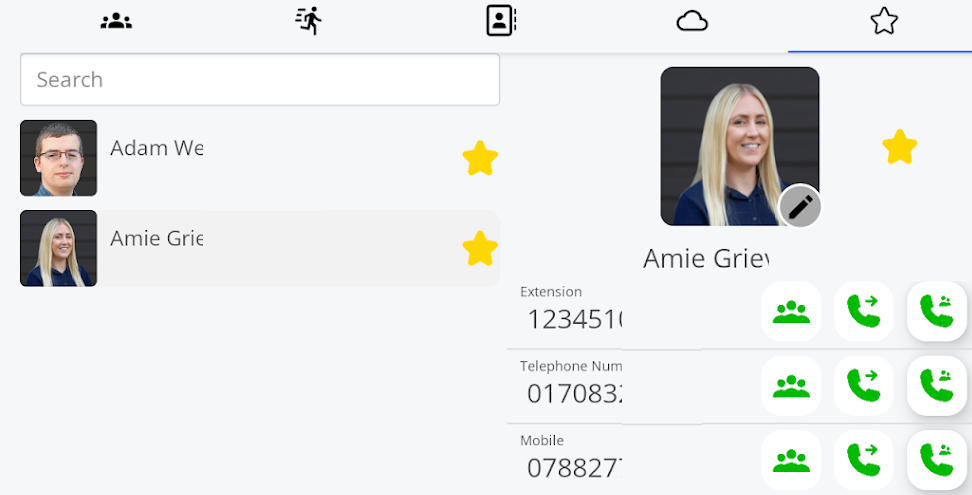
| Transfer from any number within your favourites tab. |
|
 |
You can also dial it using the keypad. |
| You now have two choices for transferring the call to the third party: blind transfer or attended transfer. |
|
|
|
To perform a blind transfer, once the number you want to pass the call to is in the dial pad window. You can press the blind transfer key. This will push the caller to the 3rd party without any contact with the 3rd party. The 3rd party will receive the call directly from the 1st party. You have no more control over the call. |
|
The attended transfer method is a polite and more interactive way of transferring a call. |
|
|
|
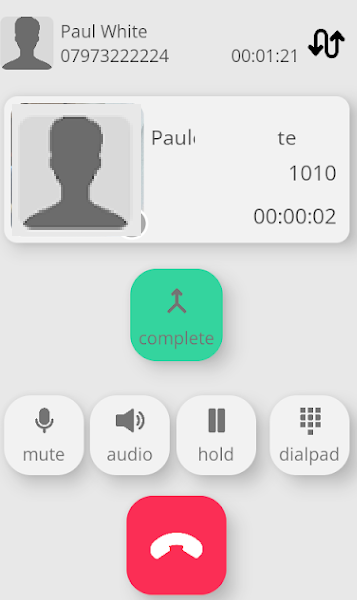
Once you have the third party's number in the dial pad window, press the 'Attended' transfer key. This will put the first-party caller on hold and ring the third party you wish to transfer the call to. |
|
This option allows you to speak to the 3rd party and ask whether they want to receive the call. If they wish to take the call, press the green complete button to pass it to the 3rd party. |
|
|
|
You can shuttle between the two calls by pressing the swap button.
You can then disconnect from either party if a call transfer is not required.
|