Presence tab

The Presence tab is the home page of the MobeX Touch. It provides lots of information about coworkers' current status. This helps with understanding if members of your team are busy on a phone or video call, available or unavailable or in DND (do not disturb mode)
|
|
You can see Simon is on a call. And Freddy is on a telephone call in the above full-screen picture. |
| This is the video icon if someone is on a video call. |
|
|
|
If there aren't any icons in the bottom right-hand side of the team member, this indicates that they are available and not in any function or call. |
| The X in the Red icon indicates this person is not available. |
|
 |
The DND icon indicates that Beth has set her telephone extension to Do Not Disturb (DND). This means that if anyone tries to call, they will go straight to the no-answer option, which would typically be voicemail or divert. |
|
If a picture is greyed out or halftoned, it indicates that the person is offline. You can still leave a message for them.
Please note that if a VoIP handset is registered and in dual use with the MobeX software, the avatar will not charge and will remain in full colour at all times. |
|
|
|
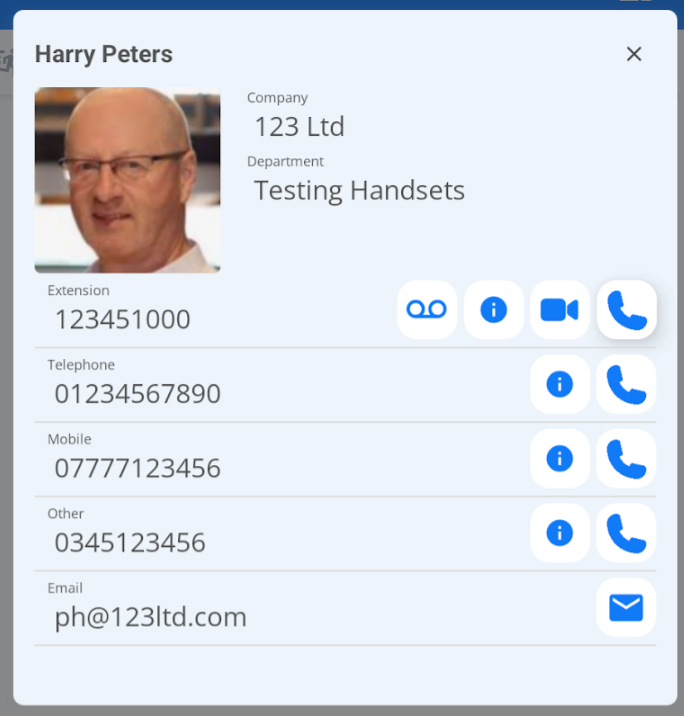
Clicking on any team member will display additional information about your colleague. If they are available, you can call one of their numbers by pressing the telephone button
You could send an email by clicking the email
Start a video call by pressing the video call key
Send a call directly to voicemail using the voicemail key
See the call history information by selecting the info button
|
|
You can swipe right to open the speed dial screen. |
|