First Time use set up process
|
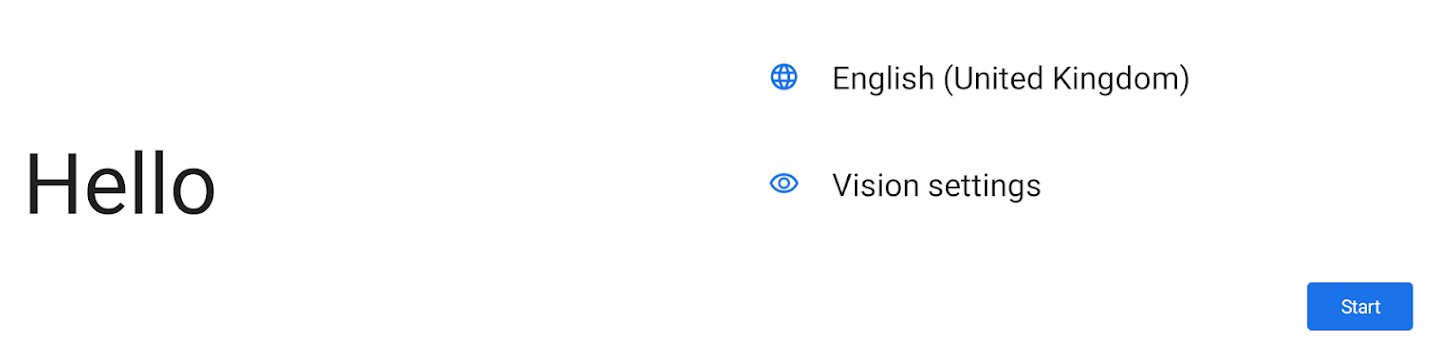
As this is an Android device, you will need to complete a first-time setup process.
Follow each of the screens to get the most out of your tablet.
Built for the UK market, however, if you wish to change language, you can do so here. |
|
|
|
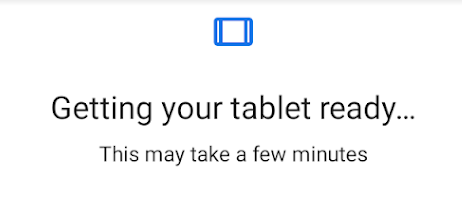
The tablet may take a few minutes to set itself up at each stage. |
|
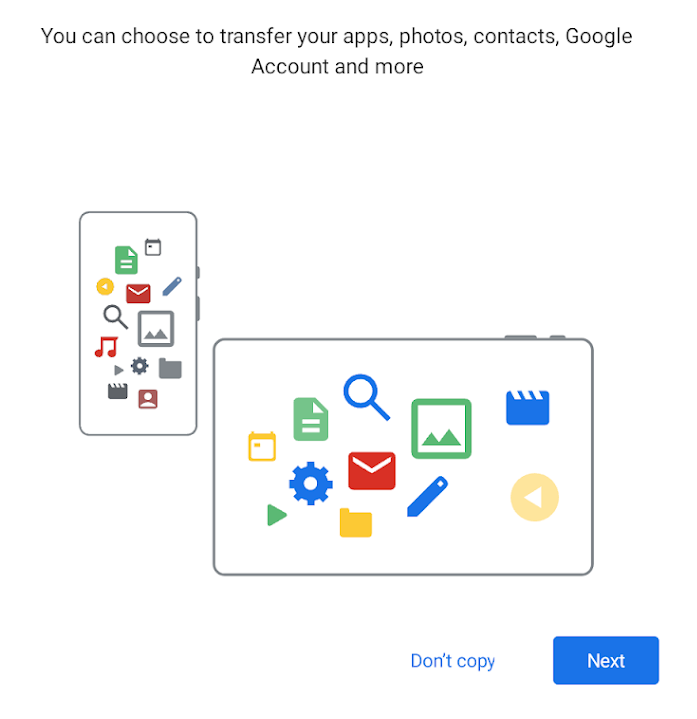
Due to the capacity of the memory. We DO NOT recommend that you copy from your Google account. Contacts will be automatically added to your MobeX app during the registration process for your MobeX account.
If you find that your tablet is running slowly, it's possible that you've exceeded its memory capacity. Please reset the tablet and start a fresh installation.
Again, we highly recommend that you do not copy any apps, photos, contacts or Google account information over. The tablet will have access from the cloud instead. |
|
|
|
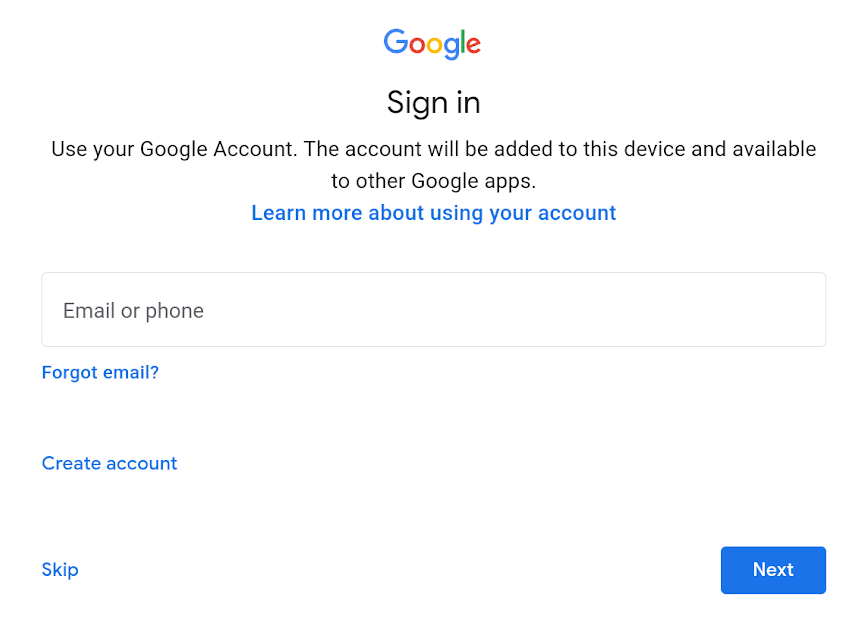
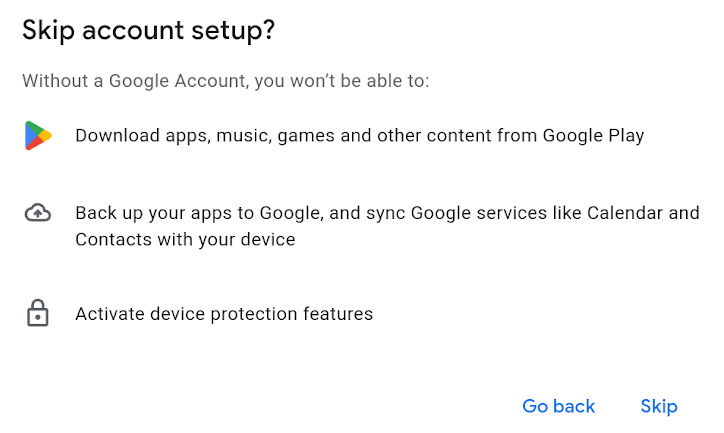
Sign in with your Google account or you can press Skip if you don't have one.
If you do decide to log in with your Google account, it will also give MobeX access to your Google contacts.
Please enter your email or mobile number. |
|
Don't worry if you skip your Google account. You do not require this to run the MobeX application.
Contacts can still be added to the central Cloud Phonebook service.
|
|
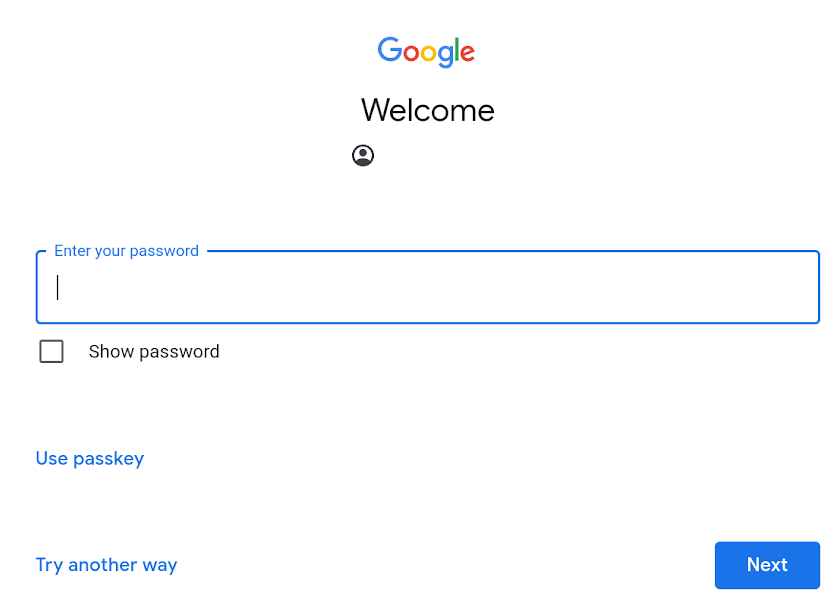 |
Don't forget your password, too. |
|
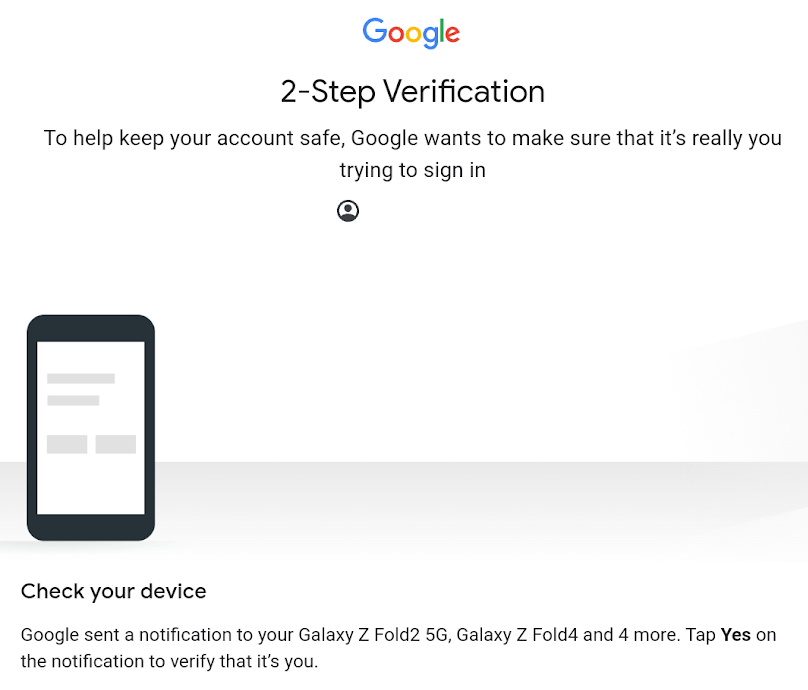
You will now need to validate the new login.
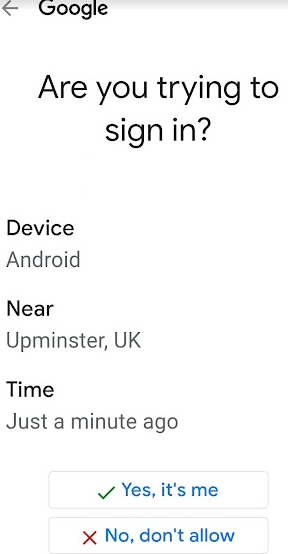
You get notified via another device. |
|
|
|
Select Yes, it's me on the other device. |
|
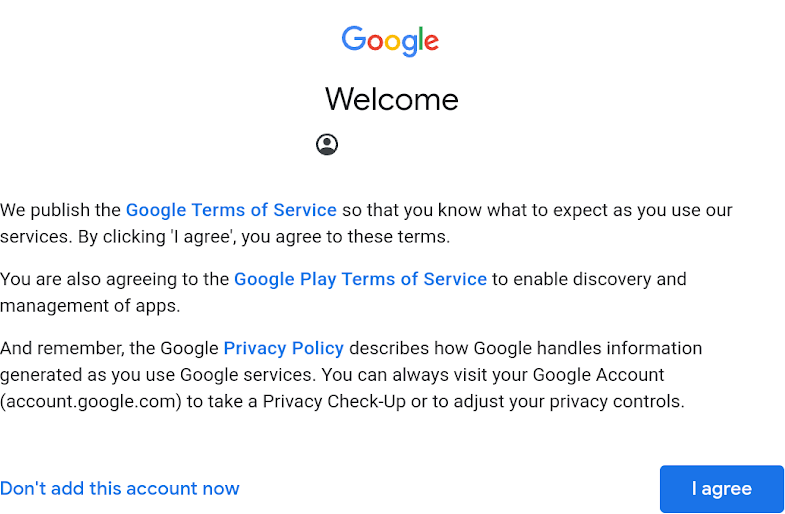
Click the Agree button. |
|
|
|
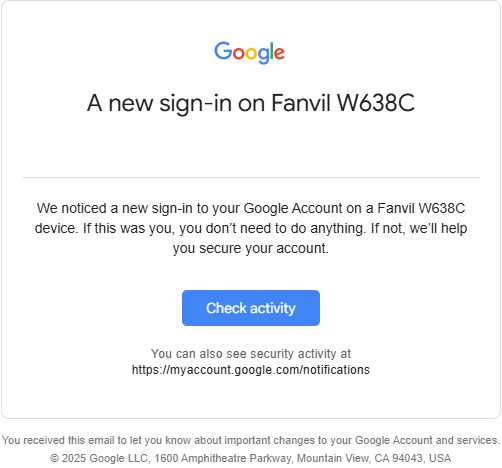
You will receive a Google alert email warning that you have signed in on another device. Our hardware partner is Fanvil, and the expected hardware sign-in device is the model number W638 or W638C. |
|
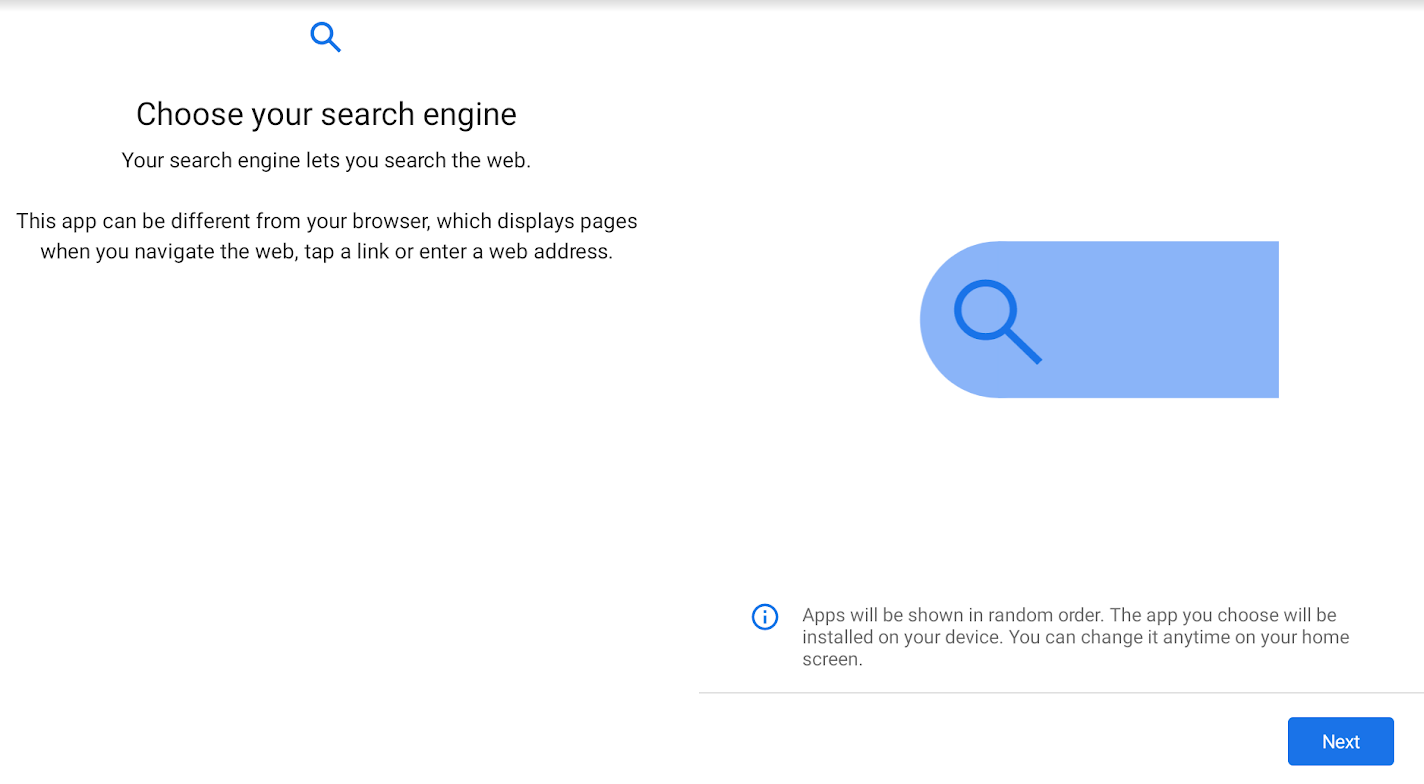
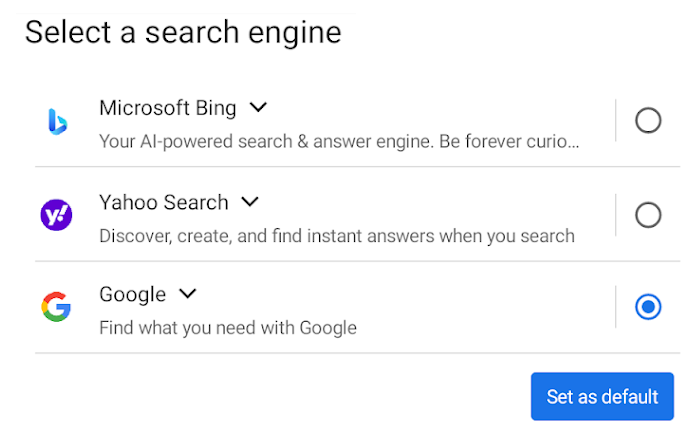
Then choose your search Engine. |
|
|
|
You can add any other one you like by visiting your Chrome browser and changing the search engine there. |
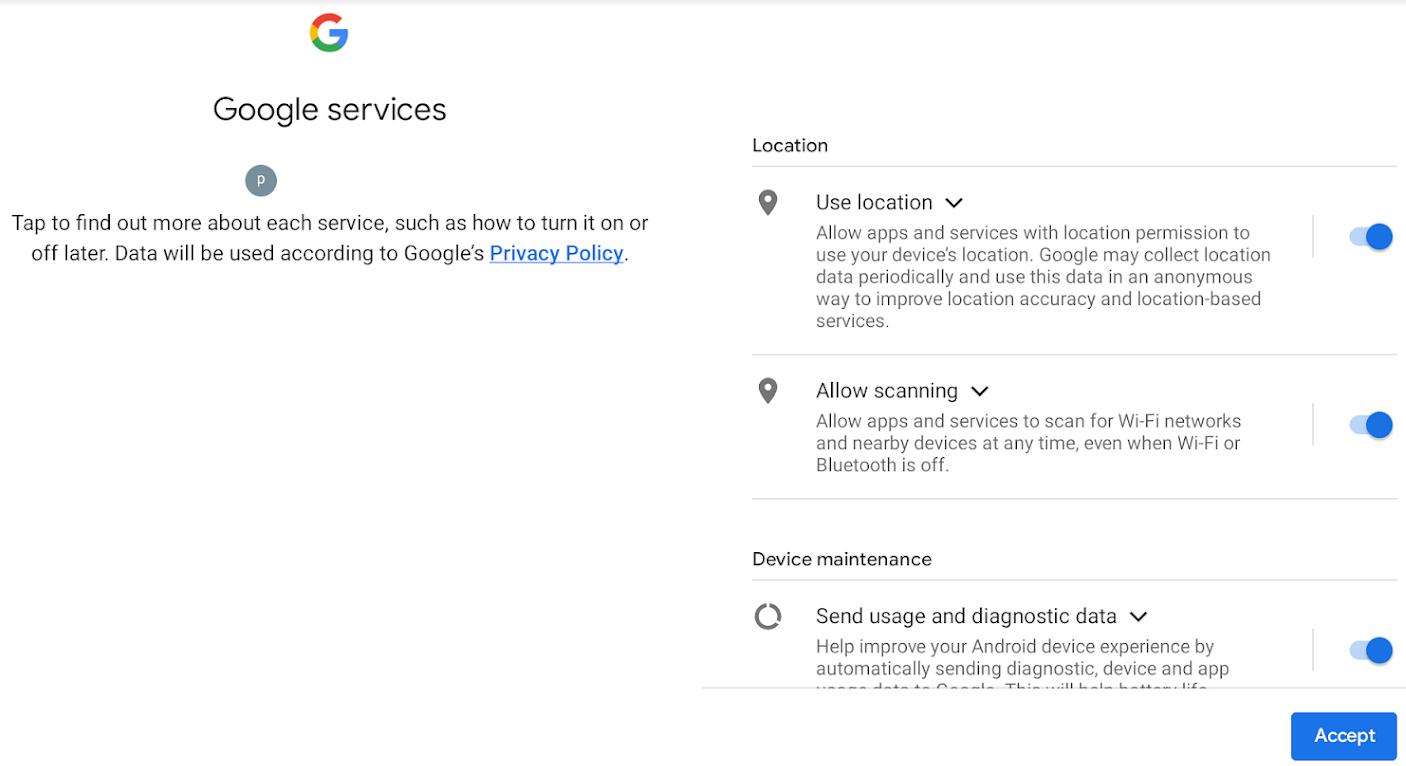
| Please accept permissions. |
|
|
|
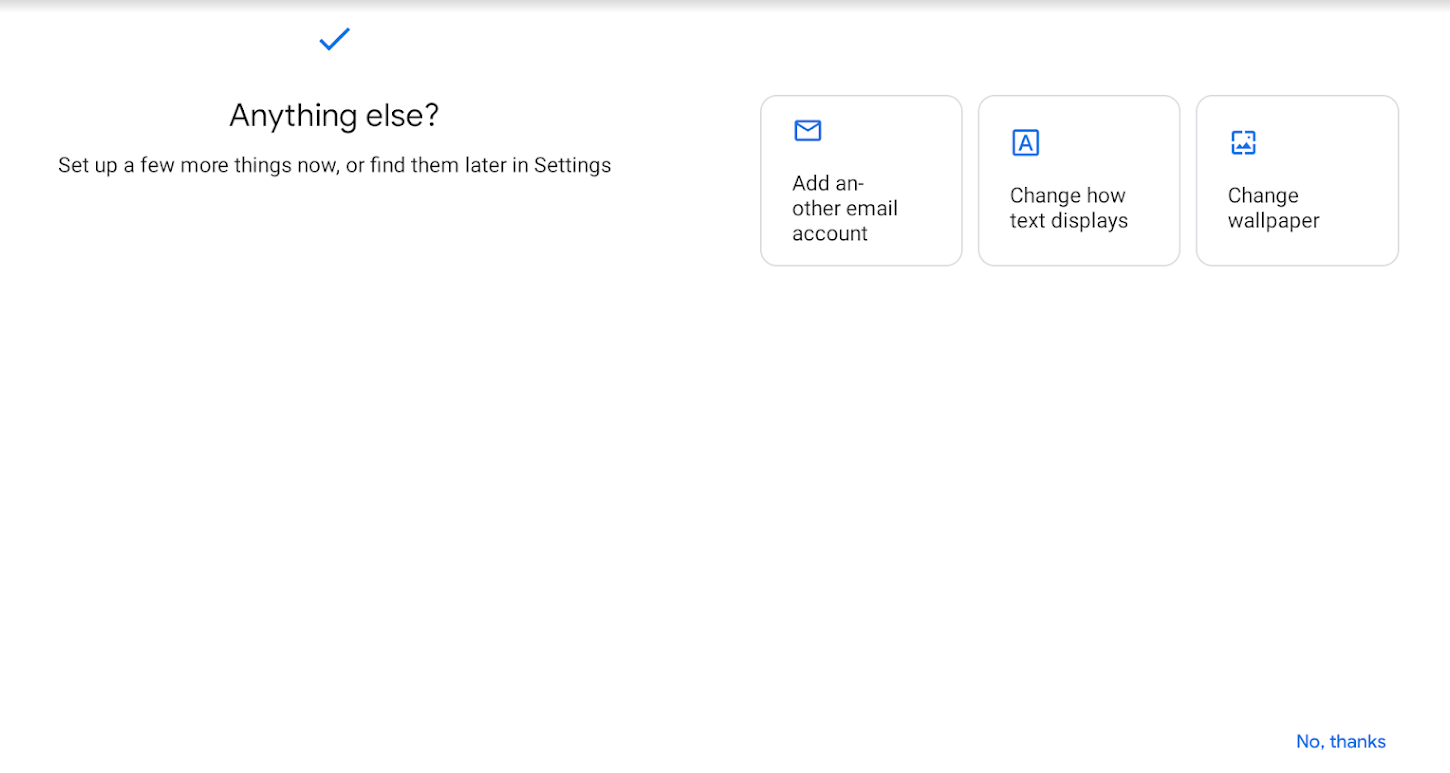
You may make changes here or select 'No thanks' at the bottom. |