Connecting your MobeX account to the device
After completing your Google account details, you will also need to enter your MobeX login credentials.
Logging in
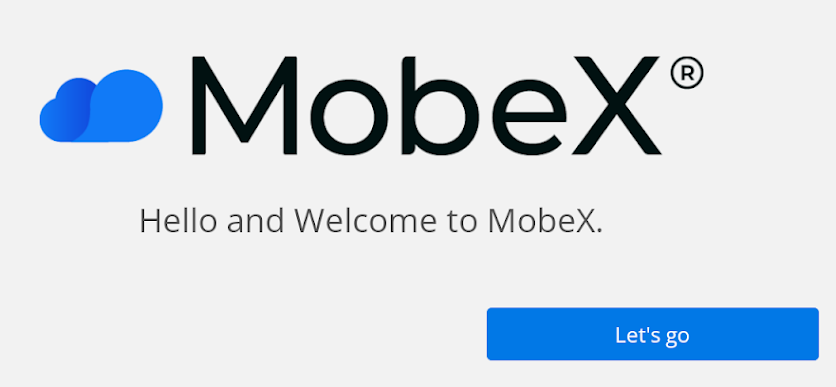
| Click on the Let's go to begin the log in process |
|
|
|
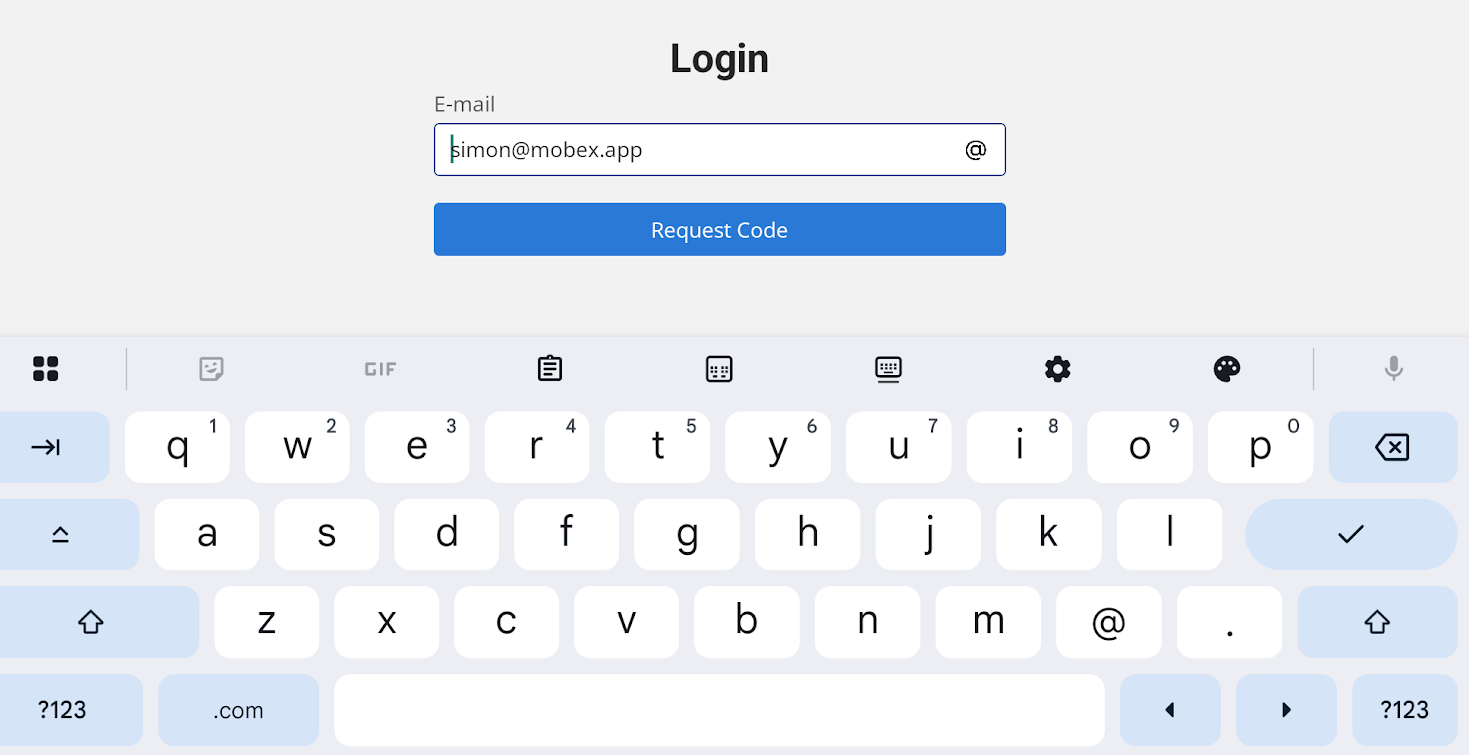
Enter your email address. |
|
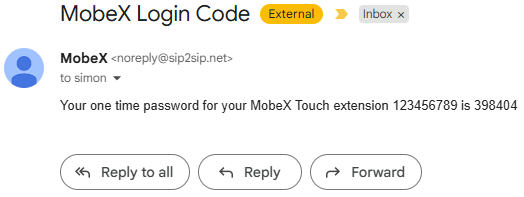
Check your email system to see if you have received the login one-time password (OTP).
If you don't see it immediately, be sure to check your spam folder. It may be worth adding the email address to your contacts so you don't have any issues with future notifications, such as voicemail. |
|
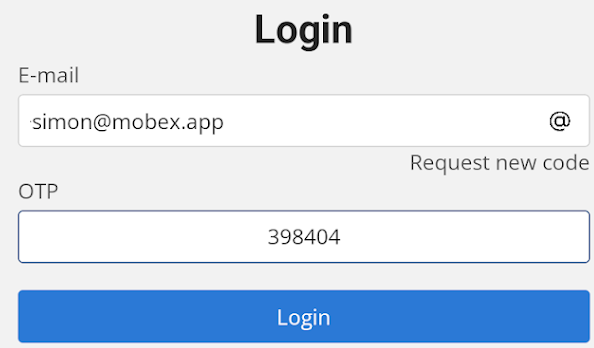 |
Enter the OTP from your email. |
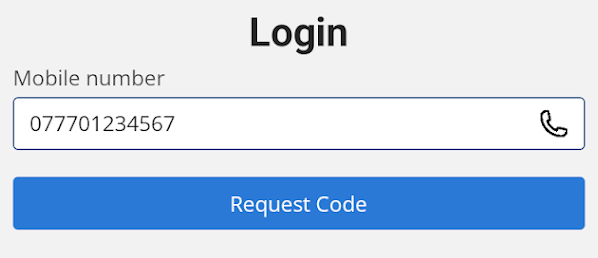
| Alternatively, you can press the @ sign on the right-hand side and switch to a screen that allows you to enter a mobile number instead. |
|
|
|
Press the request code button. |
|
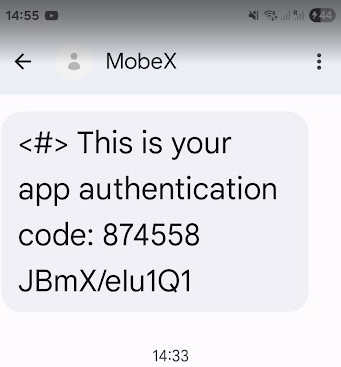
You will receive an SMS with the OTP code. |
|
|
|
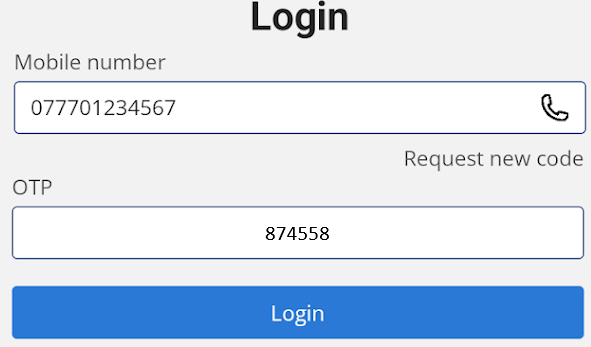
Press Login.
|
|
|
If you wish to return to the email screen, press it again to switch you back to the email address entry. |
| If you were logged in to another MobeX Touch and you decide to log in to a different Touch. The other device will receive this message. |
|