Home Page
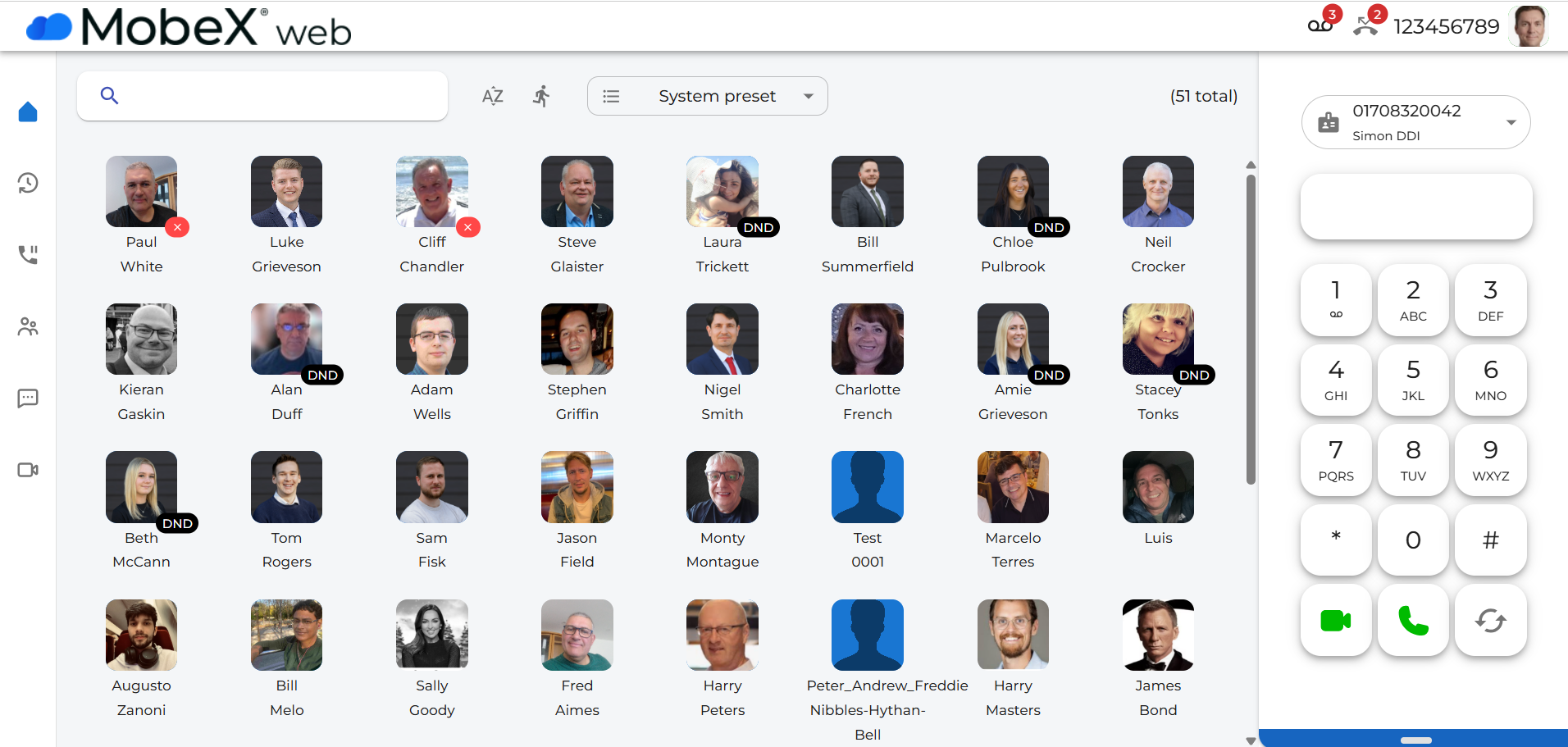
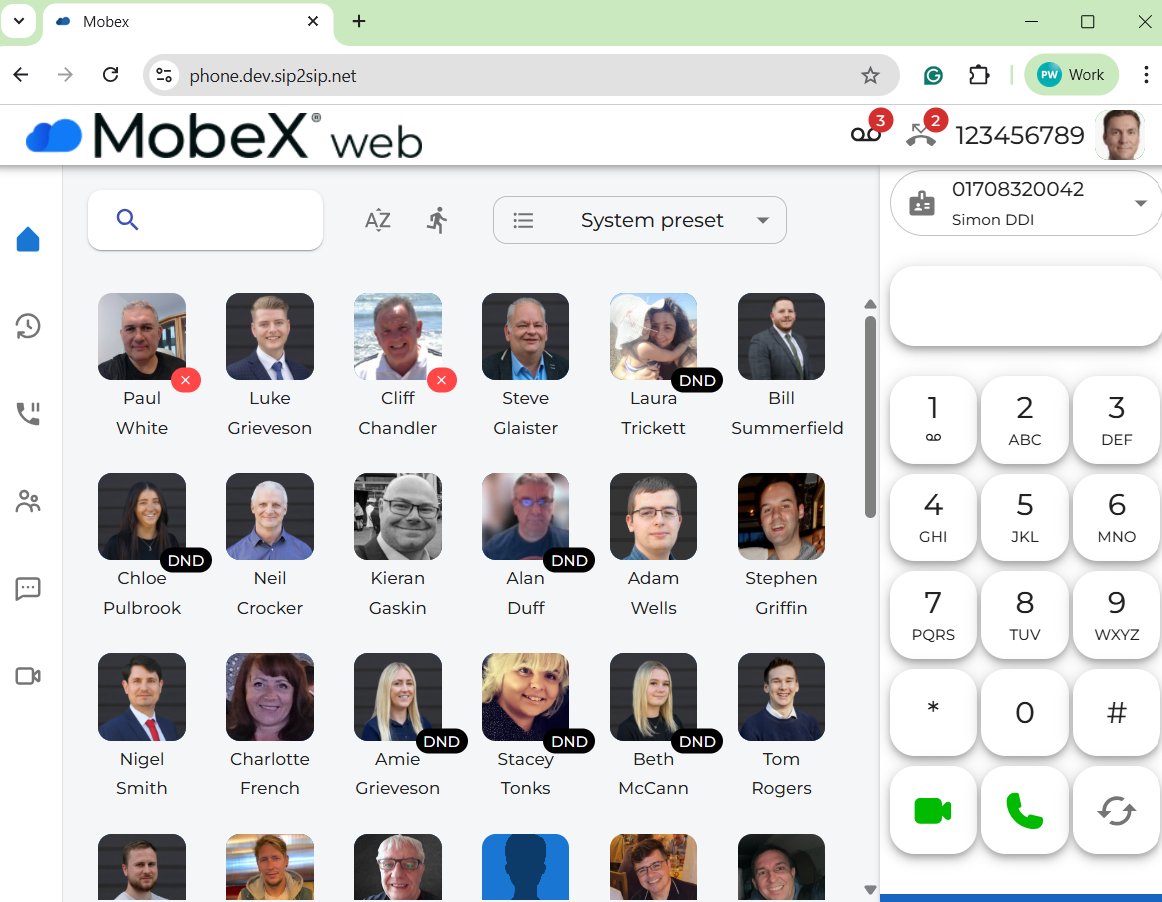
| The Home page gives a visual indication of your work colleagues. It allows you to see the availability of all other users on the system. Laura is in Do Not Disturb, and Paul is unavailable. |
|
|
|
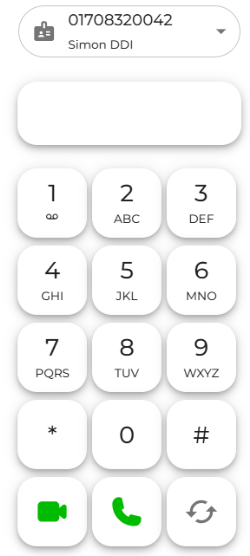
On the right-hand side is a dial pad for manually entering numbers to make a call or an answer key to receive a call. |
|
On the left-hand side, there is a menu to navigate around the rest of the system.
This is a handy way to switch between services you may want to use throughout the day.
|
|
|
|
There is an easy search option on the top left. Just enter the name of the person you are looking to contact. |
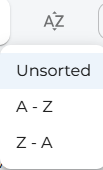
| You can sort the presence icons you can see into an A to Z order, a Z to A order or the default that has been set up for you on the telephony portal and leave in the unsorted state. |
|
|
|
There is a quick button key to switch to show just your speed dial options. |
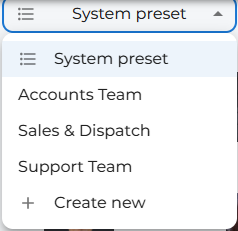
| The System Preset option lets you create different groups of people, like a Sales or Accounts group. |
|
|
In the top-right corner of the screen, you will see icons appear as and when you need to be notified of the current system/extension status. You may not see them all at once, depending on your current status.
|
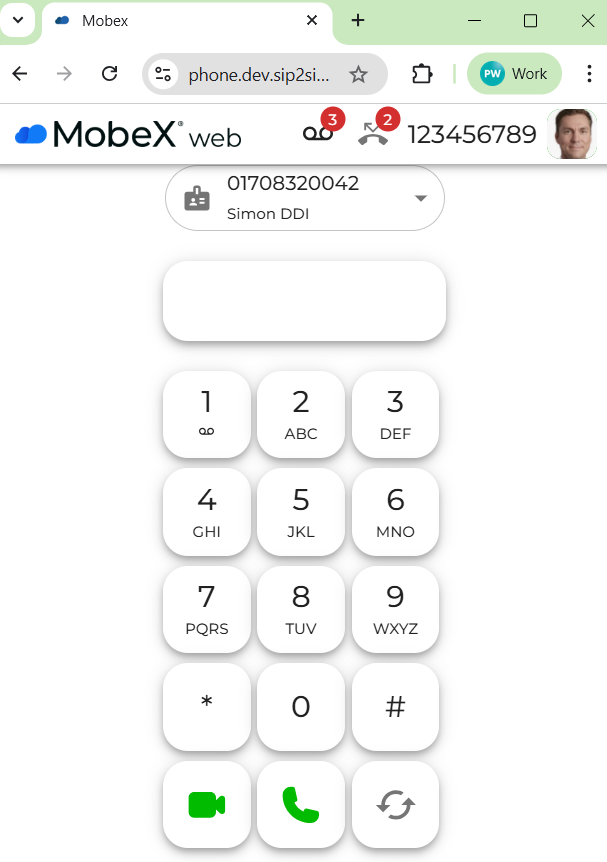
| You can also reduce the home page to a smaller tab. As the page size decreases, fewer avatars will be shown depending on available space. |
|
|
|
If you shrink it further, only the keypad, answer keys, and number entry box will be visible. |
|
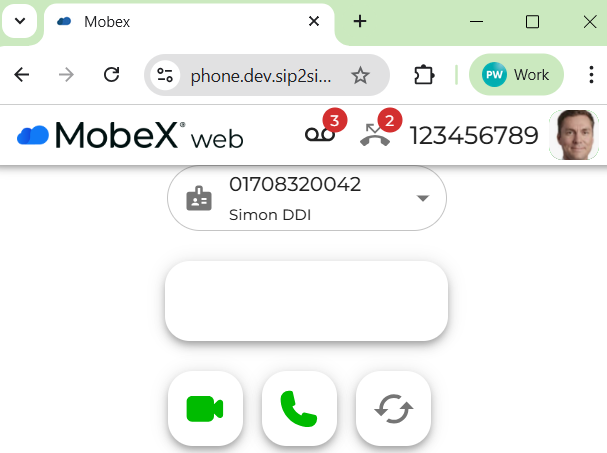
And finally, reducing it to its smallest size will hide the keypad, leaving only the number-entry box and answer keys. |
|