
Extensions - Advanced Settings
Extensions or Telephone Accounts are a key part of the hosted telephone network. This section allows you to set up new telephone extensions or SIP trunks for those who still wish to use legacy telephone systems.
Go to Features - Extensions within a customer's account. Here, you will find any telephone extensions that have already been set up or telephones that were set up via the Add wizard in the very first section of this user guide.

To add an extra Telephone Extension, click ‘New’ in the bottom right-hand corner. Once you have done this, you will be presented with this screen.
If you want a quick start, there isn’t any need to change anything on this page. However, you could look at what each option offers for an advanced setup.
|
|
Account Settings Telephone Number and Username |
| This can all be left as default. However, it is recommended that you populate the Emergency location callerid. |
|
|
|
We recommend using the system-generated password for the Extension. When using the auto-provisioning, it will populate all the details for you.
Don't forget to click save. |


Below is a full, detailed explanation of all the settings within an Extension

Status:
This will allow you to see instantly if the extension is registered and the last call the telephone has made or received. It can also provide helpful information about the handset registration.
 |
|
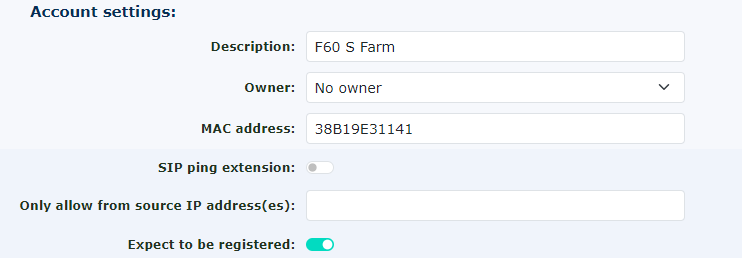
Account Settings
|
|
Extension Settings
|
Rate Plan for Outbound Calls If the Extension is part of a call record bundle, it will show here. To add it to the call record bundle, visit the call rec bundles and add it there. |
|
Available in Hunt Groups |
Send Called Number as Request URI Mailbox for Message Waiting Light and Automatic Voicemail Access |
|
CRM Settings This option will only appear if enabled under the customer settings here. If you wish to use our Bubble screening popping and CRM integration services. Once you switch the CRM integration to yes, click save. You can return to the Extension to see the CRM access key. Please perform this for each extension requiring CRM integration and follow the instructions in the Bubble manual
|


 User Settings
Dial Plan
The same customer account can have various telephones in different countries. This setting can help the phone in another country use the dial plan the customer would use in that country.
Do Not Disturb
Changing from ‘Accept calls’ to ‘Refuse calls’ will send all calls to the voicemail box.
Calls Without Caller ID
Changing from ‘Accept calls’ to ‘Refuse calls’ will send all calls with a withheld number to the voicemail box.
Screen Calls
If this is changed to ‘Yes play Caller ID’, it will play ringing to the caller, and when you answer the phone, it will tell you the Caller ID. You can also ask the caller to record their name, and it will play their name for you, too. This is whilst the caller is listening to the ringing. If you then want to accept the call, press 1. Our recommendation is to leave this set to ‘No’ or Unchanged (default to no)
Ringing For
This is an important setting. It controls how long the telephone rings before going to Voicemail. We have set the default to 20 seconds, but you can choose from 5 seconds to 1 hour.
Password
This is another critical setting. We recommend leaving this as the randomly selected password we have given you. Please do not make all the passwords for all the telephone extensions the same. This will make it very easy if your customer gets hacked and one of the passwords is compromised. Keep it as long as suggested. You don’t need to remember this; it will be auto-provisioned if you use our provisioning system.
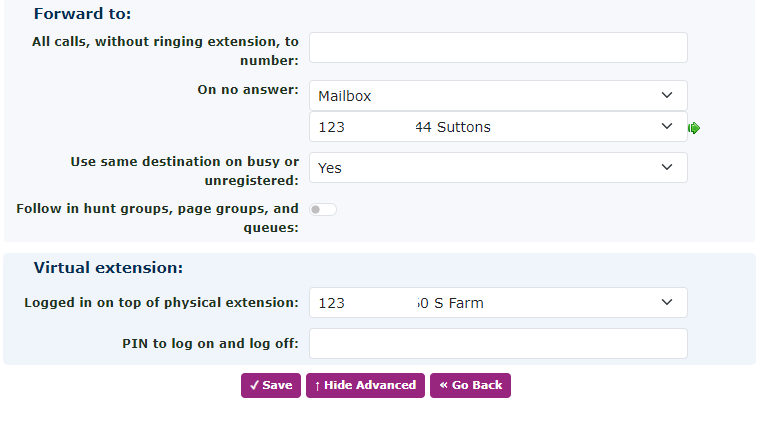
Forward To
All Calls Without Ringing the Telephone to the Number
This will create a simple network divert to all calls on this telephone extension. You could put your external number or another telephone extension number in it.
On No Answer
If the telephone extension isn’t answered after the predetermined time above under the ‘Ring for’ settings, the call will go to this destination. Typically, this would be set to the Mailbox extension, but you could choose anything from the dropdown menu.
Use the Same Destination on Busy or Unregistered
If this is set to ‘Yes,’ it uses the above ‘on no answer’ setting. If you choose ‘No,’ it will display more menu options. Two options will appear: ‘on busy’ and ‘unregistered.’
On Busy
If the telephone is in use and you don’t have a call waiting, switch on the extension. Then, if the user is already on a call and a second call comes into the telephone, it will go to whatever is set here. Again, it would usually go to the mailbox and play the busy message rather than the unavailable one.
Virtual Telephone
Logged in on Top of Physical Telephone
This is the current status of the physical phone. The telephone extension is logged in on top of it. Most of the time it would be the same as the telephone Extension, however, if a telephone Extension is using hot desking then this could have a different number. This allows telephone Extensions to utilise other physical handsets around the office or home. It enables all features to move to the particular physical handset. In the case of a branded hosted handset, the display will show this telephone Extension number and busy lamp keys.
PIN to Log on and Log off
This is used to allow hot desking (virtual login). You must set a Feature Code to enable the users to log in and out. This code ensures that they are the only ones who can do it. You can log someone out via this web interface by changing the telephone Extension above.
Other Options for this Telephone Line:
Call History
It will take you to the call history report, which you can pre-set with the details of this telephone extension. See the Call History reporting section for more information on running a report.
Hunt Groups
You can change the Hunt Groups to which this telephone extension belongs.
Make Copy
Create a new telephone extension with some of the settings from this telephone.
Missed Calls
It also allows you to search for missed calls. It will show calls you never answered in a Hunt Group that someone else may have.
Notes
Sort notes about telephones. This is a great place to put old handset MAC addresses if you are changing handsets for a customer.
Queues
Edit the Queues this telephone belongs to and select whether you want the handset to be available.
Registration History
You can see a more detailed view of the handset registration history. This is an ideal place to see if the handset is registering regularly. It is also helpful to see if a customer's firewall is blocking the registrations.
Speed Dials
It works the same as the system speed dials, but this is just for this single handset, allowing you to create personal speed dial numbers.
Web Notify
Used to inform a URL that this telephone has received a call.
Provisioning Settings
Similar to the default provisioning settings under Features Advanced for this customer. You can make changes to this particular telephone extension. This is great if you want a different set of BLF keys for this handset.