UC Settings page
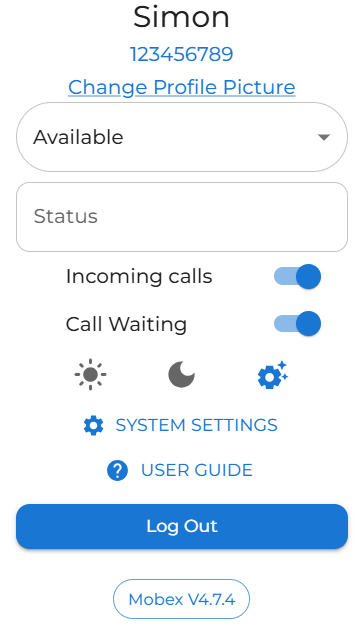
| To personalise and make adjustments to your MobeX UC in the application, click your profile picture (avatar). |
|
|
|
The quick change settings are on this screen.
To stop your MobeX UC app from ringing, switch off Incoming Calls.
To enable or disable call waiting, slide the call waiting switch.
Use the toggle for both settings; grey indicates off, and blue indicates on. Just click to switch.
You can also fix your screen mode between light and dark by selecting one of the options. You also use system dynamic mode, which adjusts the screen's brightness between dark and light as your PC adjusts.
To change the default settings, click the settings cog to display more options. See all the settings further down in this guide.
|
|
Clicking the User Guide button opens the most up-to-date version of this manual, including setup instructions and feature guides. |
|
|
|
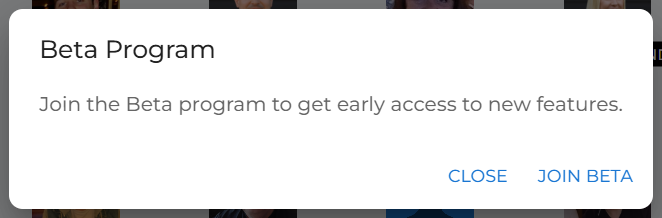
Clicking the MobeX Version button gives you the option to join the MobeX Beta Program. This will give you access new features before they are released to the full production system.
|
|
|
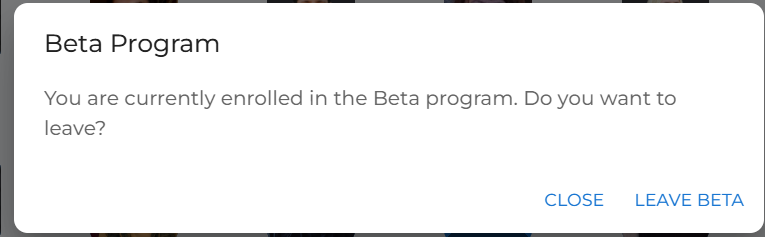
You can leave the beta program by clicking on the MobeX version button and pressing the 'Leave Beta' option.You can leave the beta program at any time by clicking the MobeX Version button and selecting Leave Beta. |
|
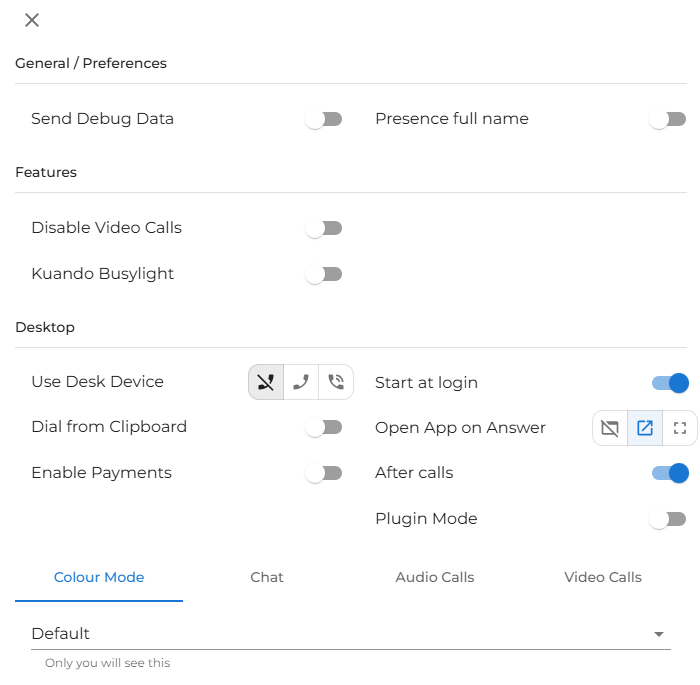
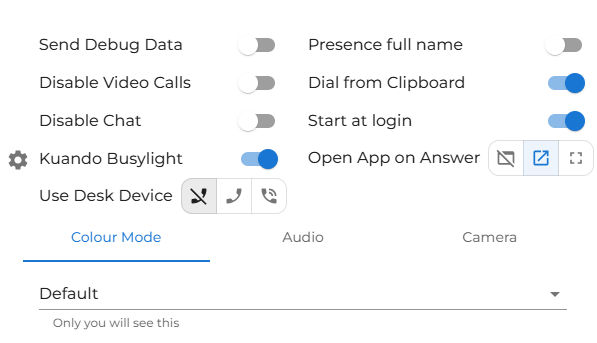
On the system settings page, you can select various options to enhance your user experience. |
|
|
|
|
|
General / Preferences
|
|
|
|
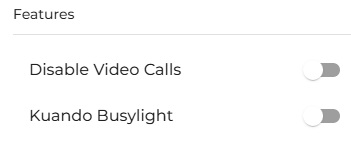
Features
|
|
Desktop
|
|
|
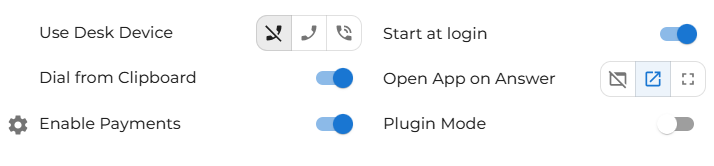
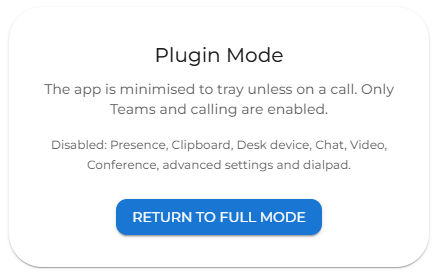
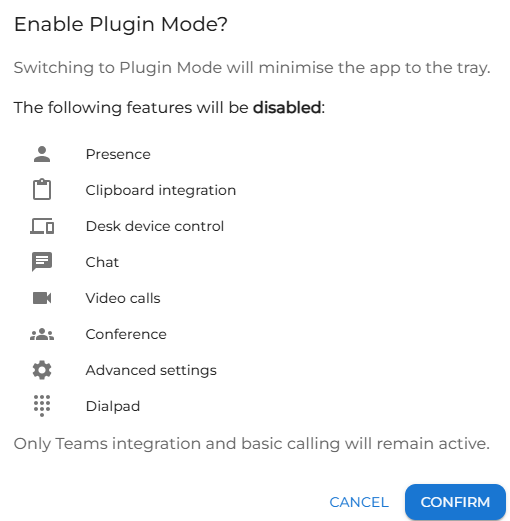
Plugin Mode
When enabling plugin mode, this minimises the functionality of the MobeX UC to a simple dial pad option for Microsoft Teams. It will disable all the features listed in the pop-up window.
You can reneable the full MobeX UC client at any time by clicking on the return to full mode.
|
|
|
|
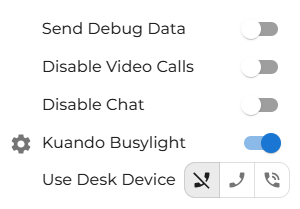
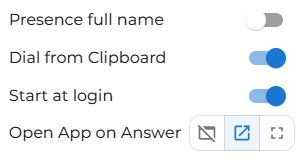
You can set up the features that work best for you here. |
|
|
|
|
|
|
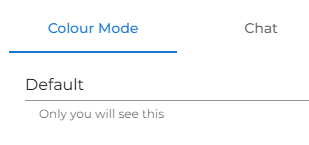
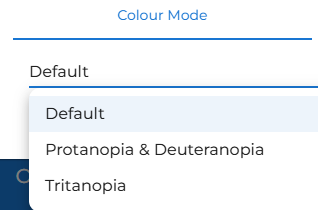
At the bottom of the settings page, you can make changes to the display colour mode (for colourblind people), Audio, and Camera settings. |
|
|
|
If you struggle with colours or are colorblind, you may find it helpful to choose one of our alternative colour modes. |
|
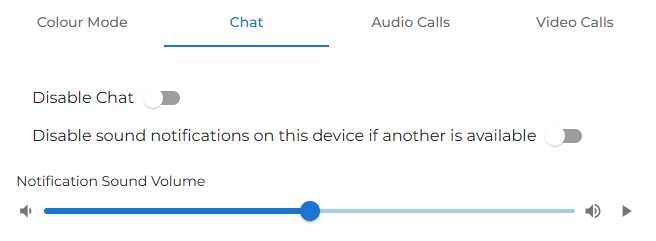
Under the Chat tab option, you can choose to:
Disable chat for this device. Other devices will still have chat. Disable sound notifications, or adjust the volume of the notifications you receive. |
|
|
|
Audio Calls
Under the Audio Calls tab, you can make the following adjustments. |
|
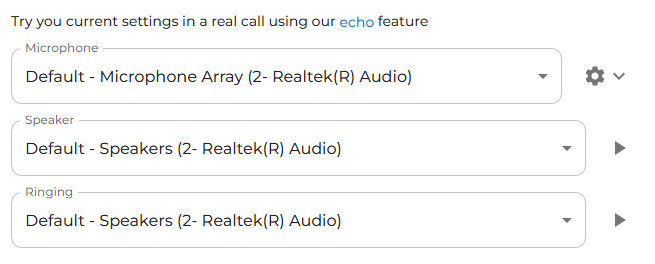
You can adjust your audio settings from this screen. There is also an option to test that your selected microphone and speakers are working correctly.
To start a test, click the Echo Test button above the current settings. This will place a call to the echo testing service, where you will first hear an announcement through your speakers and then be prompted to speak. The system will play your voice back to you, allowing you to confirm that both your microphone and speakers are working correctly. |
|
|
|
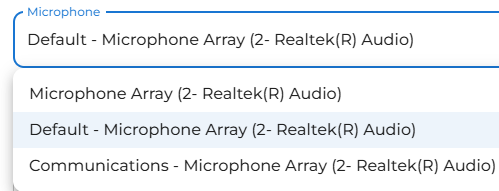
Microphone You can choose what device you would like to use as your microphone.
Please note that the default microphone will change if the PC uses other devices for microphone output as well. This may also change if the microphone is being used for other software apps. It is recommended to select a fixed microphone from the dropdown. |
|
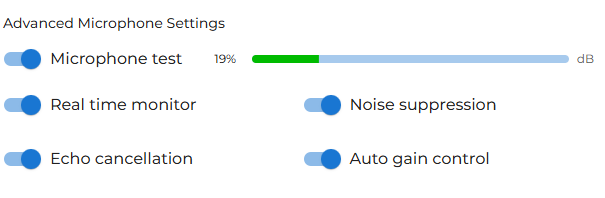
Microphone test You can toggle the switch to test the microphone. This is a great way to ensure you are using the correct microphone for the intended purpose. If you are using a headset, ensure you are using its microphone rather than the one on your PC. This is a common issue that arises when sound levels or quality are affected.
Real-time monitor By enabling this option, the system will check to see if it can still hear you.
Echo cancellation Digital echo cancellation could help reduce mic and speaker echo. |
Noise suppression Digital noise suppression can improve microphone quality in noisy environments.
Auto gain control Digital auto-gain control may help control the quality of the audio output. |
|
|
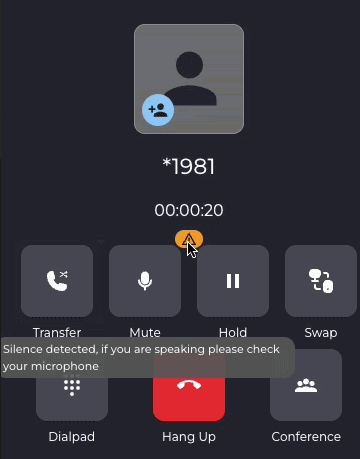
Real-time monitor By enabling this option, MobeX UC will check that your microphone is picking up audio during calls. If no sound is detected from your microphone, a warning icon and pop-up message will appear
|
|
Speaker Output
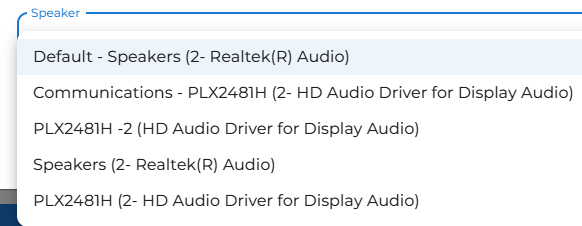
Choose which device you wish for the audio sound to use. Again, it is recommended to select a dedicated speaker rather than the default as this will change if any of the default settings are changed. This is particularly useful if you are using a headset.
|
|
|
|
Ringing
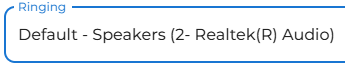
You can choose a different audio output for the ringing tone. This is particularly useful when using a headset, as it lets the ringing play through the PC speakers while the call audio is routed to the headset. |
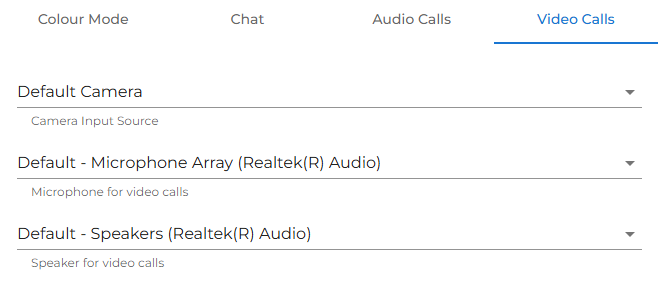
| Under the Video calls tab, you have the following options |
|
|
|
You can choose your camera for video calls. You can choose which microphone to use, which can be different to audio calls. And the same for speakers. You can choose your speakers for video calls, and again, these can be different to the speakers you have set for audio calls. |
|
|
You can log out by pressing the 'Log Out' button |