Message control
Forward a message
|
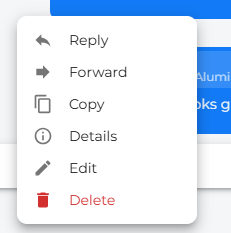
You can right-click on a message you have been sent to forward the message to another chat user |
|
|
|
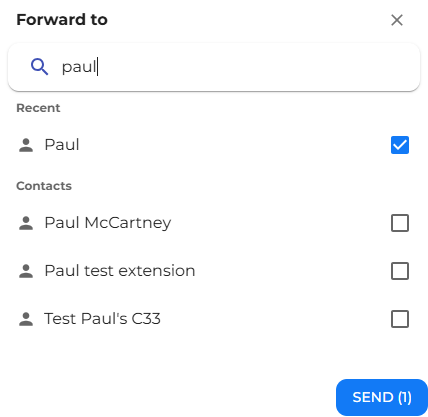
Search for or select the contact you wish to forward the message to, and then press the send button.
|
|
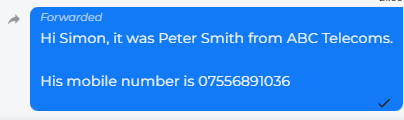
The contact you have forwarded the chat to will see the message with the word forwarded in the top left-hand side of the message. |
|
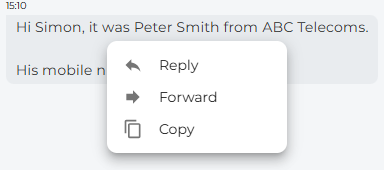

Copy a message
| You can right-click on a message you have been sent to copy the contents of the message. This will be copied to your PC's clipboard, allowing you to paste anywhere you would like. | 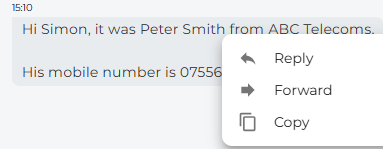 |
Reply to a particular message
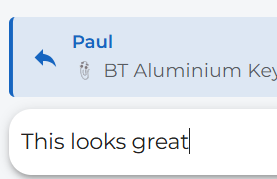
| You can also reply directly to a particular message |
|
|
|
The message you are replying to will appear at the top of the type message box. |
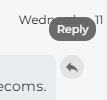
| You can also click on the reply arrow on the top right-hand side of the message to send a reply to that message |
|
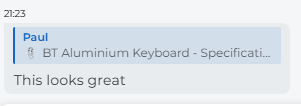 |
The contact that receives the message will see what message you are replying to. |
Editing a message
|
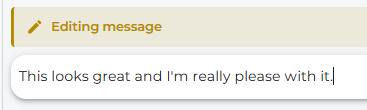
If you have recently sent a message and you wish to edit it. You can do this, provided it is within 15 minutes of the original message being sent.
|
|
|
|
Edit the message as you wish and press the tick to resend.
|

Deleting a message
|
You can delete any message you have sent by pressing the delete button.
|
 |
|
|
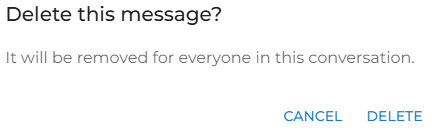
You will be notified that the message will be deleted for everyone.
|
|
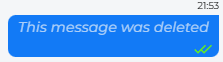
The message will be removed and replaced with the following
'This message was deleted' |
|
|
|
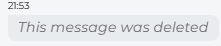
The person you sent the message to will see a similar message. |