
Add User - Using the Add Wizard
Add Wizard can be found under the features menu on the left-hand side.
Person
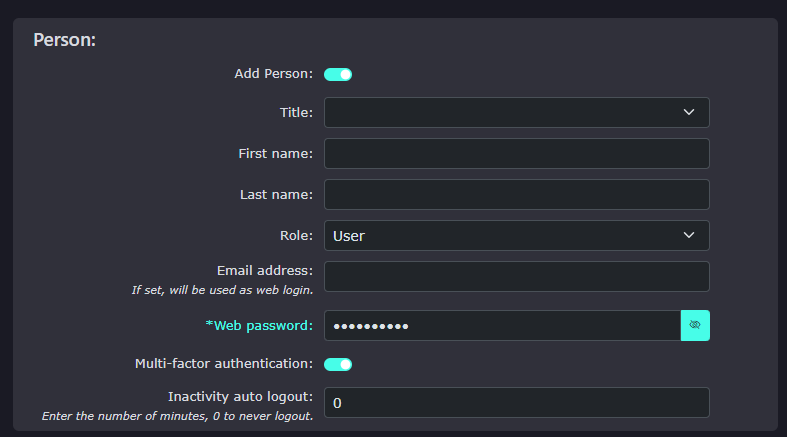
|
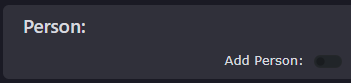
It is possible to use the add wizard to add just telephone extensions and mailboxes without associating a person with the extension.
However, adding a person's details to the extension enables better integration with the person you are setting up the extension and mailbox for.
|
|
|
|
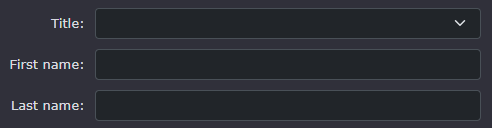
Add their title, first name and last name. This will also be used as the internal caller name to help identify a person calling extension to extension. |
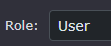
| Then add their role; most people will be added as just users. If they need more control over the portal, they can choose another role, such as Administrator or Manager. There are almost 40 roles to choose from. |
|
|
|
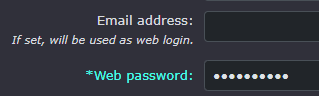
Add their email address and a password. The email address will be used for logging in to the portal and, more importantly, for receiving mailbox messages.
The password needs to be at least 10 characters long and must be entered. |
|
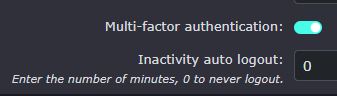
Switching on multi-factor authentication enables one-time passwords to be set to the email set in the user's details.
You can also set how long the portal will wait before logging a person out. You can also choose to never log out the person once they have logged in. |
|
Extension
|
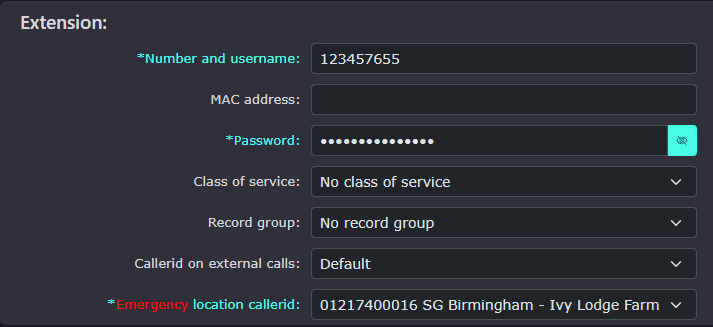
The extension's username will be auto-generated. It will choose the next avaiable number.
You can change the last 4 digits of the extension username, but the first 5 digits are fixed. This is the company prefix and is used to dial across the system if you wish to dial from one company to another. |
|
|
|
If you have a MAC code for the handset you wish to use for this extension, you can enter it here to enable auto-provisioning. |
| The extension's password will again be auto-generated and hidden from view. If you wish to make a note of the password, then click on the eye icon to show the password |
|
|
|
|



The Add Person option allows you to create a person (a user).

You can also add a telephone extension or mailbox and allocate a phone number to the extension, along with other services such as the MobeX+ mobile app. This feature is the first thing you will use after creating your customer and setting up the account. The ‘person’ will create a login for your customer to access the portal and name for the mailbox, telephone extension and Caller ID.
If you already have the MAC code of the handset you wish to use for this telephone account, you can also enter this here, depending on the features already enabled by the system. The Add Wizard will give you more options to complete. If you are setting up a MobeX+ mobile application for the user of this telephone account, you must enter the user's mobile phone number. Hence, they instantly get an SMS to enable the service on their mobile device.
Once you enter all necessary details and press ‘Add and repeat’, the portal will allocate the next available telephone extension, mailbox number, phone number, etc.
After doing this, you can go to Features - Extensions on the left and see the new extension to which the handset or softphone can connect.