
Add Wizard - Advanced
Add Wizard can be found under the features menu on the left-hand side.

The Add
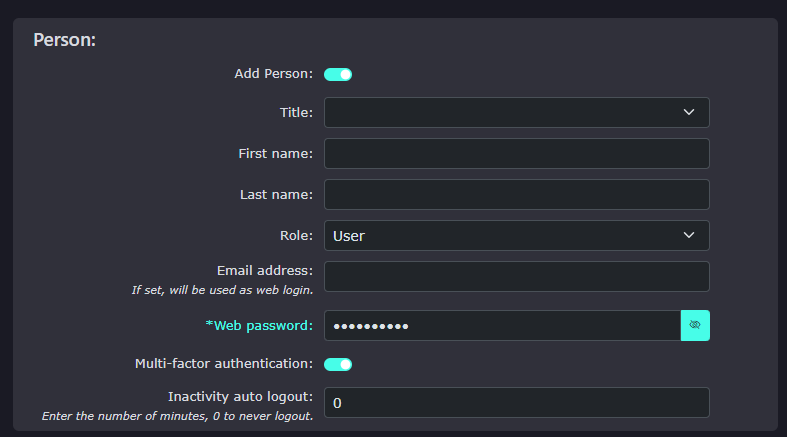
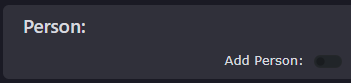
Person option allows you to create a person (a user).
|
It is possible to use the add wizard to add just telephone extensions and mailboxes without associating a person with the extension.
However, adding a person's details to the extension enables better integration with the person you are setting up the extension and mailbox for.
|
|
|
|
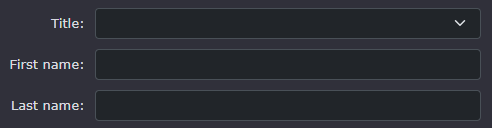
Add their title, first name and last name. This will also be used as the internal caller name to help identify a person calling extension to extension. |
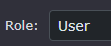
| Then add their role; most people will be added as just users. If they need more control over the portal, they can choose another role, such as Administrator or Manager. There are almost 40 roles to choose from. |
|
|
|
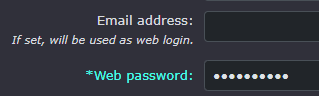
Add their email address and a password. The email address will be used to log in to the portal and, more importantly, to receive mailbox messages.
The password must be at least 10 characters long and entered. |
|
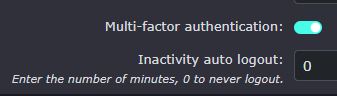
Switching on multi-factor authentication enables one-time passwords to be set to the email set in the user's details.
You can also |
|
Extension
|
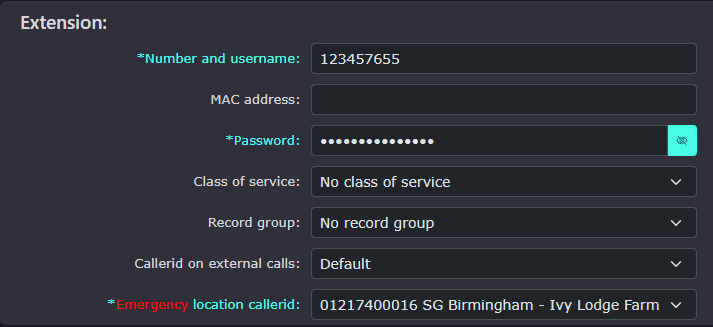
The extension's username will be auto-generated. It will choose the next avaiable number.
You can change the last 4 digits of the extension username, but the first 5 digits are fixed. This |
|
|
|
If you |
| The extension's password will again be auto-generated and hidden from view. If you wish to make a note of the password, then click on the |
|
|
|
Class of service controls call costs; by
You can change it if you have set another one, or remove it entirely. Do this with caution. |
| This option will |
|
|
|
Caller ID can be set here or left as the company default. This will probably be the main outbound caller line ID.
If you |
| Emergency location callerid needs to be set up |
|






Mailbox

| The mailbox number is normally allocated the same number as the extension number. It is possible to change it, but it is not recommended. |
|
|
|
The PIN is required when calling in from a remote location other than your handset. Your handset will auto-connect without a PIN when you |


MobeX App
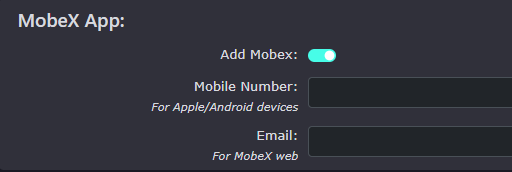
| By default, adding MobeX is switched off. Switch the toggle switch to enable the MobeX service. |
|
|
|
Add the user's mobile |
| Entering the email address will instantly activate an email to the user with instructions on |
|
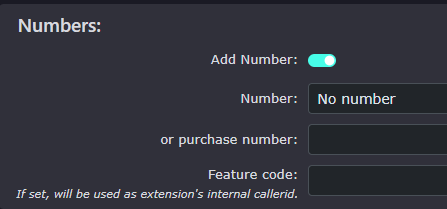
Numbers
|
By default, adding a number to the wizard is off. Toggle the switch to add numbers.
Note: If you haven't already purchased numbers. There may not be any for you to choose. The best way to add new numbers is via the numbers page under features, then numbers. |
|
|
|
You can enter |
| You
|
|


