Widget Wallboards
Widget Wallboards can be found under Reports - Widget Wallboards.
Here, you can build a customised wallboard to display a wholewide hostrange of information about calls happening on your systemsystem, nowboth orcurrent historically.and historical. These are great for call centres and call centre managers to see exactly what is going on with their day-to-day live call statistics. Managers can keep track ofanswered calls being answered, agentscalls, available to answer calls,agents, and their generaloverall performance.
|
Widget Wallboards can be found under Reports - Widget Wallboards. To create a new wallboard, click the right-hand button ‘NEW.’ |
 |
|
|
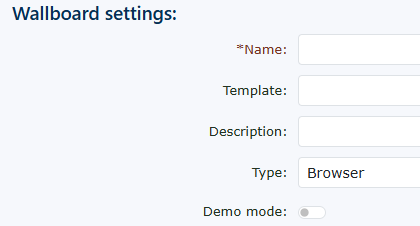
Wallboard Settings Name Description |
| Demo mode You can select ‘yes’ or ‘no’. If you select ‘yes’, you will not be charged for the wallboard, and the wallboard will use dummy data for each widget you have added. This is only to see if the wallboard |
|
|
|
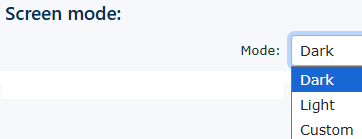
Screen mode
|
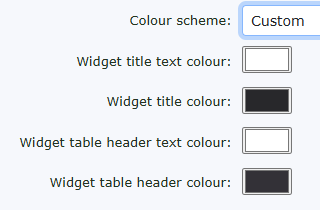
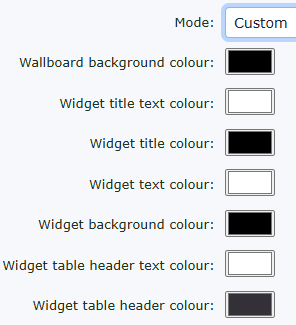
| Custom allows you to design your own background colour, widget title text colour, widget title banner colour, widget text/number colour and widget background colour, allowing complete customisation of the wallboard. |
|
|
|
Security
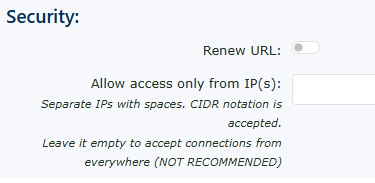
Renew URL Don’t forget to click |



|
|
Once you return to the wallboard you have built, you need to add widgets to display the information you want to see.
Click Add Widget on the right-hand side. |


New wallboard widget
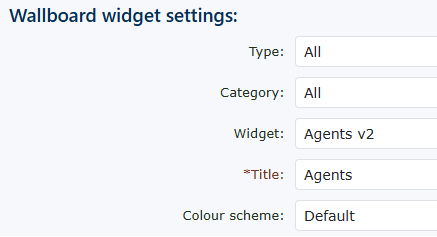
When you open a new wallboard widget, you are first presented with ALL typeswidget of widgets,types, and you can browse through them all.them.
|
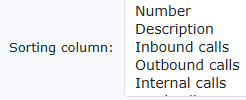
Type You can choose a different type or group of widgets. The widget choices are all: chart, image, list, Number, table, text, or time. Choosing one will reduce the choice to just the |
|
||||||||||||||||||||||||||||||||||
|
|
Category You can choose a category to |
||||||||||||||||||||||||||||||||||
|
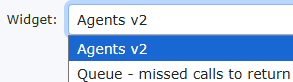
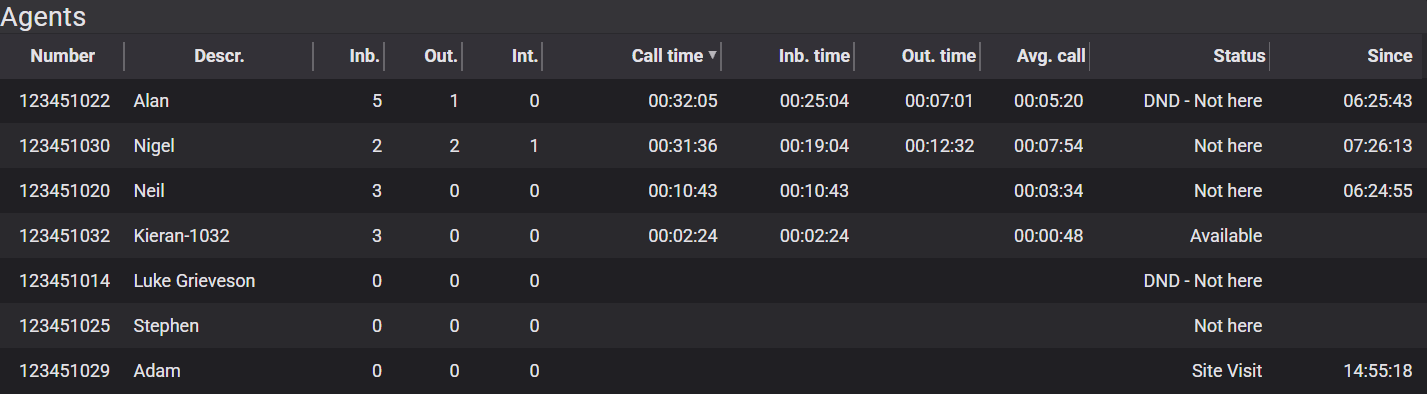
Widget All the widgets are available in the type or category you have chosen above. If you have left the type and category set to all, then you can see every widget available on the system. The choices you have are:
Some examples of these widgets are shown below.
More about widgets Depending on the type of widget you select,
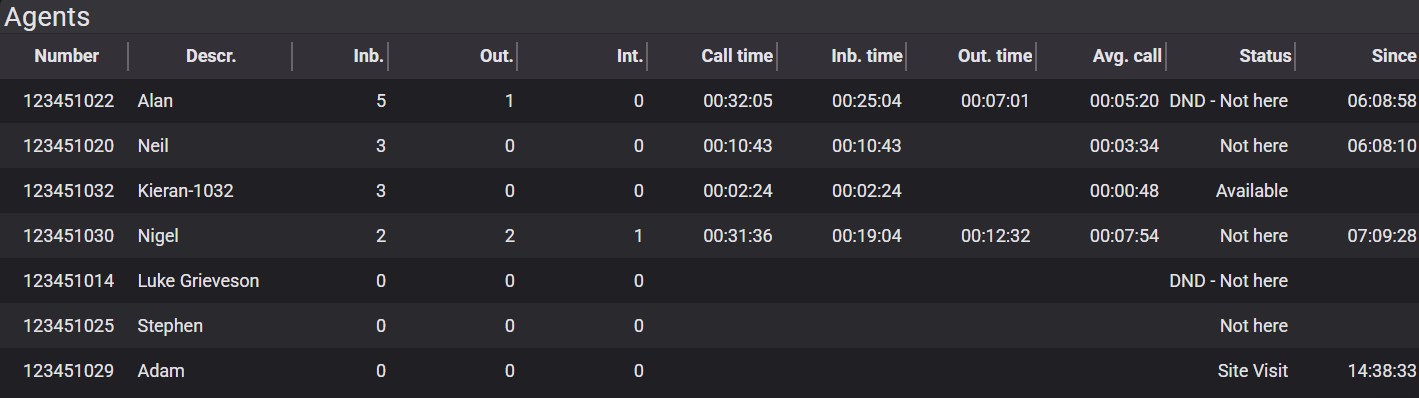
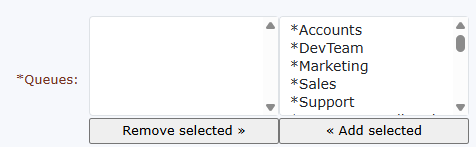
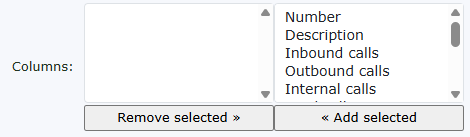
Queues - Agent v2
Parameters
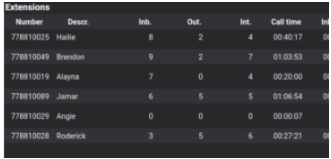
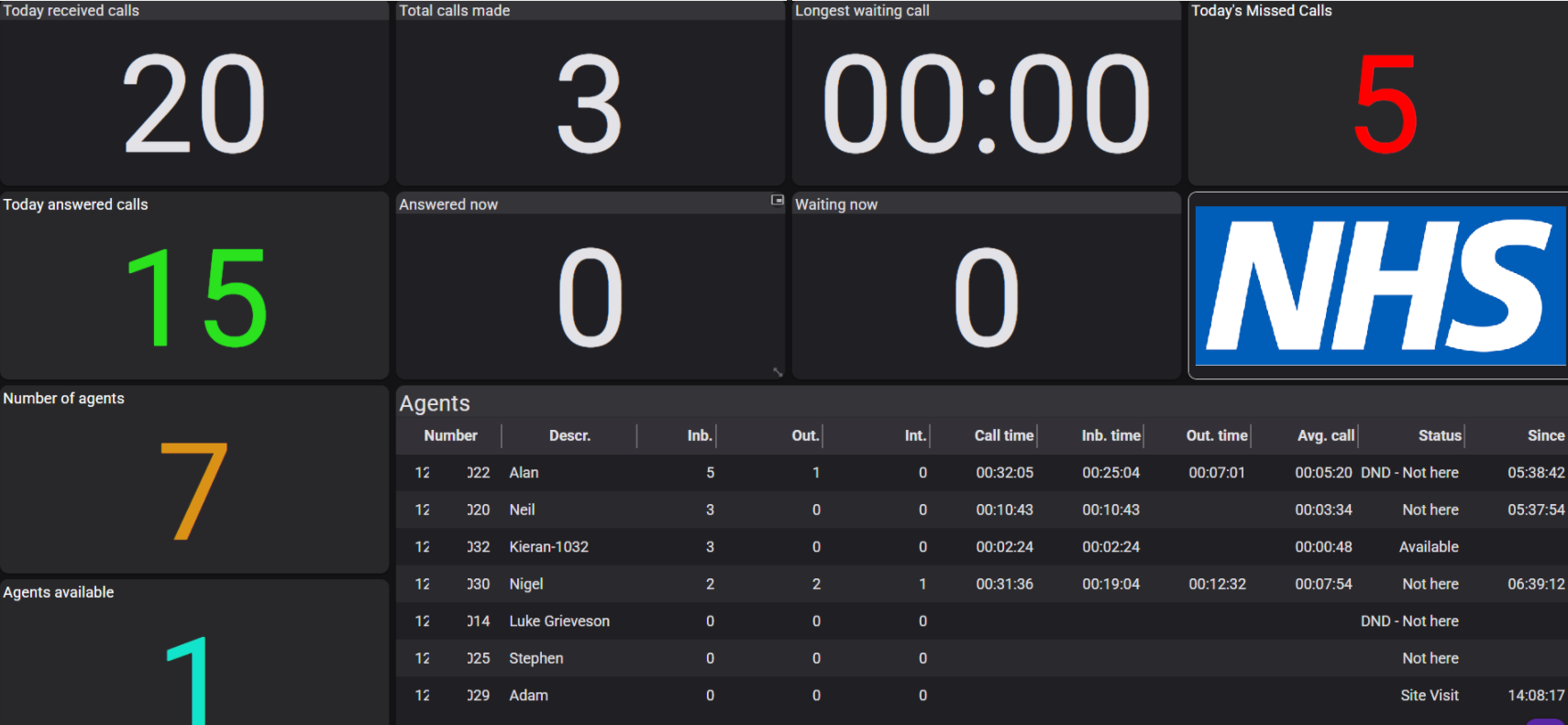
The wallboard you have created will look something similar to the one above. The Extension wallboard widget is very similar to the agent widget, but it Here are a few examples of wallboards you can create.
The dark mode shows many queue statistics.
Light mode again, showing agents and a logo.
A custom colour wallboard shows how flexible you can be with the colours. In this example, someone has gone mad!
Again, another custom colour wallboard demonstrates anything is possible. Once you have created your wallboards, on the main wallboard page, you will see links to view them. Copy the link to open the wallboard you have created. The first view of the wallboard probably doesn't look how you would like it to. This wallboard can now be adjusted by dragging and dropping, stretching, and reducing each widget to give you what you would like the layout to look like.
Once you have moved your wallboard around to your needs. A small disk/save button will appear in the bottom corner of the right hand. Click this, and it will save your layout. Please remember, if you make a change to the wallboard. Add or remove widgets. You will need to layout your wallboard again.
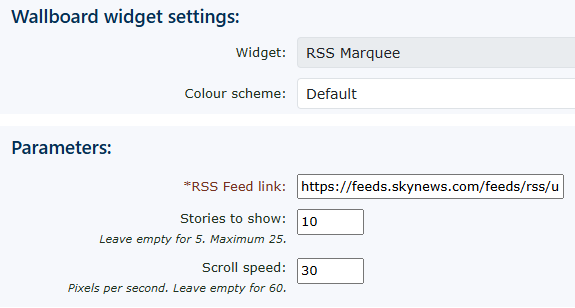
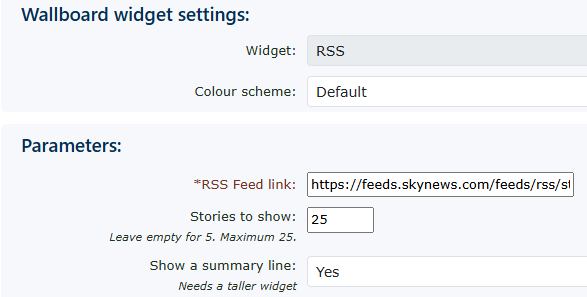
RSS Feeds for wallboardYou can create live content for your wallboard using an RSS feed.
Back to top
| |||||||||||||||||||||||||||||||||||