
Transcription For Call Recording Bundles - Automatic
Under call recording bundles, you can have the call recording transcribed.
You can enable auto-transcription under call recording options and choose how many hours to include in the bundle.
NB You will notice that not all call recordings can be transcribed. This is either due to a lack of content, like a telephone user setting themselves to ‘login/out‘ using a feature code, and therefore there isn’t any sound, or the recording is too short. Any call under 15 seconds will not be automatically transcribed. This is to minimise wasted transcription usage on short calls. If you need to review or listen to a call, please use the call recording.
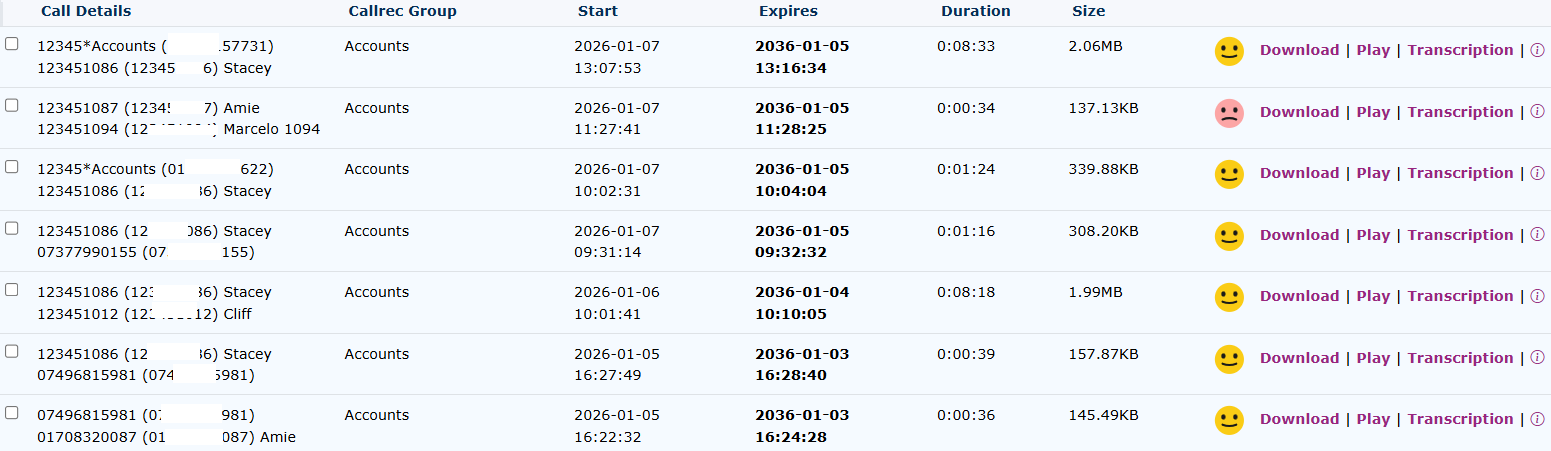
| Call Details provide information about the origin and the destination of the call. |
|
|
|
Callrec Group shows which group the call recording and transcription is being viewed from. |
| Start is the start time of the call recording being transcribed |
|
|
|
Expiry time is the date and time the call recording and transcription will be deleted from the servers |
| Duration is the length of the call recording |
|
|
|
The size of the recording file is also indicated |
| This picture indicates the sentiment of the call. |
|
|
|
You can use the download button to save the call to your PC. |
| Play the call recording using the online audio player. |
|
|
|
Click on the transcription button to see the individual transcription. |
| This info button shows the activity log of this call recording and transcription. |
|







To review the transcriptions

|
The emoji icon comes in 5 different types to indicate the type of words used in the transcription.
This should be used only as a guide; a true understanding of the sentiment should be derived from listening to the call recording.
Please also note that short call recordings/transcriptions that have a few 'unhappy words' could show as a Strongly Negative due to not having enough words to analyse.
|
|
 |
|
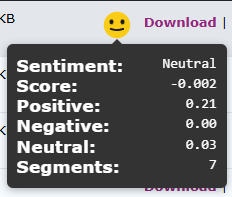
| By hovering your mouse over the emoji, you can see the scoring of the sentiment. This gives you | |
| Is used for downloading the call recording. |
|
|
|
|
| This allows you to play your call recording. |
|
|
|
|


