People - Microsoft single sign on ( SSO ) as the End User
Microsoft single sign on or better known as Microsoft SSO can be found under Features, then People.
Please Note: If you enable Microsoft SSO, MFA will be disabled for the user account on the portal.
|
As the end user, they can log in to the portal [if they already have portal access]
Go to Features > People, select their own account,
Then add their Microsoft username in the“Account Linking” section
|
 
|
|
 
|
Once enabled for the user, you can see the Microsoft logo showing next to their username:
|
|
When you then go to sign in to the portal, select the “Sign in with Microsoft” button.
|

|
|
Enter your Microsoft account and click next,
|

|
|

|
then enter your Microsoft account password and click “Sign in”
|
|
You will be prompted to enter an authentication code
~ whichever type you set up on your Microsoft account - then click Verify
|

|
|
|
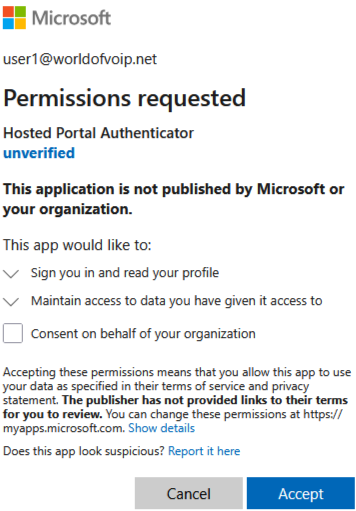
You will be prompted to allow permissions, click Accept and this will sign you into the portal.
|
Please Note:
If you tick the box
for “Consent on
behalf of your organisation” this
prompt will not
show
again.
After clicking on People in the Features menu, you will see a list of users. This is provided that you have Administrative rights to proceed this far.


Some small icons indicate what users have enabled on their account login. This is the Microsoft SSO icon. You can also hover your mouse over the icon to view the linked account username.
To enable a user for Microsoft SSO, the administrator or the user can log in to their account details under the 'People' section and navigate to the right-hand side of the screen until they reach the 'Account linking' section. Here, you enter the email address of the Microsoft user you wish to link to this account.

Don't forget to click 'Save' at the bottom of the page, located on the left-hand side.

The next time a user logs in to the main portal screen, they can choose to log in with their username and password as usual, or use their Microsoft single sign-on account instead.
Click on the Sign in with Microsoft icon


Enter you details for first time login. Authenitcate yourself in the normal way. By SMS, sign in APP or email
Here is the SMS example. You will

Once you have completed


