Cloud Phonebook
Cloud Phonebook can be found under the Feature Advanced tab.
| First, you need to activate the Cloud Phonebook here. |

|

Once enabled, you can enter the numbers you wish to store in the cloud phonebook. This service uses a function called LDAP,LDAP. so
if
If you are trying to get this function working with a device not currently supported via
provisioning for the cloud phonebook, like the hosted handsets available from your supplier or the
Yealink Yealink-branded handsets. Then, you will need to
manually enter some details into each
handset.handset manually. See the other options on the right to see the settings.

Extensions sync enabled
Enabling extensions sync will bring all the current and any new extensions added later into the cloud phonebook. It uses the 
Search function
You can search for contacts in the cloud phonebook by name or number to easily find any you want to edit or update.


You can filter your search by
Display all extensions
Hide all synchronised extensions
Hide all disabled synchronised extensions
Display only synced extensions (hide normal entries)
Display only enabled synced extensions (hide normal entries)
Entries in the cloud phonebook are paginated into pages of 100 contacts to make loading information quicker and better to view.

|
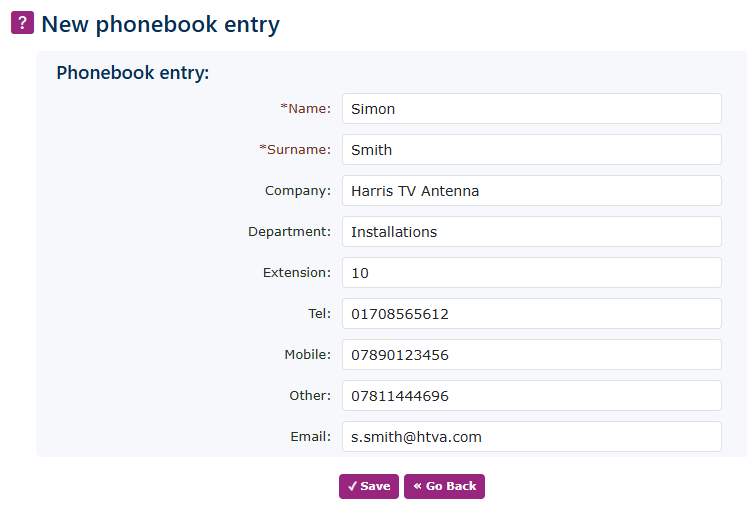
Click newNew at the bottom right of the page and enter the details in the box presented to you.box.
Enter the Name, then the Surname. You must enter both of these fields.
The company name, department, and extension number are not essential, but if you have them, it makes sense to enter any information you have.
You can enter up to 3 telephone numbers per contact. It is not essential to enter all 3.
Finally, you can enter an email address. This is useful if you use MobeX, as it allows direct emailing from the MobeX suite of applications.
Once you have completed this, click save.
|
|


Once you have entered all your numbers, you can see and edit them on the main page. You can enter a maximum of 10,000 entries in the cloud phonebook.
To edit an entry, click on the name. You can also import and export larger groups of numbers. The best way to get the correct format is to manually enter one number, export it, and use this as the template for the import file.
The Cloud Phonebook can now be dynamically changed using the MobeX suite of software apps, allowing updates to entries used by the software and adding new entries straight into the Cloud Phonebook for everyone else to see.
Syncing telephone extensions with other Cloud Phonebook entries
Each telephone extension can now be synchronised with a completed cloud phonebook entry. This means that the extension can be linked to external details of the same telephone extension user.
You can also modify or enter the Telephone extension name here to and that will affect the name that is being displayed when a telephone extension calls another extension.
Adding a name to an unsynced extension. Here are 2 extensions that do not have any details set within them. To edit, click on the greyed-out extension number.


You can now enter the extension's name. Remember that this will be the name shown to other internal users.
You can also enter a department. This will be used for billing and displayed in the information window of the cloud phonebook entry in MobeX. It will also automatically populate custom boards in MobeX software when creating a new one.
You can select the linked cloud phonebook entry you want to synchronise with this extension. It will only show you unsynchronised cloud phonebook entries.


Click the save button to complete the synchronisation of the extension with the external cloud phonebook entry.
Unsyncing telephone extensions with other Cloud Phonebook entries
Find the entry you want to unsynchronize with by using the search facility. Click on the name to enter the cloud phonebook entry the extension has been synchronised with.


Click the red arrow on the right to goto the syncronised extension or use the link for other options for this entry at the bottom of the page
This will then take you to the linked extension. At this point you can select another extension to link with this cloud phonebook entry or you can scroll to the very top of the linked entry names till you see a blank entry. this will then unlink this extension with the cloud phonebook entry.


You may also want to change the extension's name, particularly if the person has left the company.
Once you have done that, don't forget to click save.
|
If you need to manually enter the LDAP details into a handset,handset manually, click manual settings on the rightright. side.For any handsets that auto-provision, do not require you to do this; provisioning will automatically set all this up for you.
You only need to do this if you are using a handset that has not been provisioned via the system or if you are using an unusual device that can only be programmed manually.
(doDo not use these settings; this is an example)
|
 
|
Please remember that disabling and enabling a new cloud phonebook will give new credentials; therefore, you must manually enter them in each handset. However, if you are lucky enough to have a hosted branded handset, this will auto-reprovision with a simple reboot.
To use the cloud phonebook on a handset, simply press the DIR button on the handset, and itwhich will display the first available entries. Use the up and down keys to scroll or type the name using the letters on the dial pad. Once you see your entry appear,entry, use the scroll keys to highlight theyour onedesired you want.one. Press OK, press Dial, and use the scroll keys again to get toreach the desired number. Finally, press OK to dial out.


