Group chat
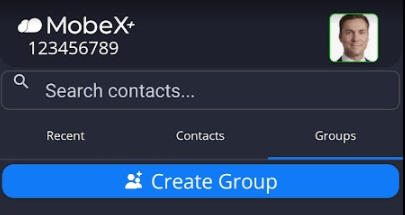
| Start a group chat by first going to the Groups tab |
|
|
|
Then click on " Create |
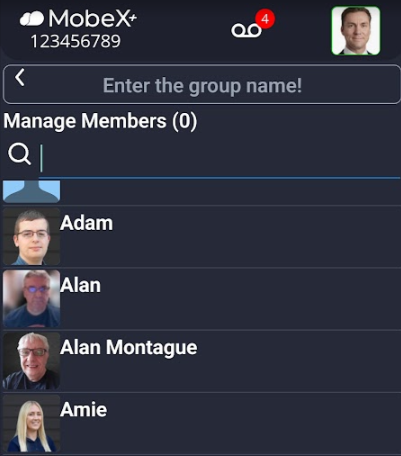
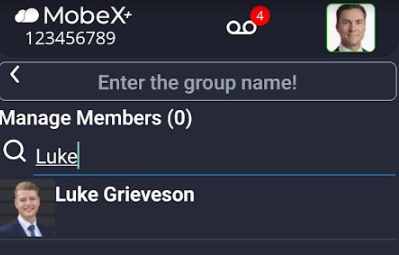
| Search for the members you would like to add to the group or scroll down to find the people. |
|
|
|
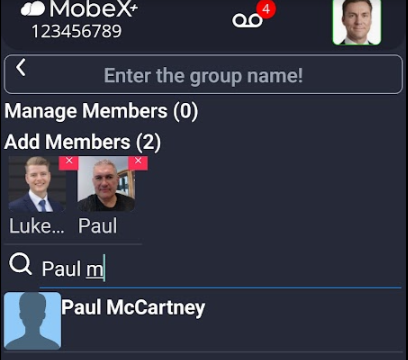
Click on the avatar picture to add the person. |
|
|
|
|
|
Add a name for your new chat group. |
| Finally, click "Create |
|
|
|
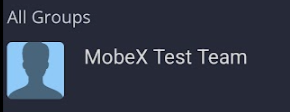
The new group will then appear under groups. |
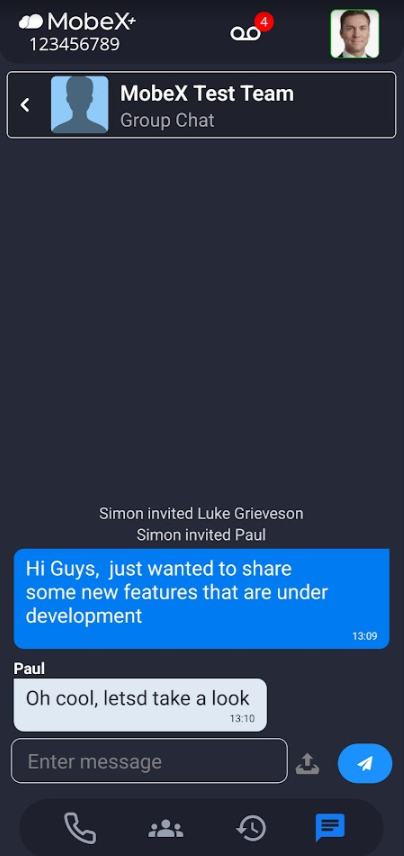
| When a new group is created and people are added, it will show who was invited and by whom. |
|
|
|
You can then begin your chat as normal. |
|
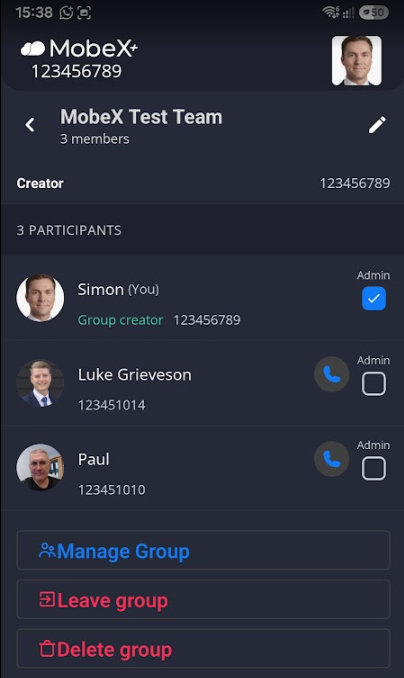
Manage groups by clicking on the name of the group |
|
|
|
You can view the members |
|
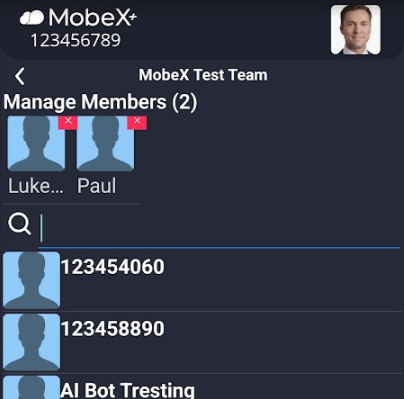
Click on the Manage group button to add or remove members. |
|
|
|
Search and add extra members to the group.
Click the red X |
|
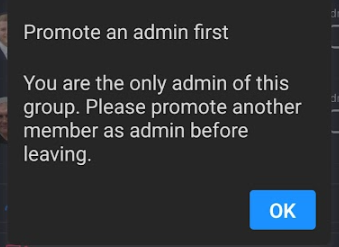
If you wish to leave the group, click the Leave group button |
|
|
|
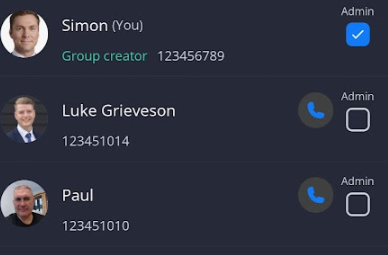
If you are the |
|
Go back to the main page of the group and select someone
|
|
|
|
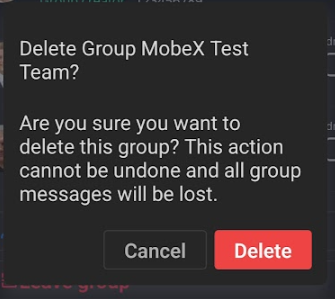
You can delete a group by clicking the delete group |
|
A warning will pop up to confirm your actions. |
|