
Contacts
| You can search for your MobeX contacts by |
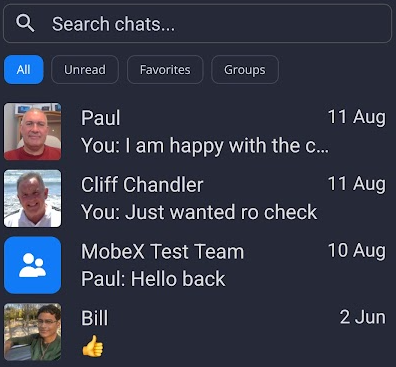

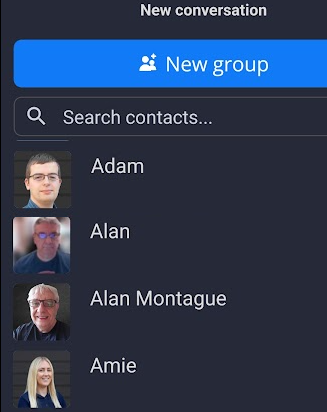
You can also find a new contact to chat with by tapping the page.+ button.
Again, you can use the search contacts to find the people you wish to chat with.
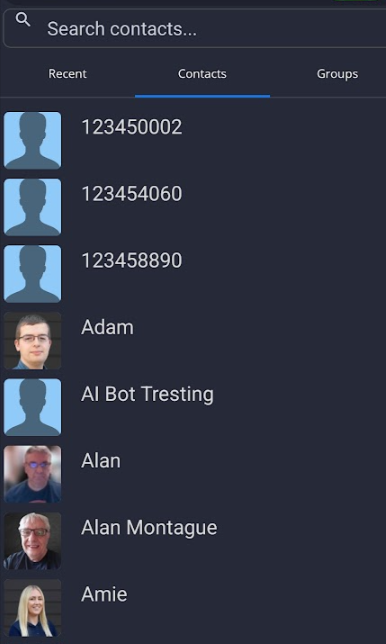

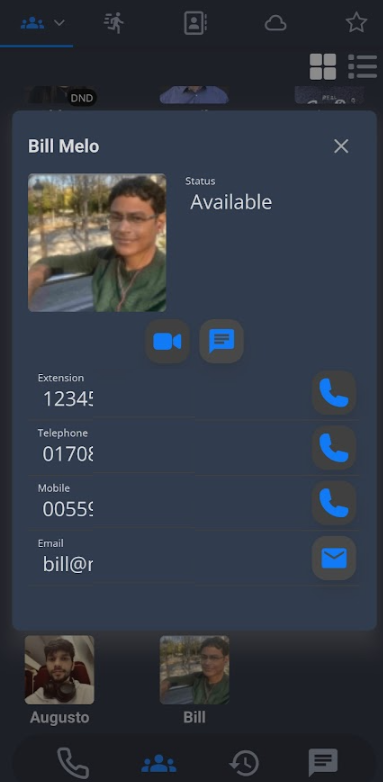
You can also start a chat by clicking on the chat button withinin the person's contact information underon the presence screen.

You can also silence a chat with a contact by pressing and holding the contacts icon for 2 seconds, just like the contact 'Paul'. You can now press the ringing bell to switch and silence the conversation with this contact or group.
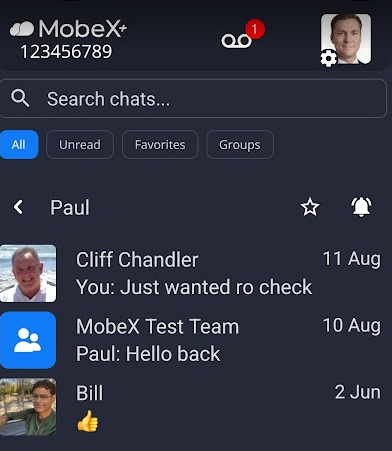

You can see when a contact has been silenced by the small bell with the line through it
You can switch notifications back on for this contact or group by holding the contact icon for 2 seconds and pressing the bell again.


Add a contact or a group to your favourites tab by pressing and holding the contact icon for 2 seconds
Press the star until it changes colour

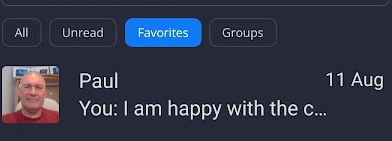
The chat will now be available in your favourites tab