
Enabling Speech Analytics
First-time use
How To Use Speech Analitics for Call Performance.
Learn how to utilize AI speech analytics to evaluate your calls and identify areas for improvement. This guide walks you through the process of querying specific call data and exporting detailed performance reports for your team.
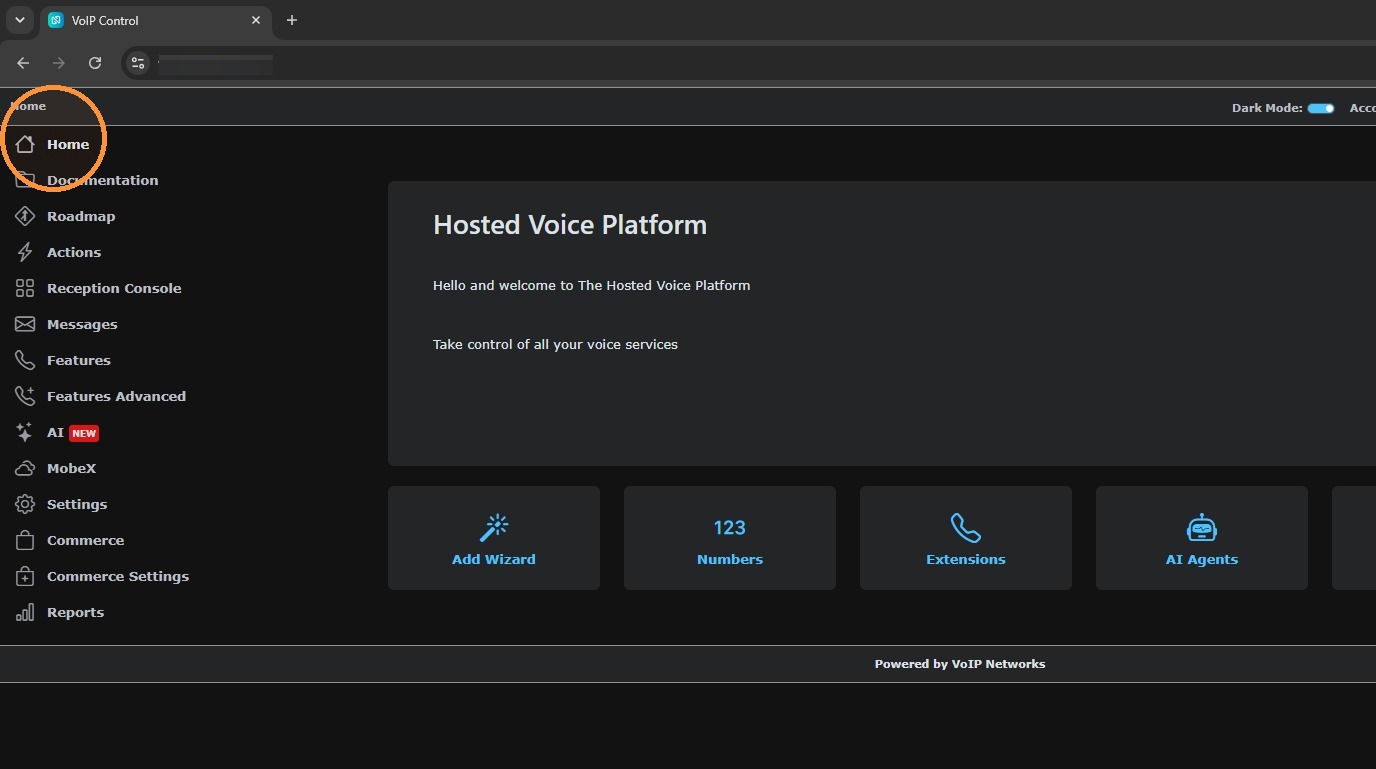
1. Login to the hosted platform. At the homepage.
2. Go to the left menu and select the AI option.
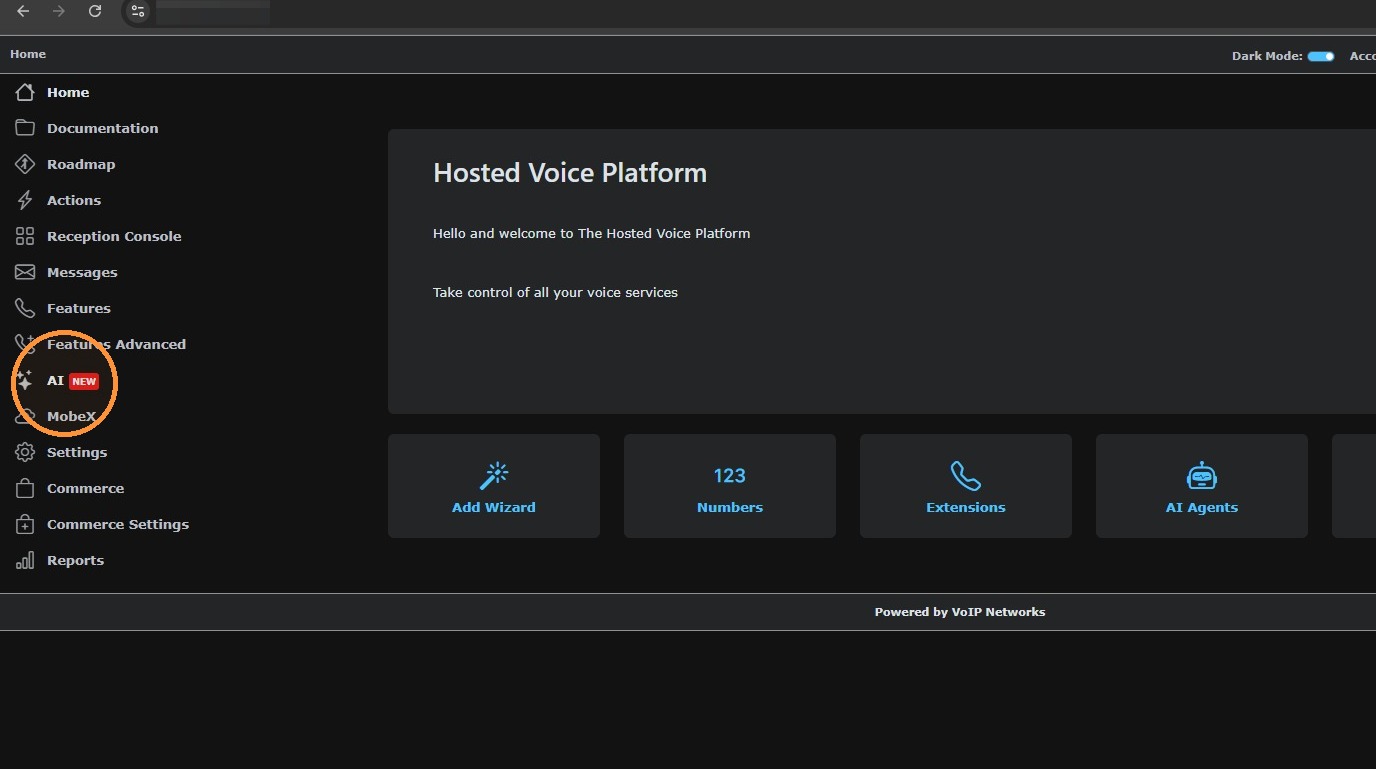
3. Scroll down to speech analytics.
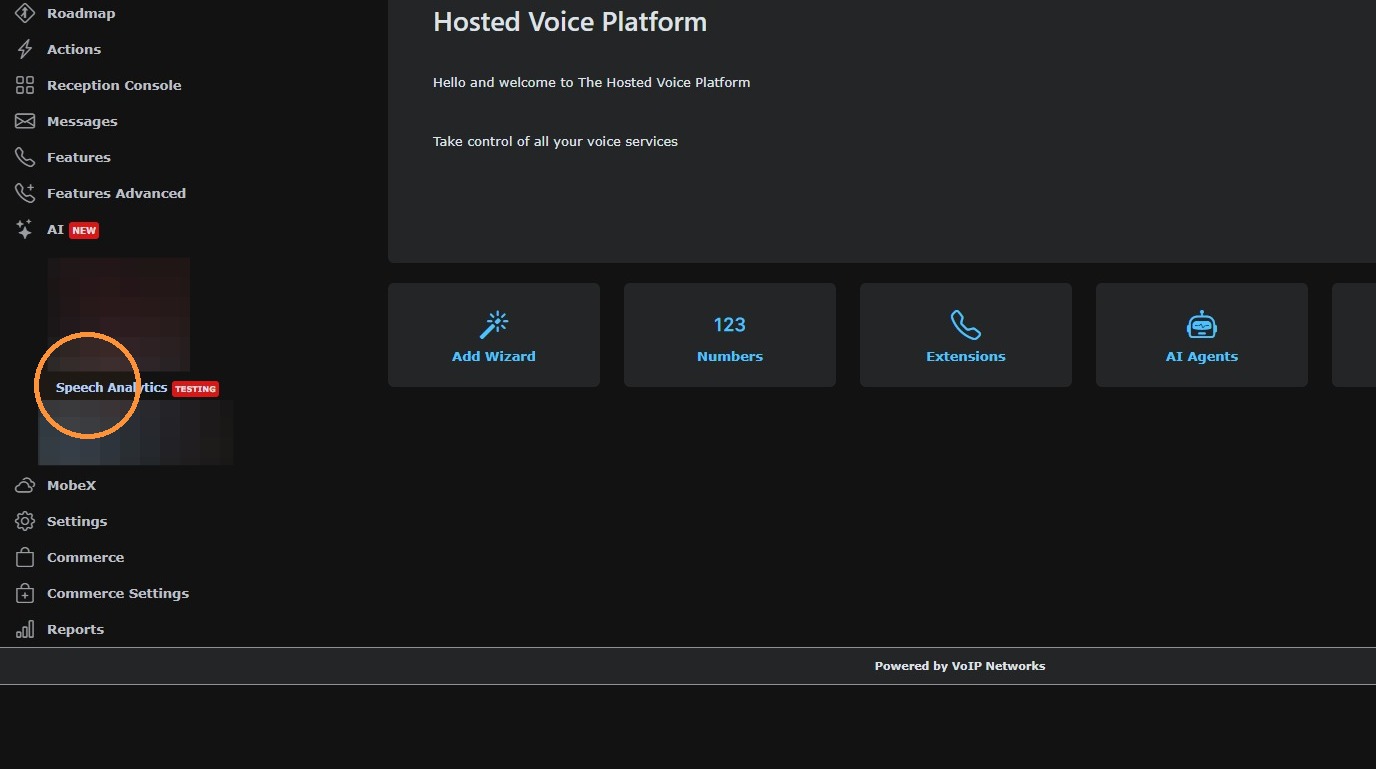
4. If this is the first time you're using speech analytics, you need to enable the service by subscribing to a plan.
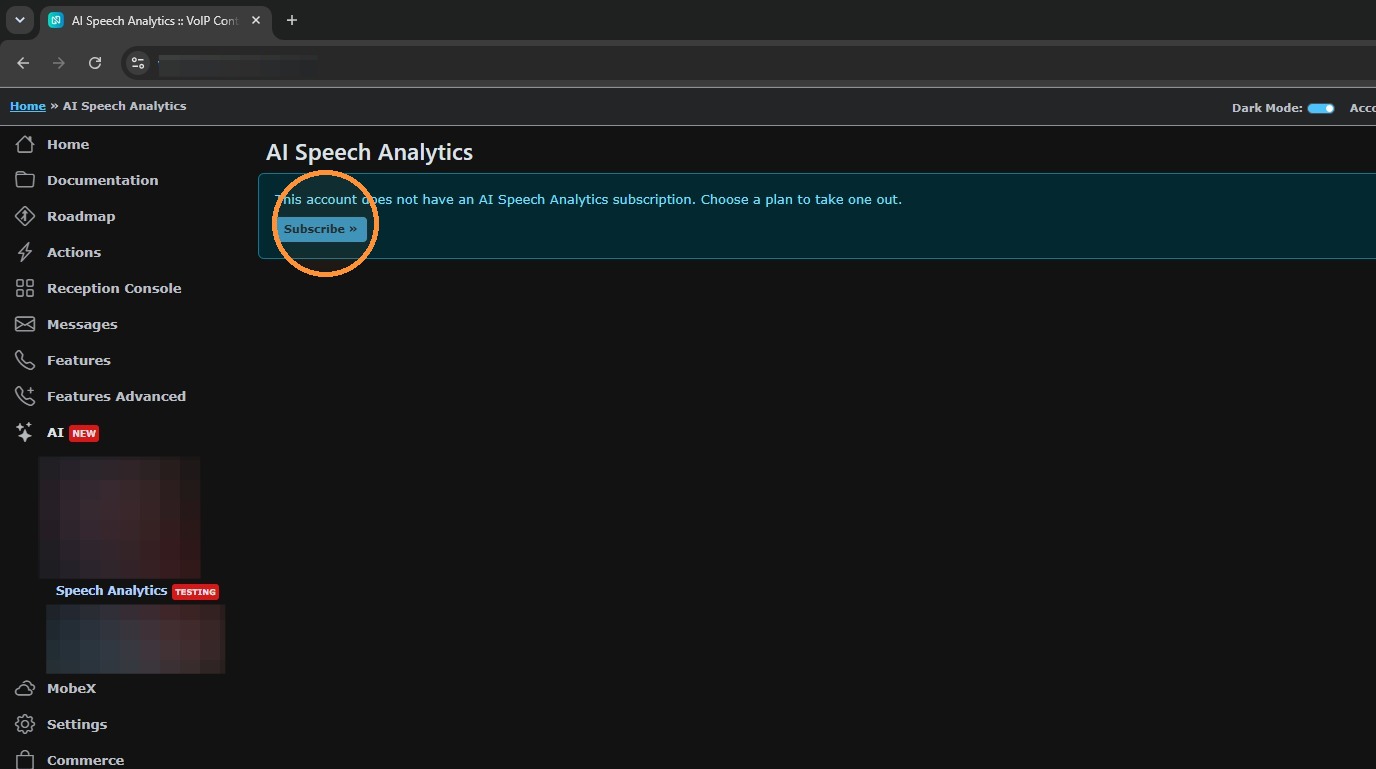
5. Choose a plan.
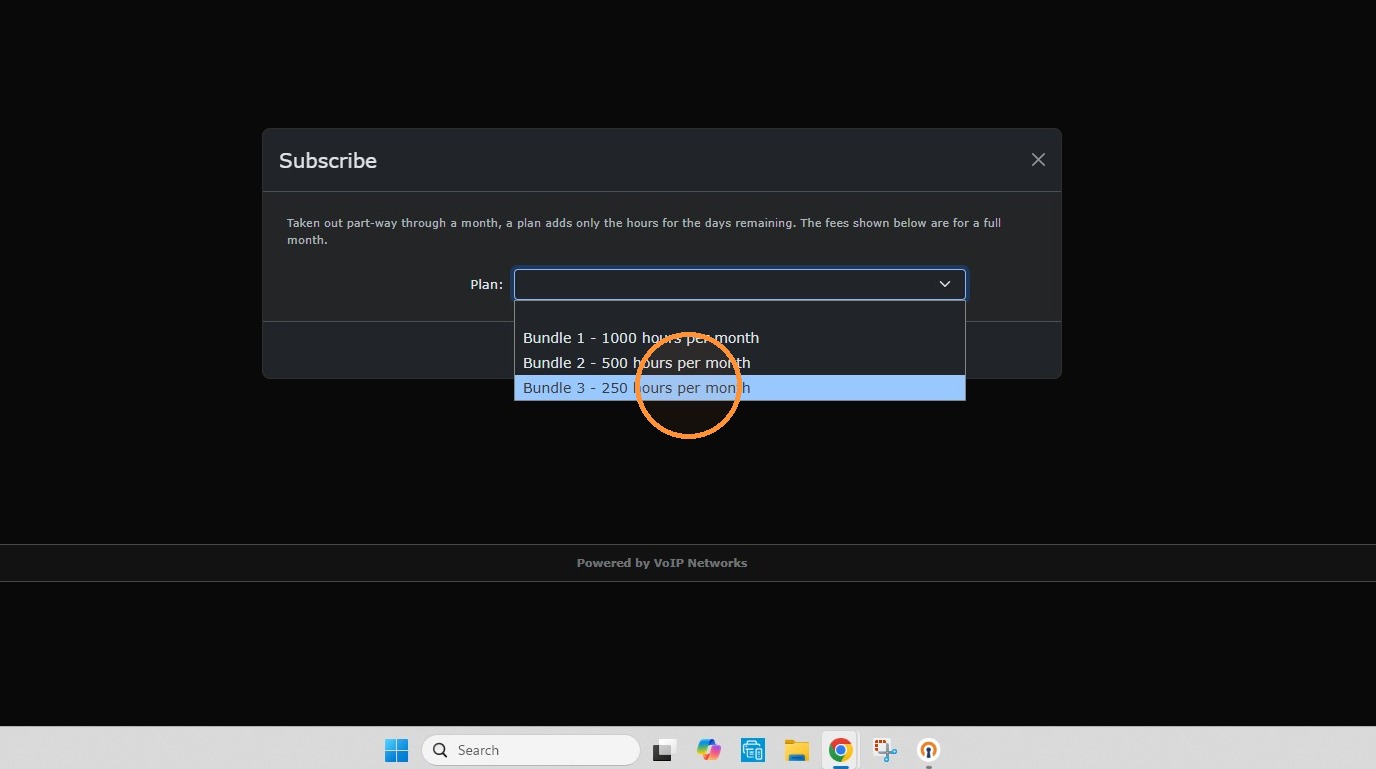
6. Then 'Save Changes'
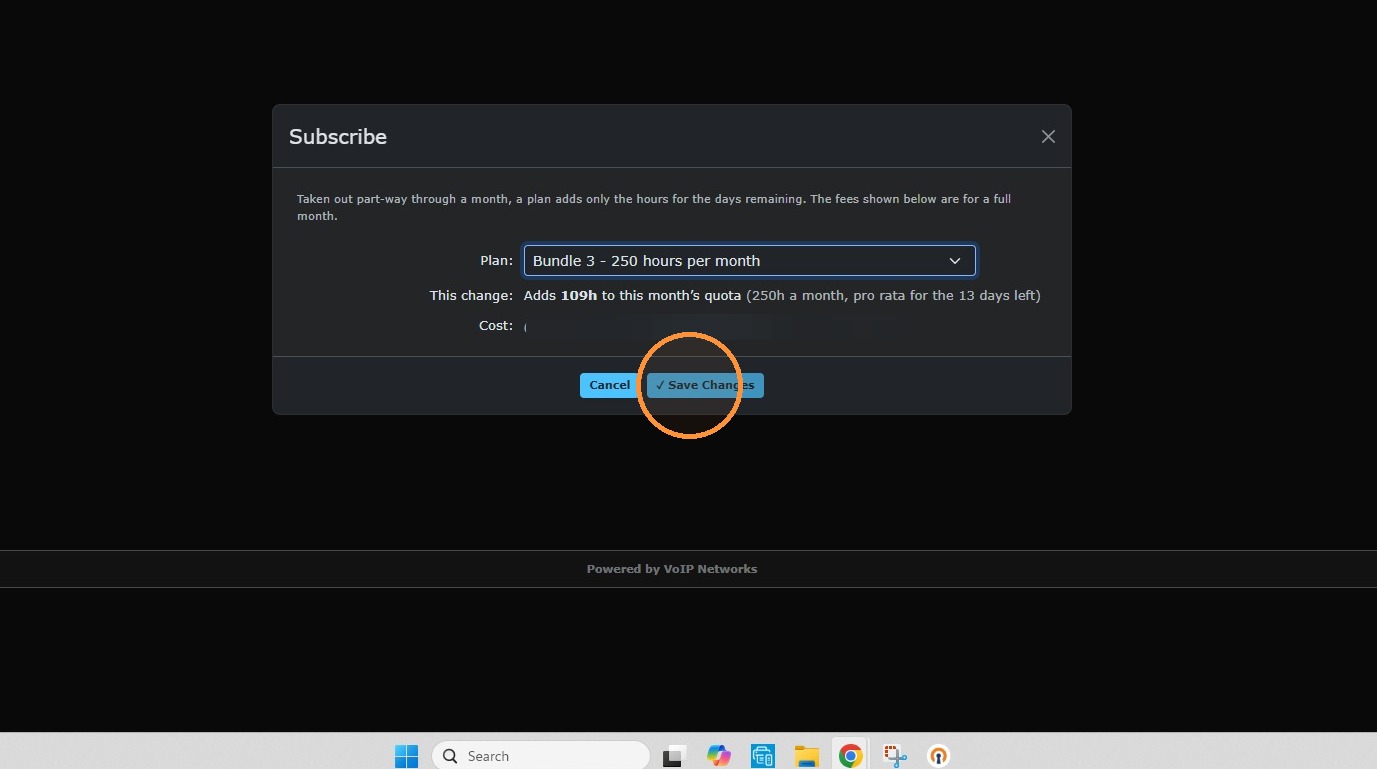
7. After clicking save. It advises you on the cost of the service products.
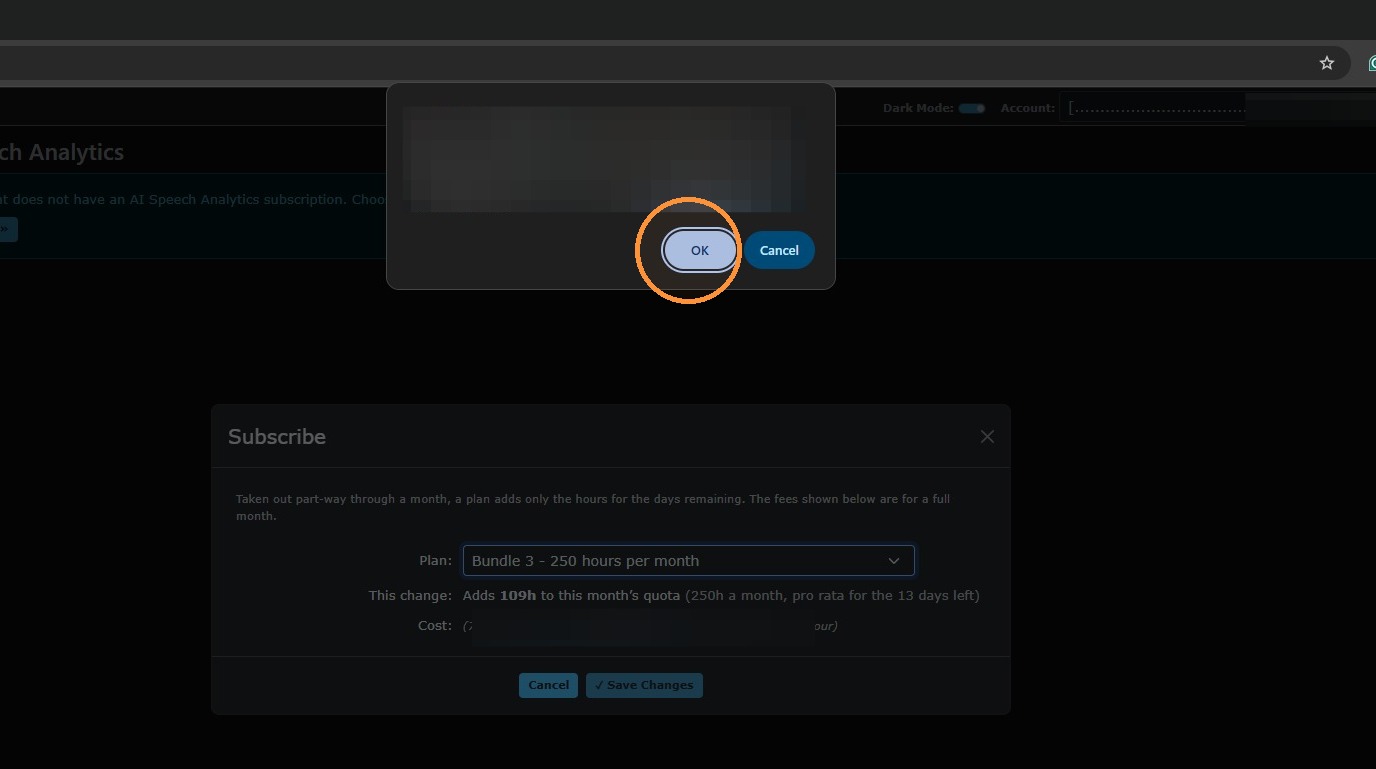
8. It will also pro - rater your time used on the system to depending on the day of the month you have activated the service.
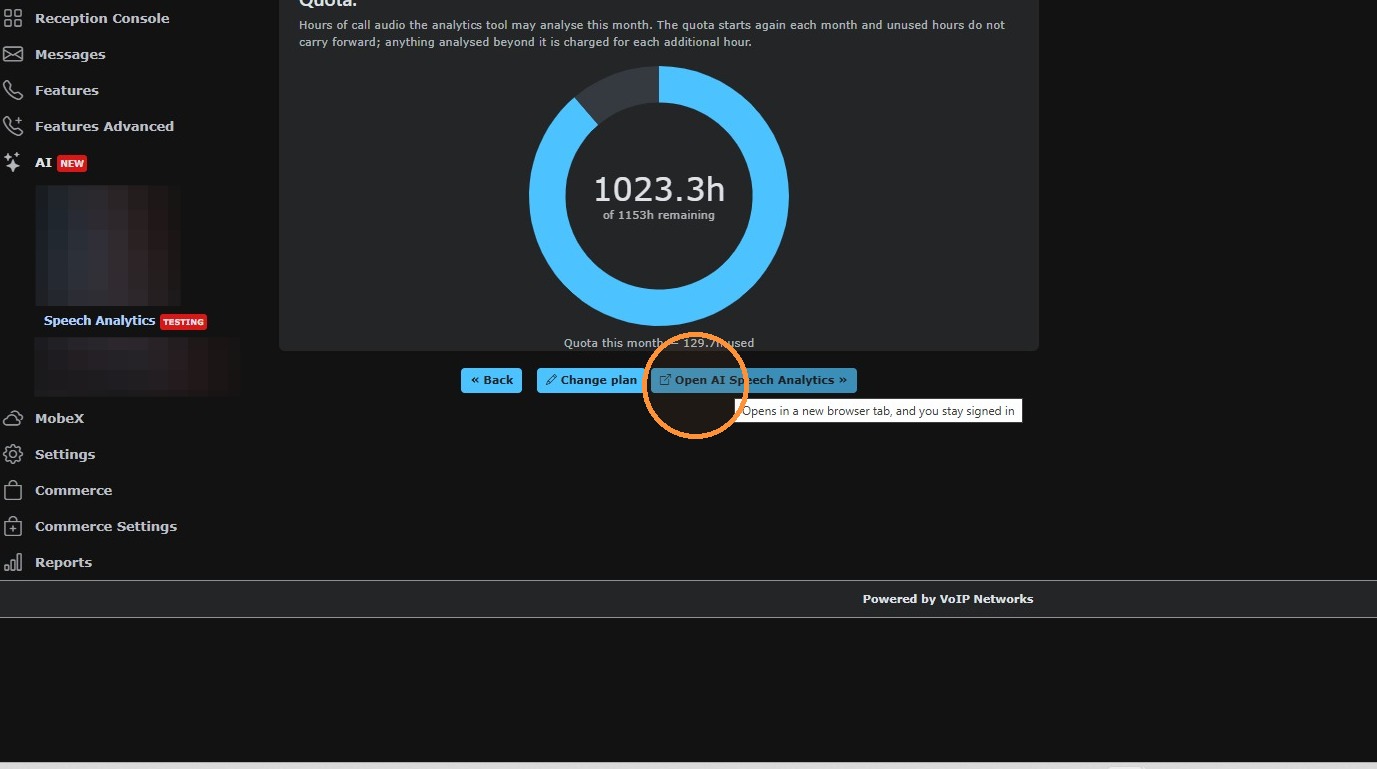
9. It will automatically log you into this new page in another tab.
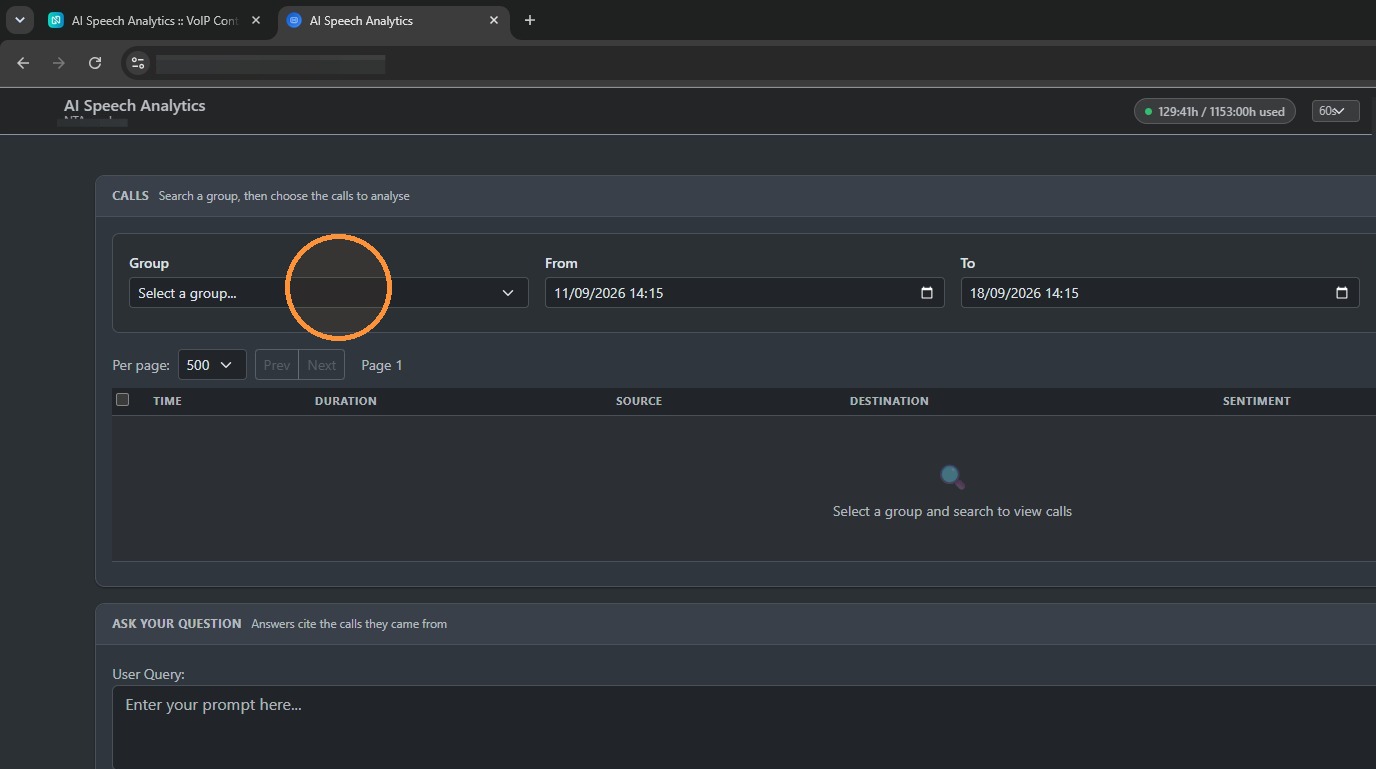
10. You can then click on one of the call recording groups. In this case, I'm going to choose SALES.
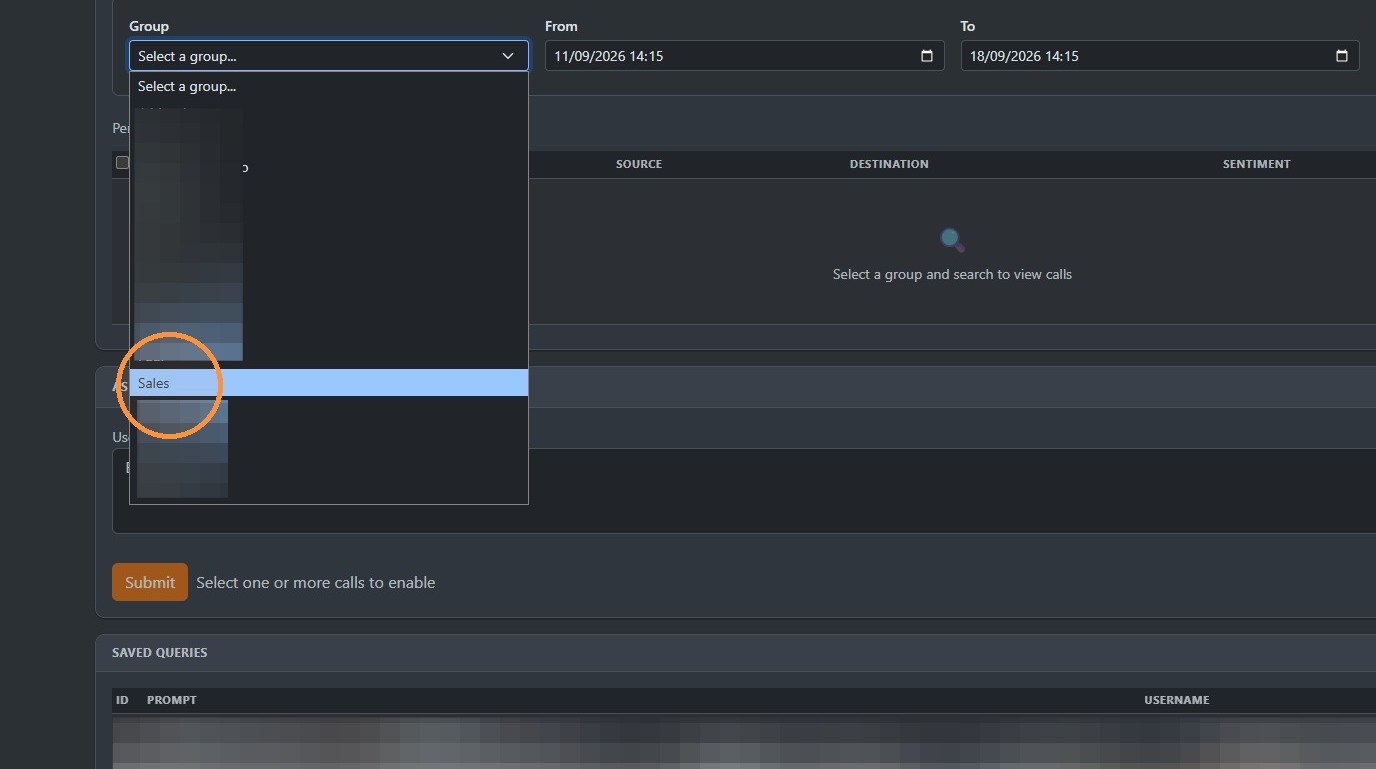
11. You can change your period from here.
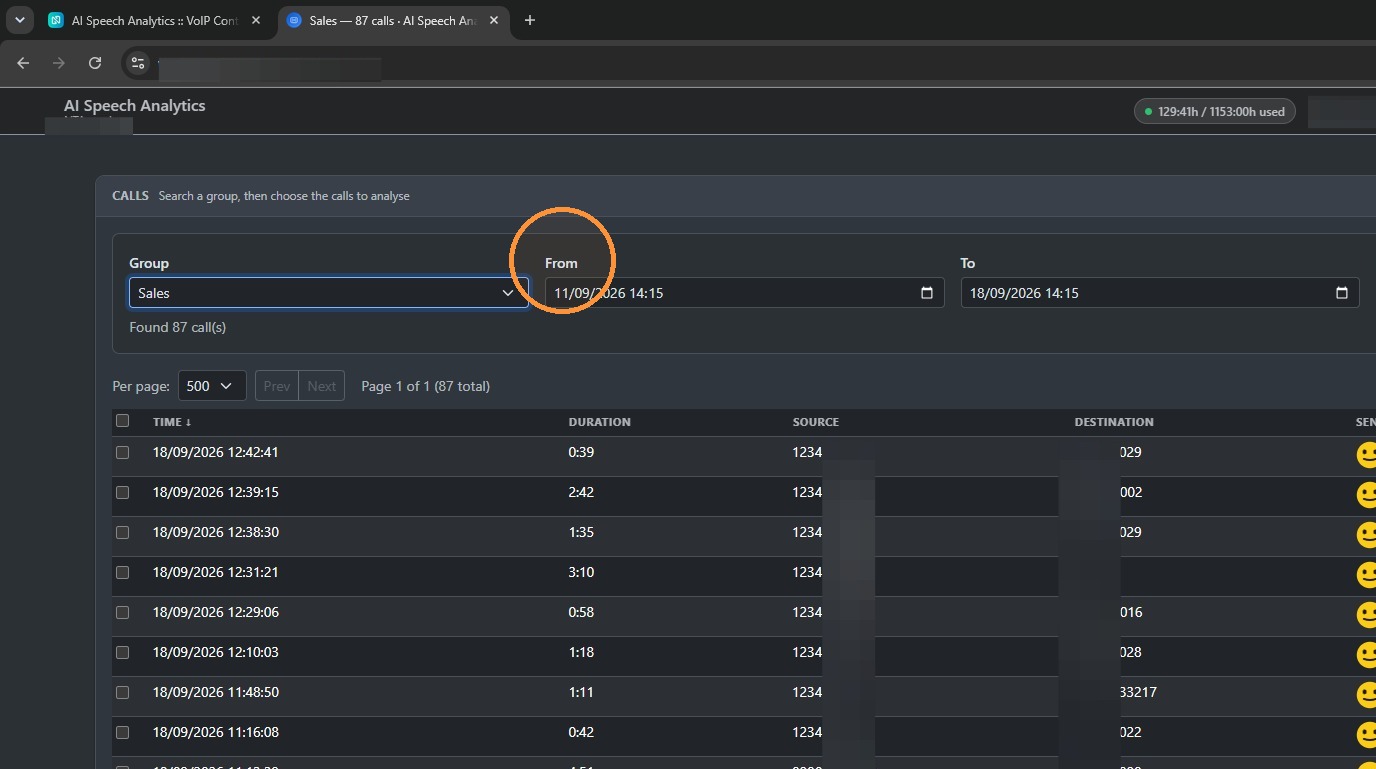
12. To here to pick a particular date rate you require.
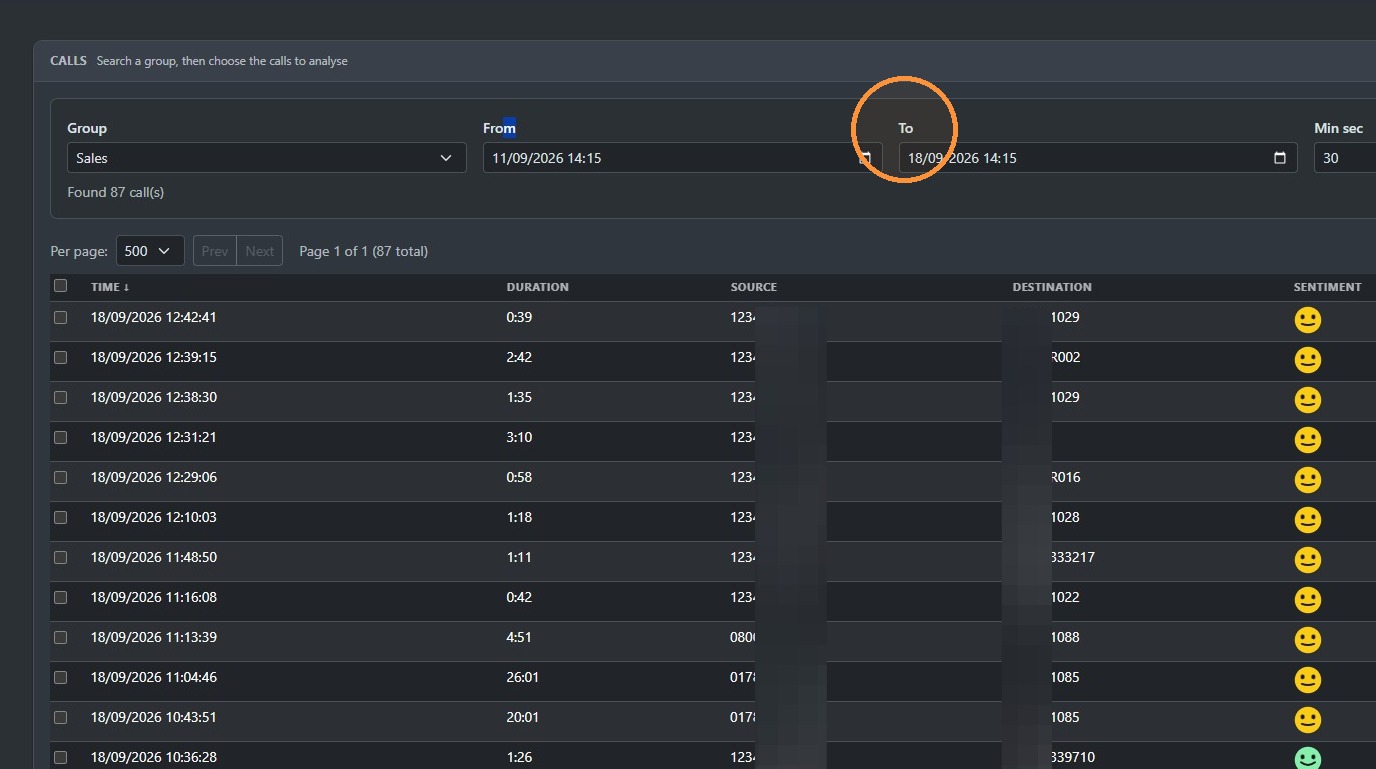
13. You can use the filter below to specifically look for numbers on both inbound and outbound if you wish. Then press the search button.
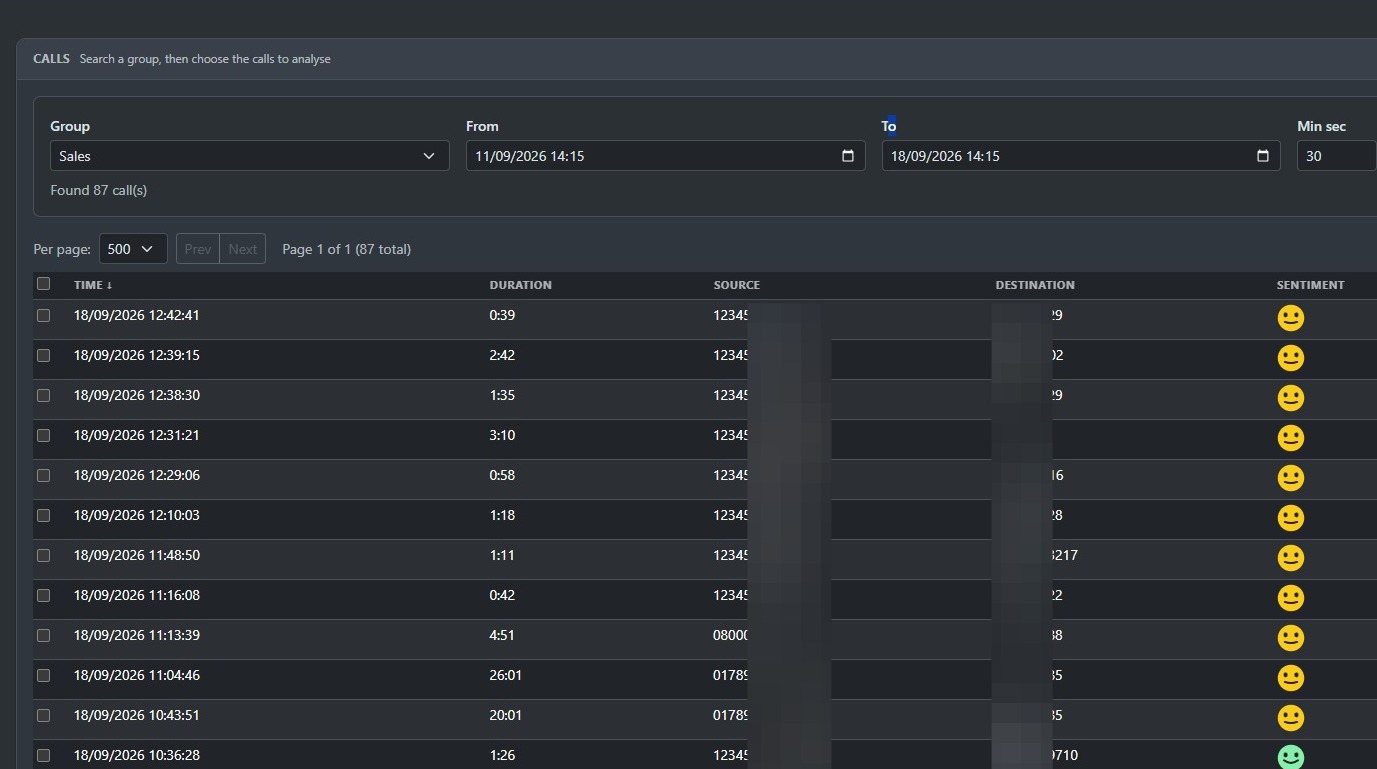
14. On the left - hand side here, you select all of the calls you wish to analyse.
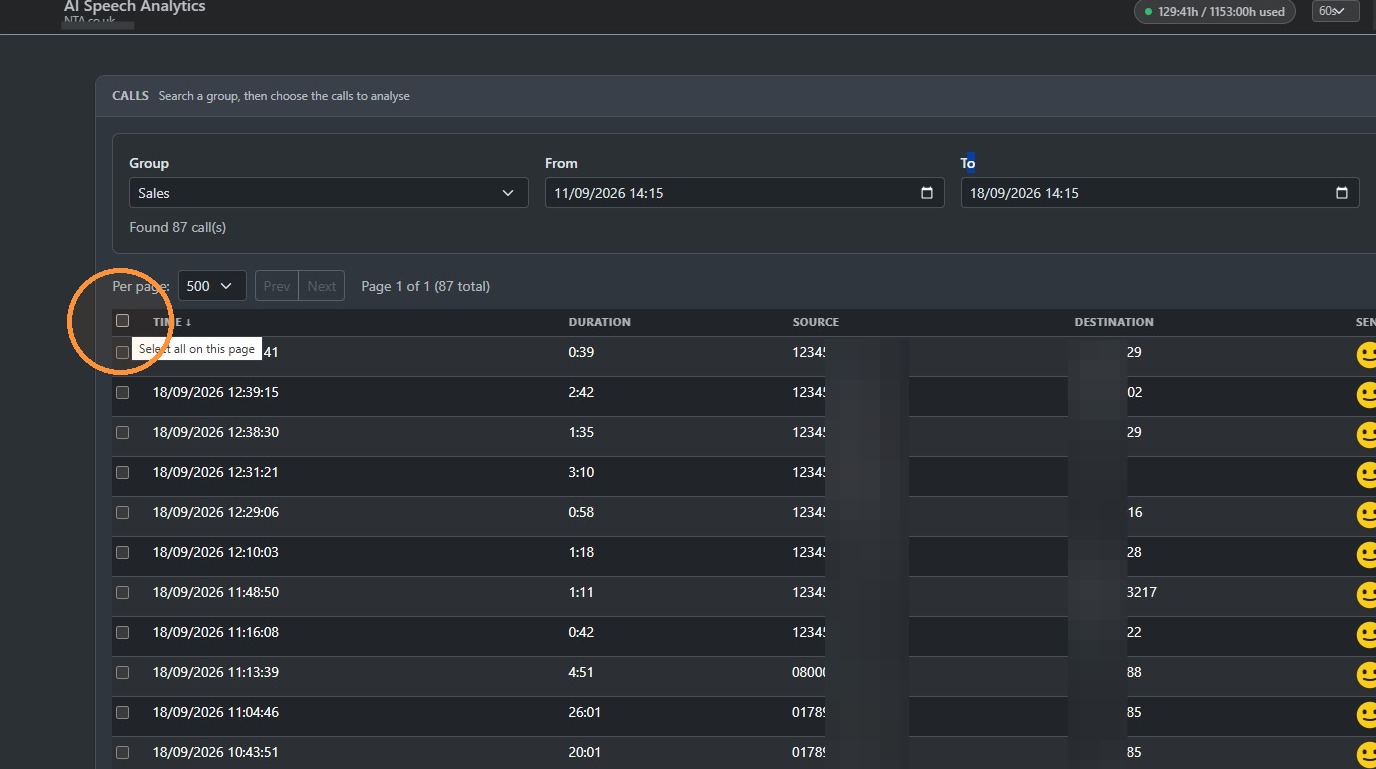
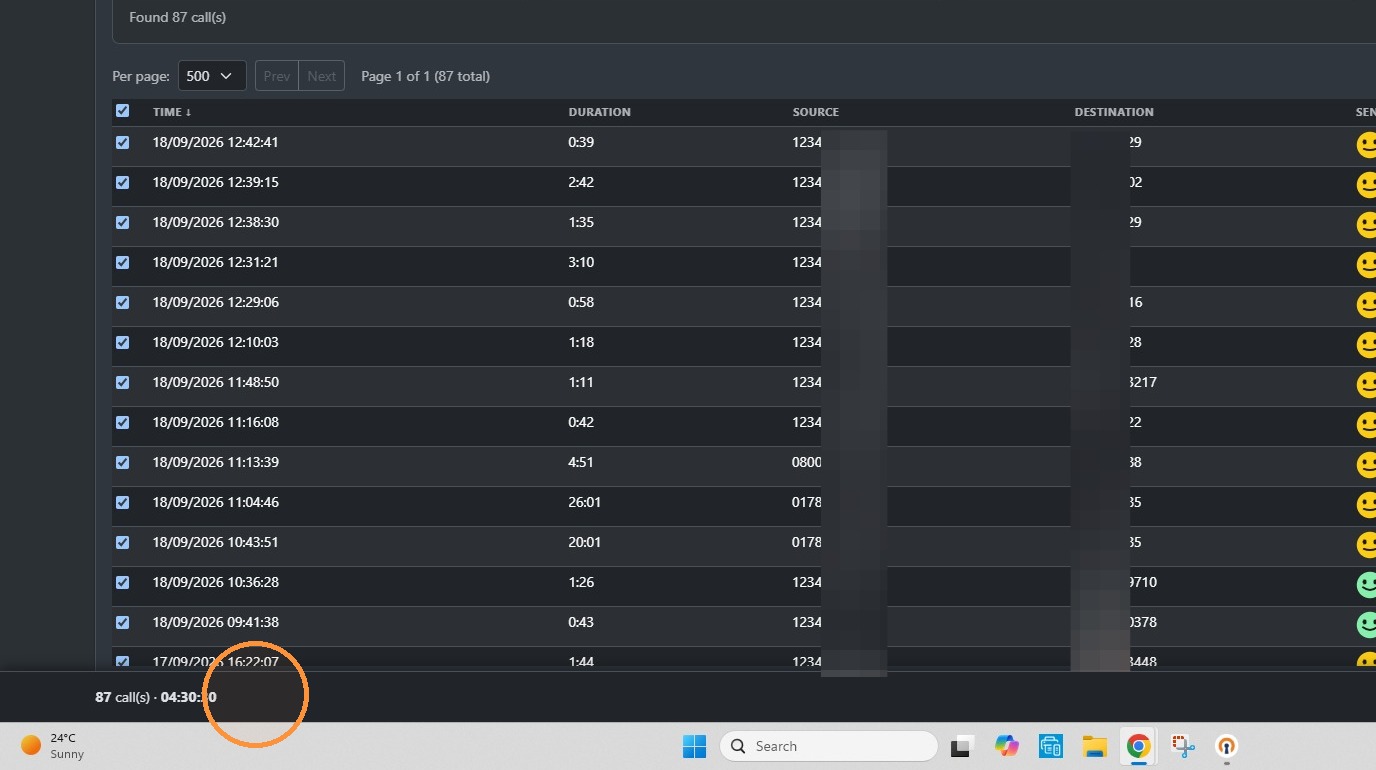
15. Call recordings and transcripts will then be highlighted here.
If you go to the bottom of the page it will show you how many hours you've going to analyse.
NOTE: The maximum you can process at any one time. It's 30 hours.
16. If you hover your mouse over one of these call recordings, it will give you the AI summary of the transcription.
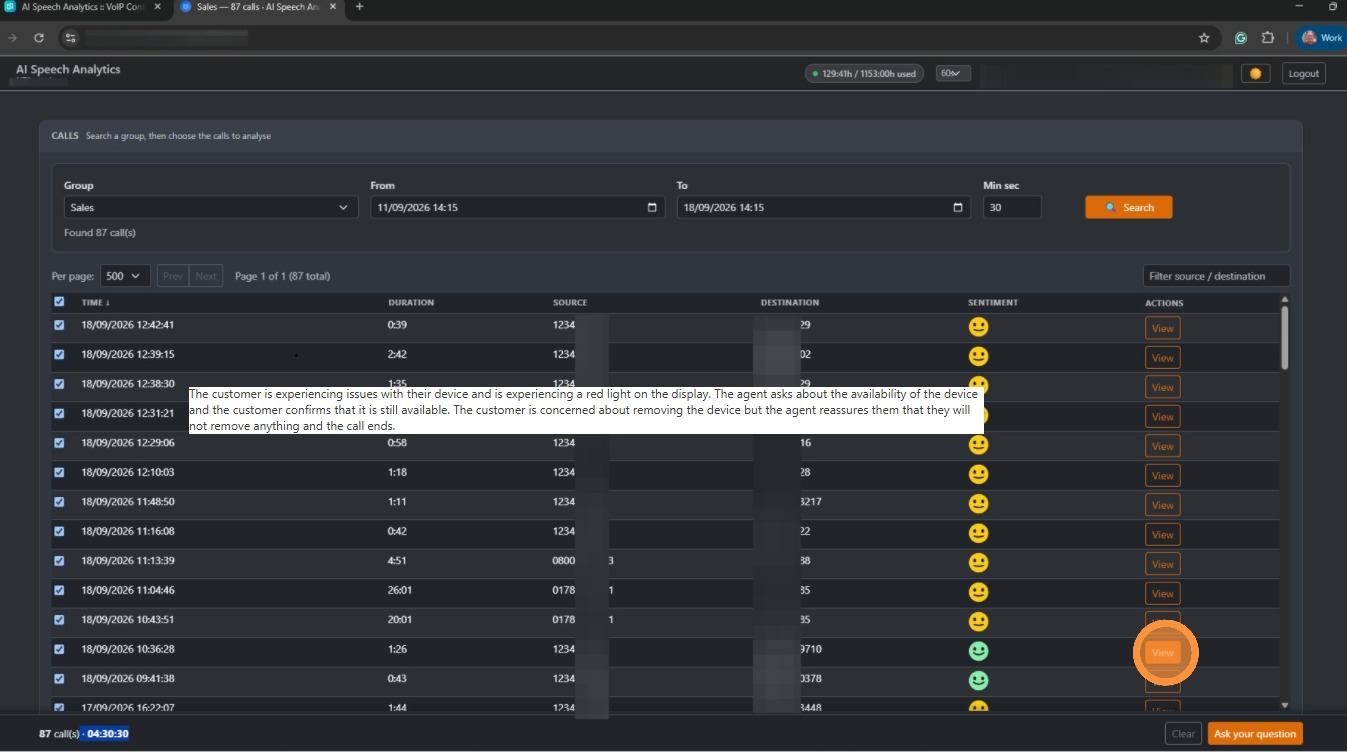
17. If I want to view the whole transcription, I can click View, and it will show me the complete transcript.
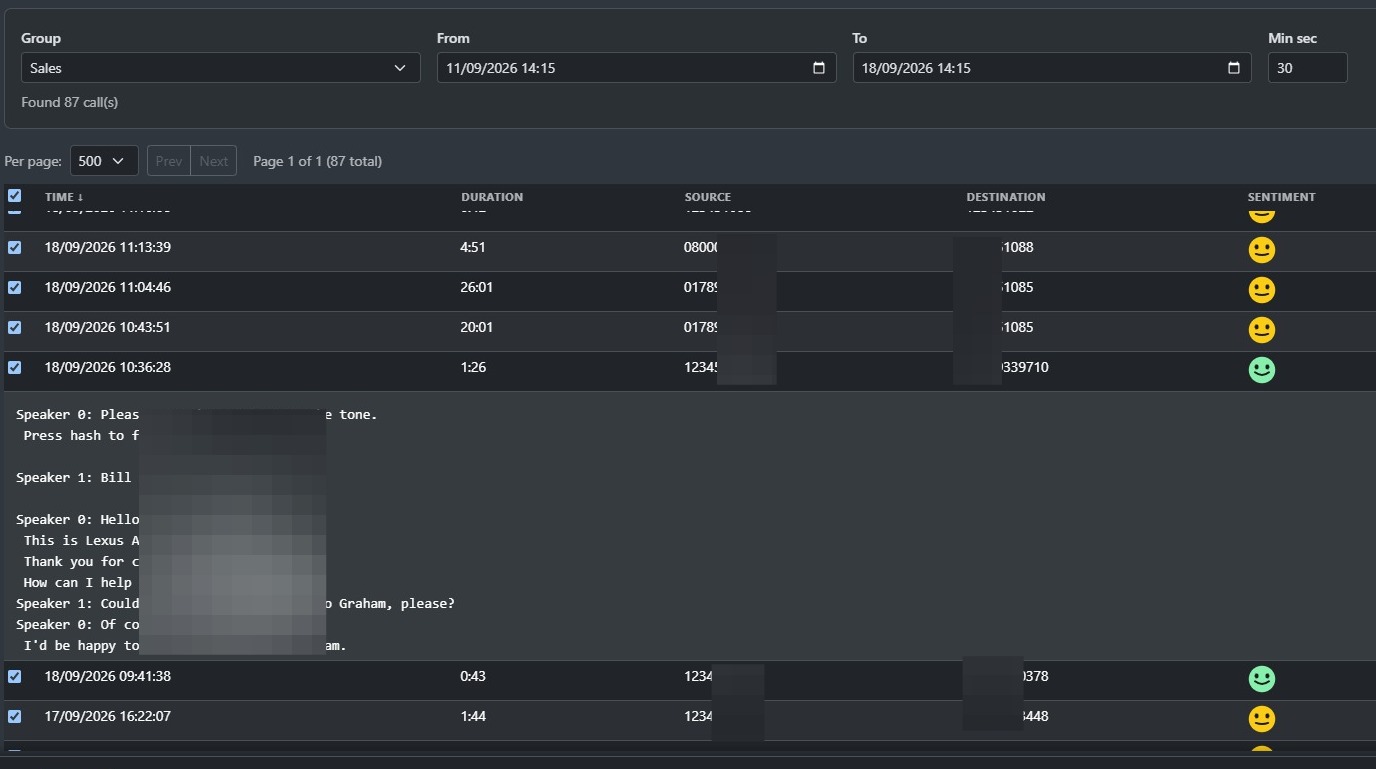
18. If you go to the bottom of the page here, you can now ask a question.
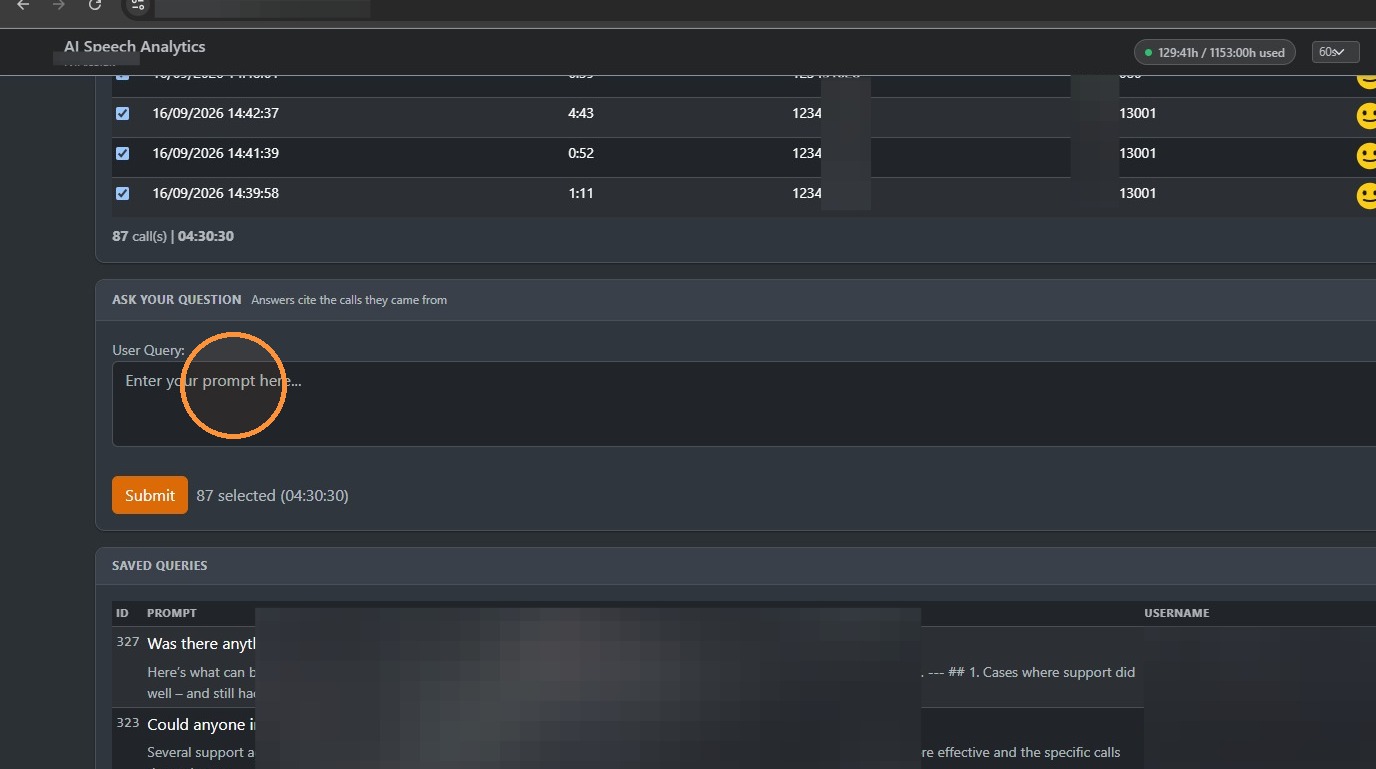
19. Type a question you would like to ask, here is an example of a question "Could any of the sales calls be handled better"
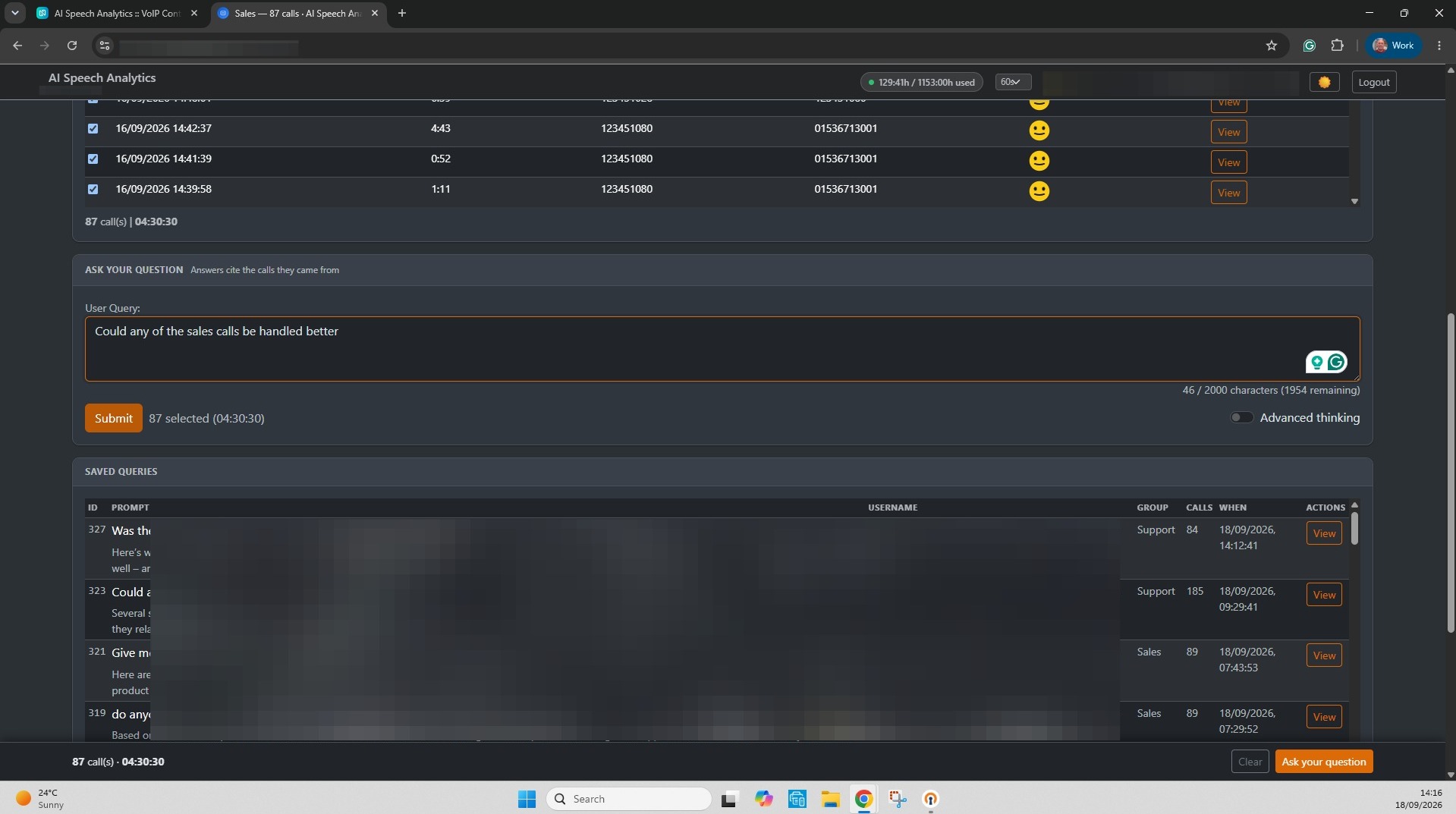
20. You can ask any question you like. Our suggestion is to keep it to a one-line question to make it simple for the AI system to calculate and work it out for you. Then you hit the Submit button.
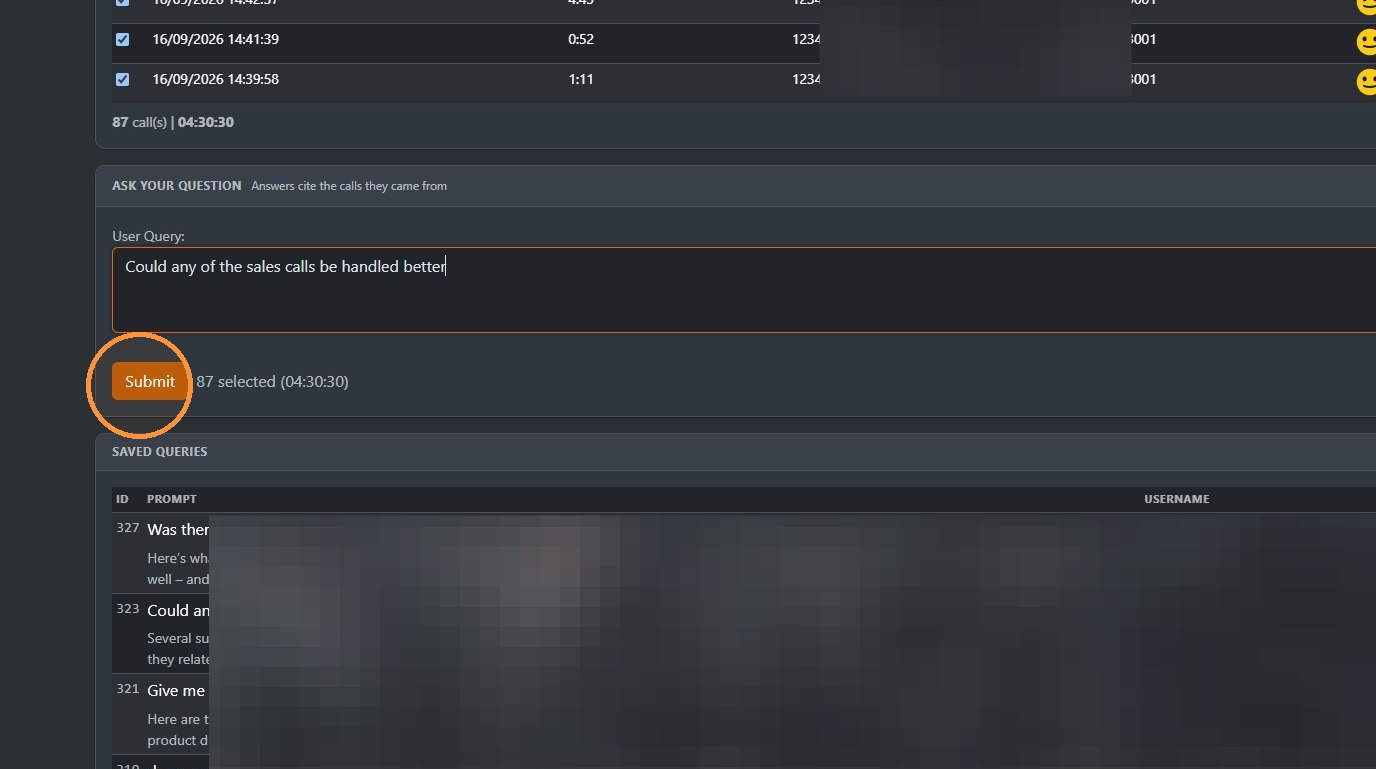
21. It will start processing the query.
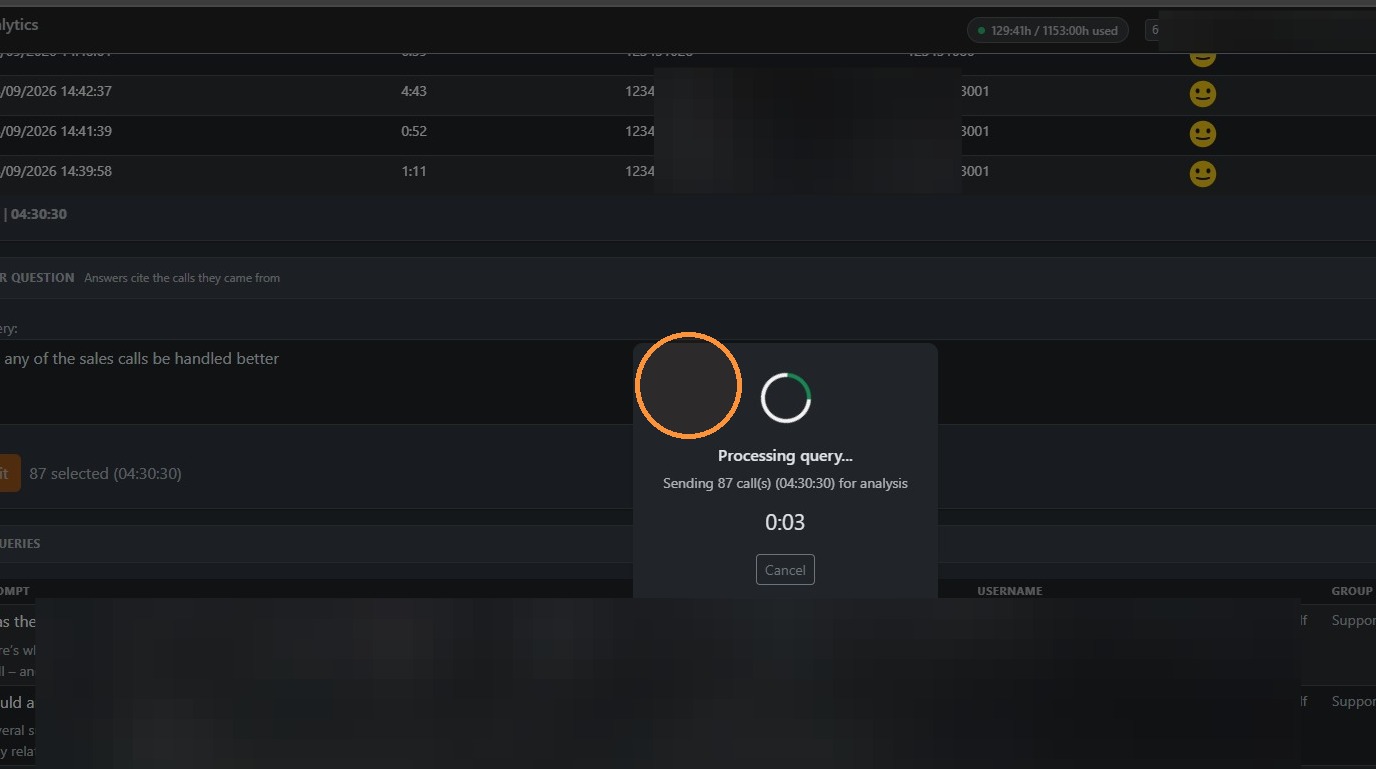
22. This could take up to three or four minutes, depending on the size of data that you're analysing and depending on the question being asked, which is why we recommend to try and keep it simple. This example is a fairly low number of hours. And the question is fairly straightforward. So this shouldn't really take too long.
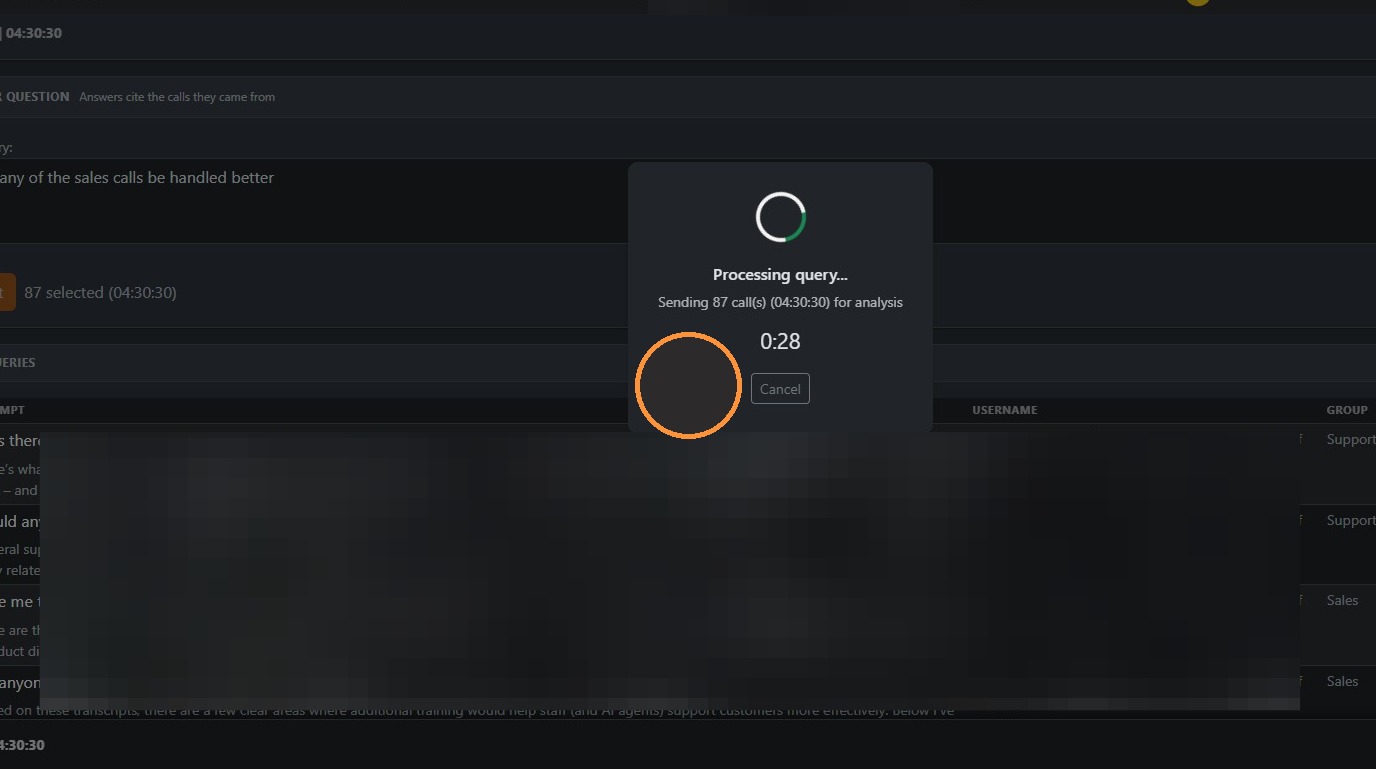
23. In this example, the query was calculated in just under 30 seconds. And you can now click View on the query to see the results of your AI Speech query.
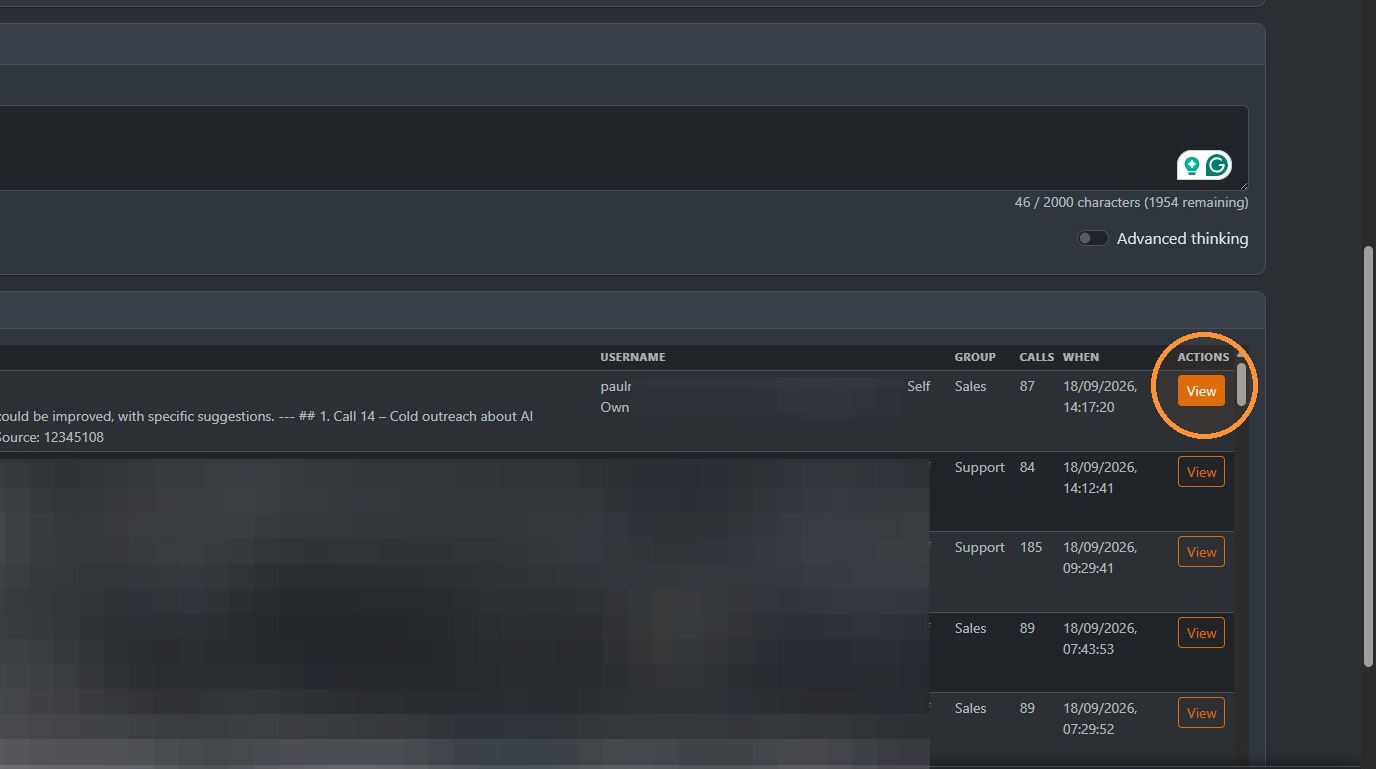
24. As you can see, it provides quite a lot of detail. It is also possible to download your query as a PDF here once you've got your answer. Or you can copy the text into the clip or to paste somewhere else.
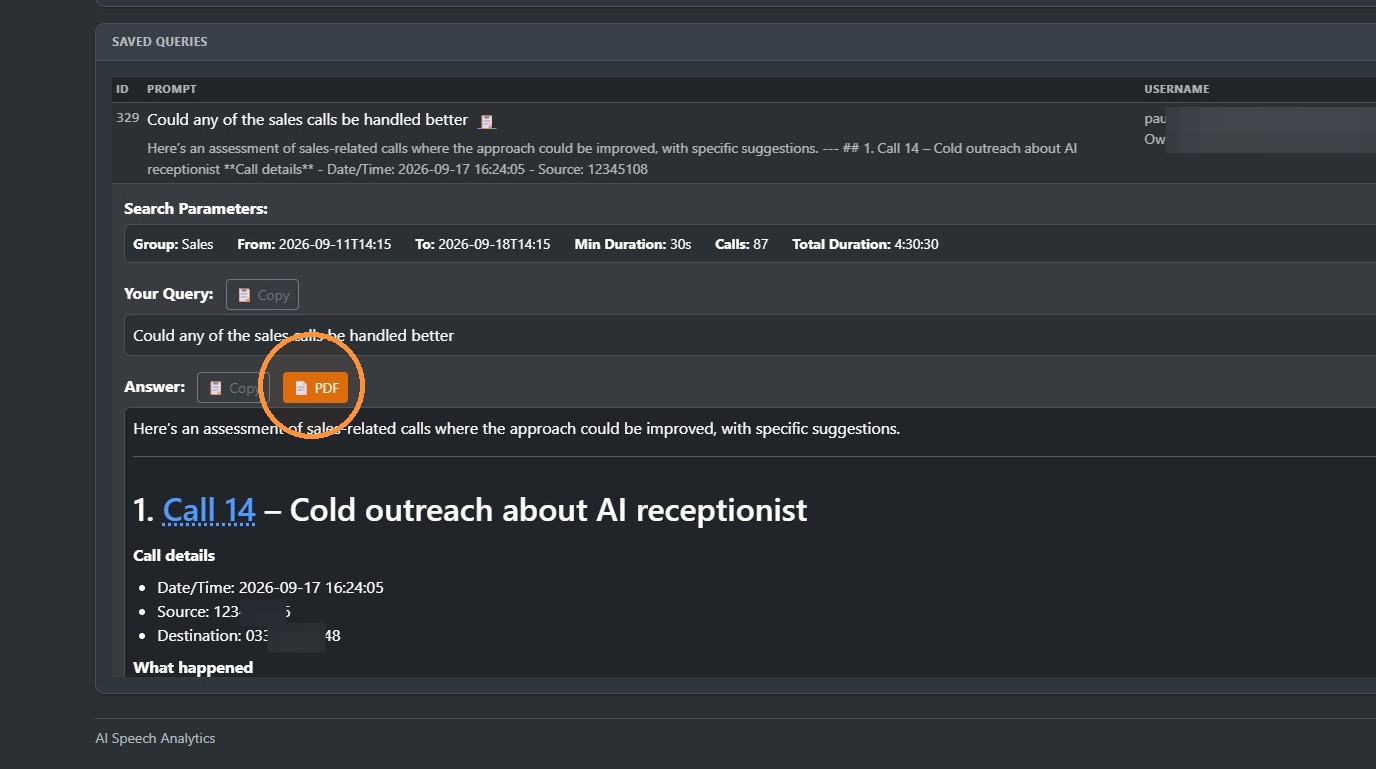
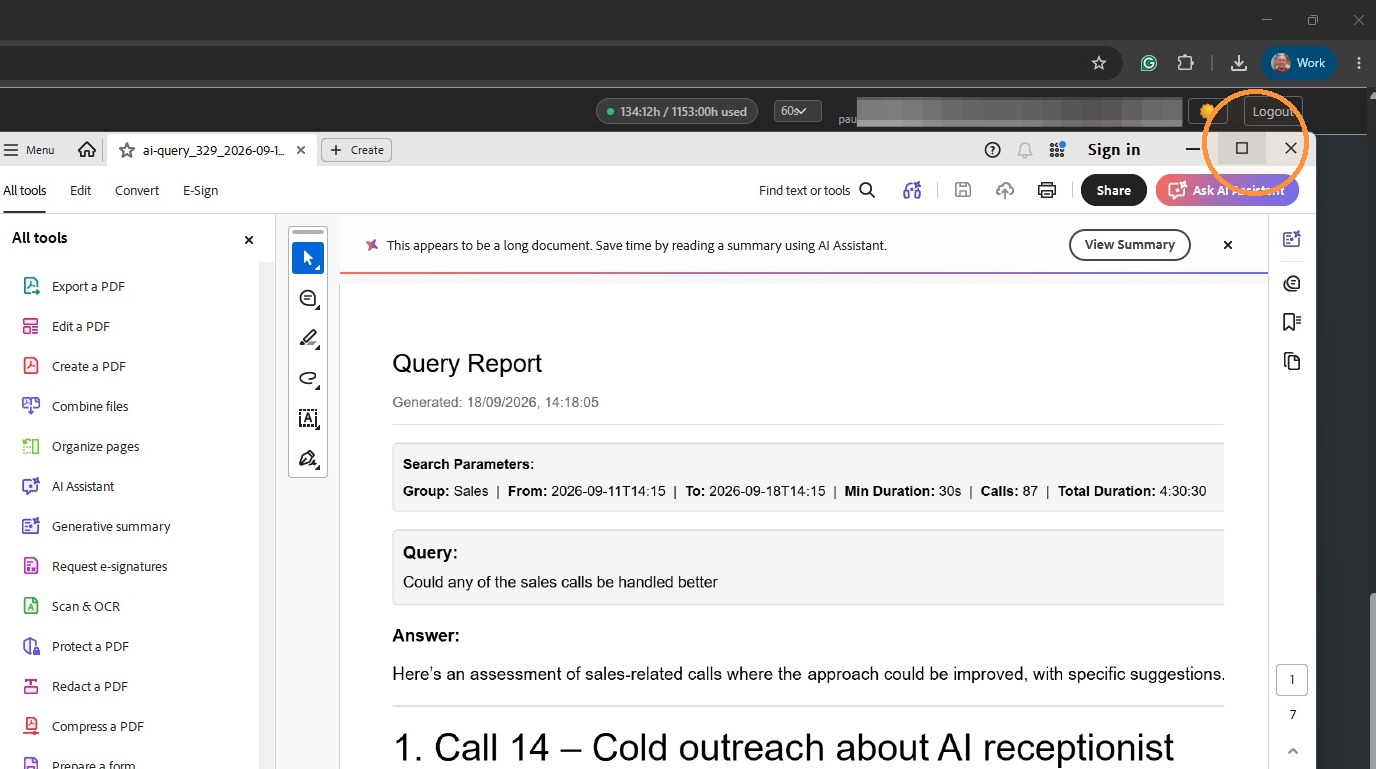
25. Then it will download. You can then open it.
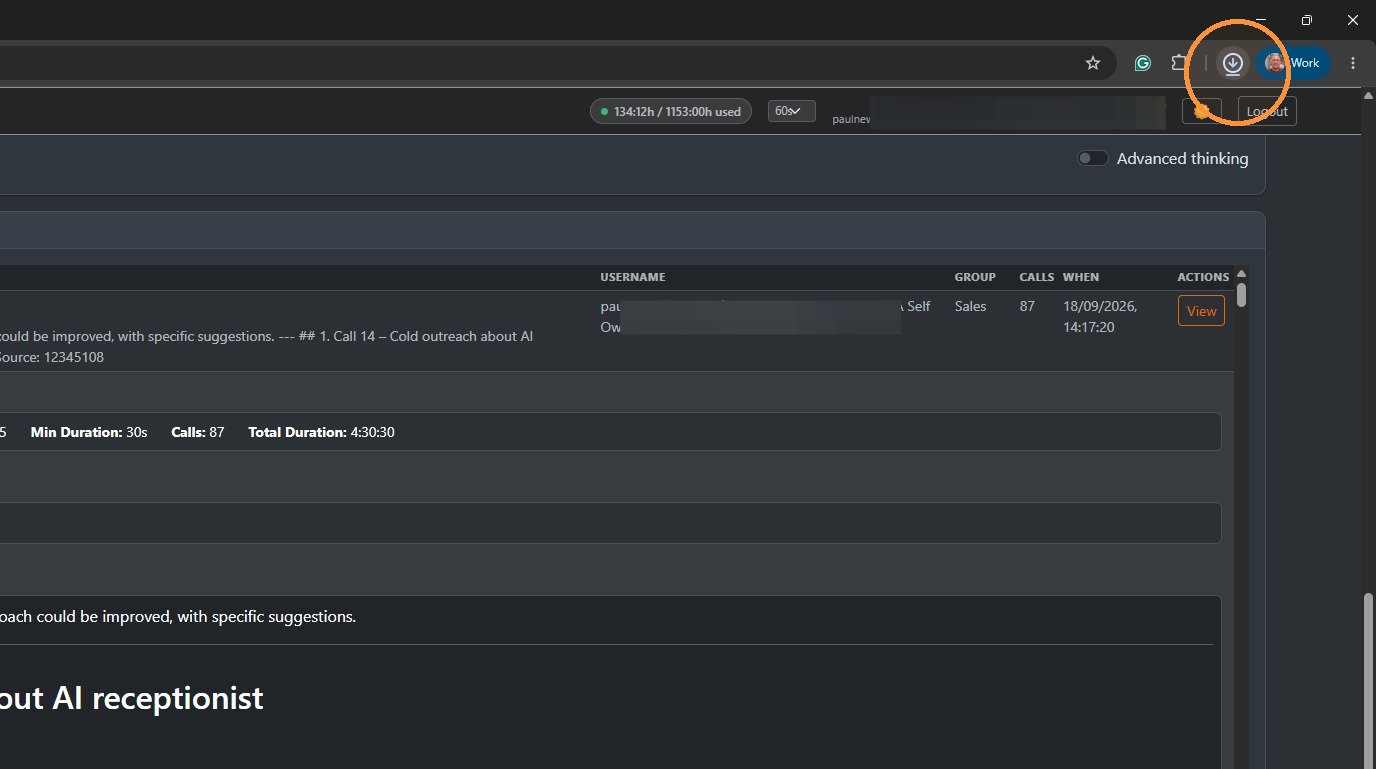
26. Click on your browser downloads area.
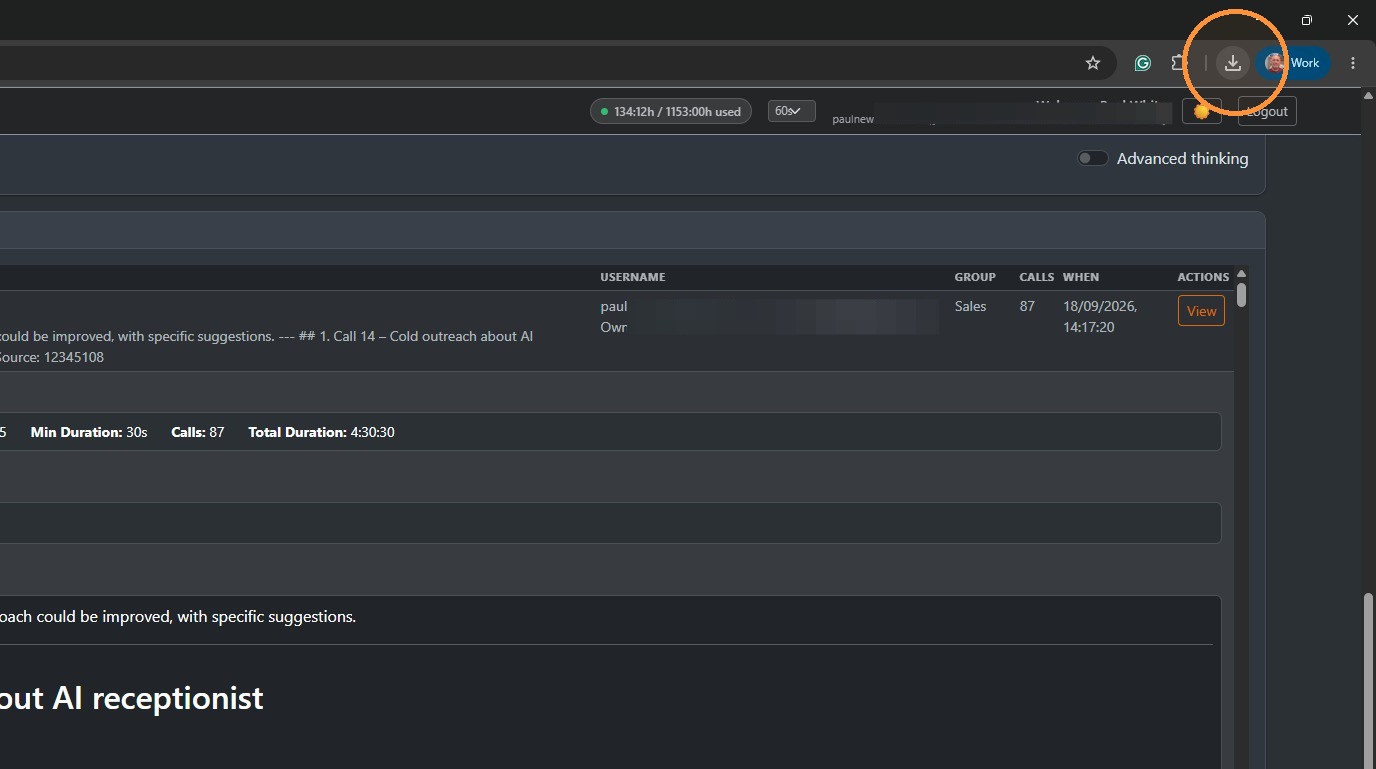
27. The final results are a good professional report in a PDF format.
Made with Scribe