
Email Reports
Email Reports can be found under Reports on the left-hand tab.
|
To create an email report, click the New button on the right-hand side.
Depending on the type of report you require. The options will change to suit your parameters. |
|
|
|
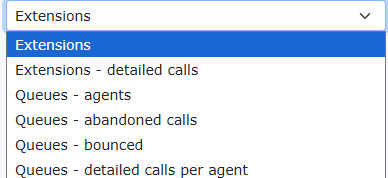
There are currently six email reports to choose from. |
Extensions Report
|
You can select the options from the selection offered. |
|
|
|
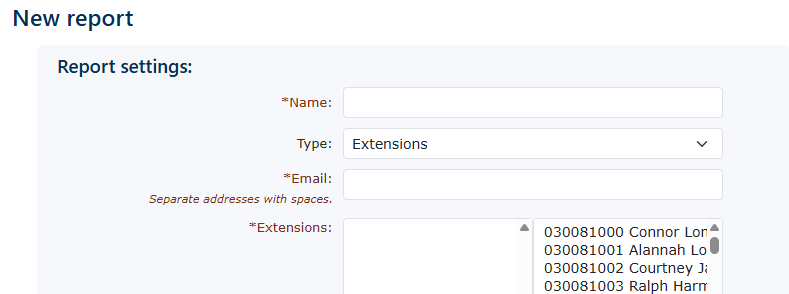
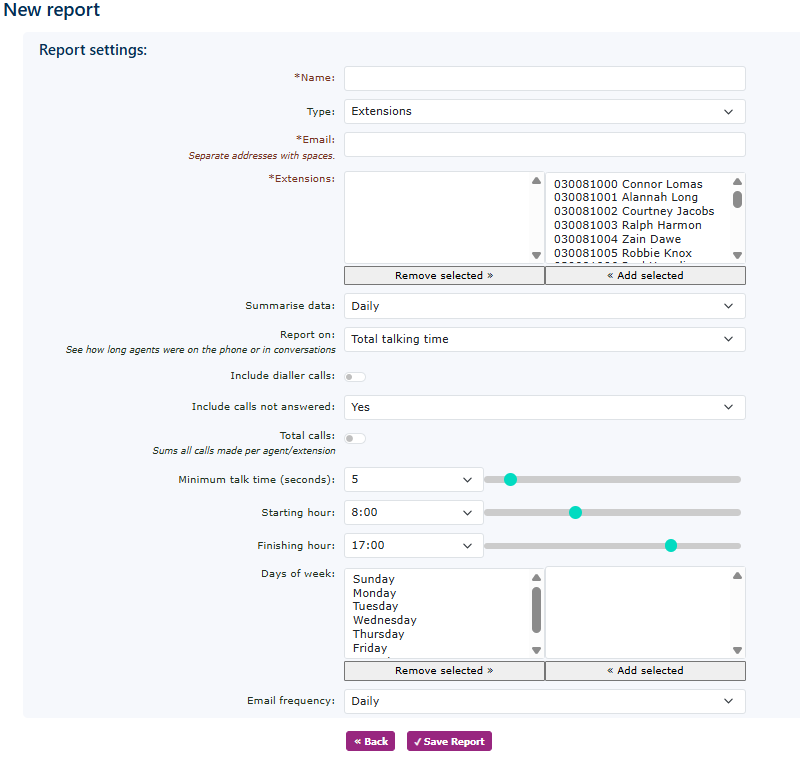
First, enter a name related to this new report. This will appear in the email subject line, so it's essential to use a name that best describes the report or the information you are looking to report on. |
| The report type you have chosen, Extensions, gives you a summary of calls from the extensions you are reporting on. |
|
|
|
Enter the email addresses or addresses you wish to receive the reports. |
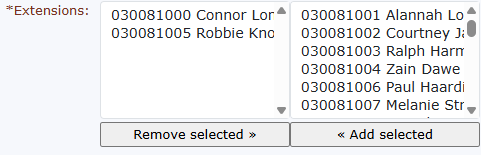
| Add the extensions you wish to report on. |
|
|
|
Select how often you would like to receive the report. This can be Hourly, Daily or Weekly. |
| Choose total talking time or total call time. Total call time will include ringing. |
|
|
|
This works in conjunction with the dialler system. Please speak to your partner for more details. |
| Choose yes or no if you wish to include calls not answered. |
|
|
|
You can choose to sum all calls made by extension. |
|
The minimum talk time, which can be set from 0 to 60 seconds, is the minimum an extension must be on a call for it to be counted towards the call count. |
|
|
|
Start time is the point at which the email reporting system will begin. |
|
Finishing time is the point at which the email reporting system will stop reporting on the calls. |
|
|
|
You can choose the days of the week you wish for the email reporting system to produce reports against. If you don't work weekends, then unselect Saturday and Sunday. |
|
You can choose how often you receive the reports. This can be set to hourly or daily |
|





Don't forget to click the save button to start the report working.
Extensions - Detail calls Report
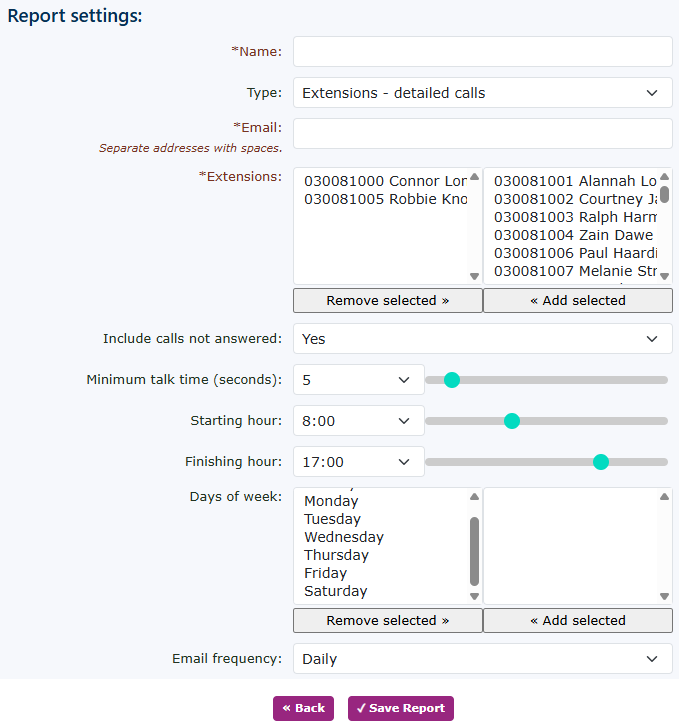
| You can select the options from the selection offered. |
|
|
|
First, enter a name related to this new report. This will appear in the email subject line, so it's essential to use a name that best describes the report or the information you are looking to report on. |
| The report type you have chosen, Extensions - detailed calls, will give you details of calls from the extensions you are reporting on. |
|
|
|
Enter the email addresses or addresses you wish to receive the reports. |
| Add the extensions you wish to report on. |
|
 |
Choose yes or no if you wish to include calls not answered. |
|
The minimum talk time, which can be set from 0 to 60 seconds, is the minimum an extension must be on a call for it to be counted towards the call count. |
|
|
|
Start time is the point at which the email reporting system will begin. |
|
Finishing time is the point at which the email reporting system will stop reporting on the calls. |
|
|
|
You can choose the days of the week you wish for the email reporting system to produce reports against. If you don't work weekends, then unselect Saturday and Sunday. |
|
You can choose how often you receive the reports. This can be set to hourly or daily. |
|

Don't forget to click the save button to start the report working.
Queues - agents Report
|
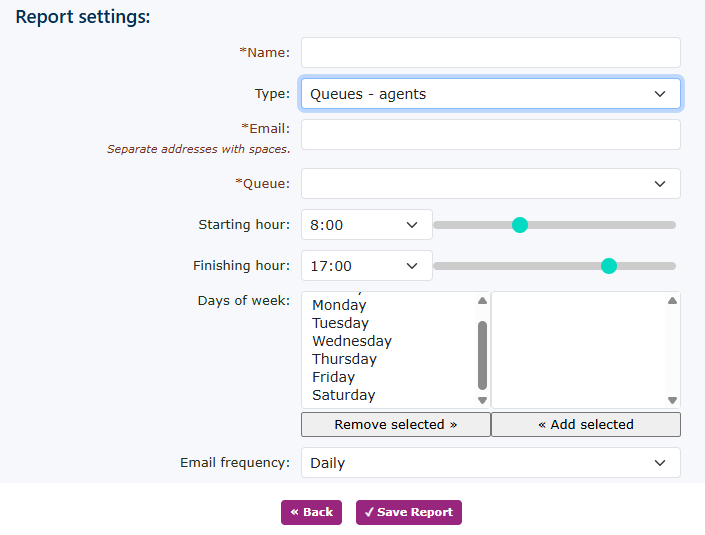
You can select the options from the selection offered. |
|
|
|
First, enter a name related to this new report. This will appear in the email subject line, so it's essential to use a name that best describes the report or the information you are looking to report on. |
| The report type you have chosen, Queue - Agents, provides details of calls for the queue you are reporting on. |
|
|
|
Enter the email addresses or addresses you wish to receive the reports. |
| Add the queue you wish to report on. |
|
|
|
Start time is the point at which the email reporting system will begin. |
|
Finishing time is the point at which the email reporting system will stop reporting on the calls. |
|
|
|
You can choose the days of the week you wish for the email reporting system to produce reports against. If you don't work weekends, then unselect Saturday and Sunday. |
|
You can choose how often you receive the reports. This can be set to hourly or daily. |
|


Don't forget to click the save button to start the report working.
Queues - abandoned calls Report
|
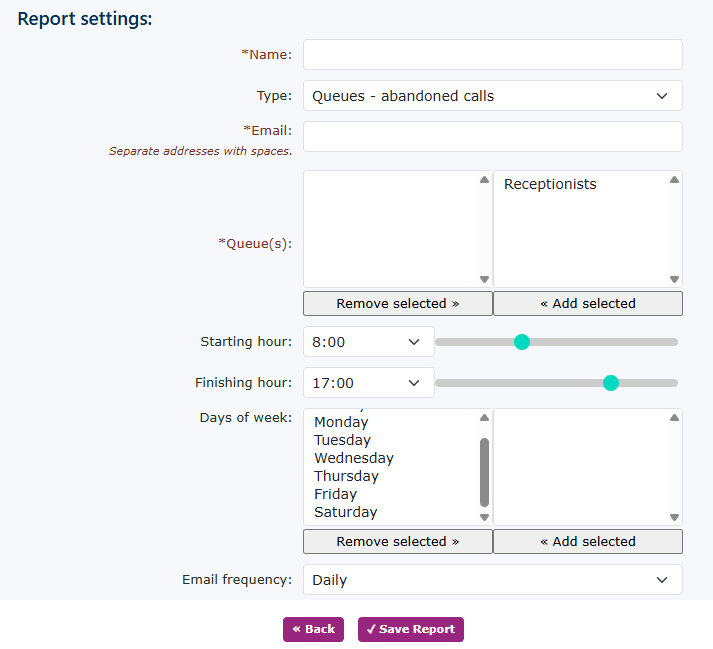
You can select the options from the selection offered. |
|
|
|
First, enter a name related to this new report. This will appear in the email subject line, so it's essential to use a name that best describes the report or the information you are looking to report on. |
| The report type you have chosen, 'Queues - Abandoned Calls', provides details of calls for the queue you are reporting on. |
|
|
|
Enter the email addresses or addresses you wish to receive the reports. |
| Add the queue you wish to report on. |
|
|
|
Start time is the point at which the email reporting system will begin. |
|
Finishing time is the point at which the email reporting system will stop reporting on the calls. |
|
|
|
You can choose the days of the week you wish for the email reporting system to produce reports against. If you don't work weekends, then unselect Saturday and Sunday. |
|
You can choose how often you receive the reports. This can be set to hourly or daily. |
|

Don't forget to click the save button to start the report working.
Queues - bounced calls Report
|
You can select the options from the selection offered. |
|
|
|
First, enter a name related to this new report. This will appear in the email subject line, so it's essential to use a name that best describes the report or the information you are looking to report on. |
| The report type you have chosen, 'Queues - bounced calls', provides details of calls for the queue you are reporting on. |
|
|
|
Enter the email addresses or addresses you wish to receive the reports. |
| Add the queue you wish to report on. |
|
|
|
Start time is the point at which the email reporting system will begin. |
|
Finishing time is the point at which the email reporting system will stop reporting on the calls. |
|
|
|
You can choose the days of the week you wish for the email reporting system to produce reports against. If you don't work weekends, then unselect Saturday and Sunday. |
|
You can choose how often you receive the reports. This can be set to hourly or daily. |
|
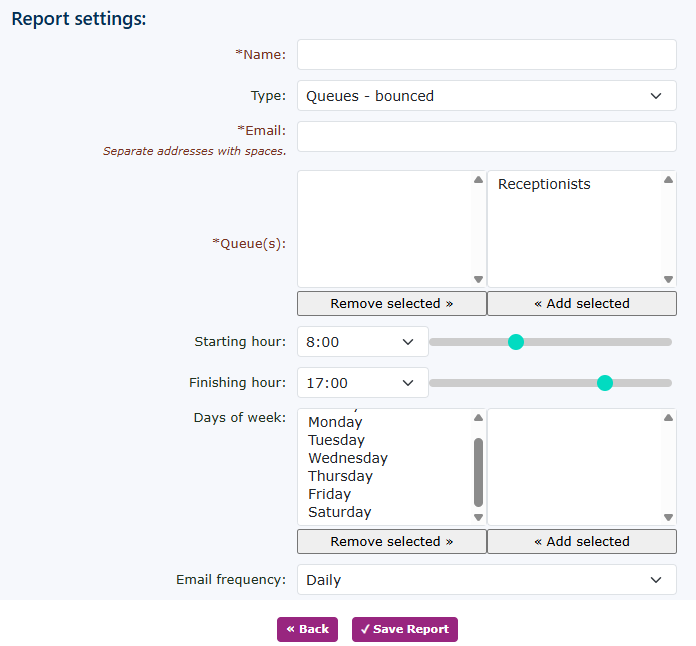

Queues- detailed calls per agent
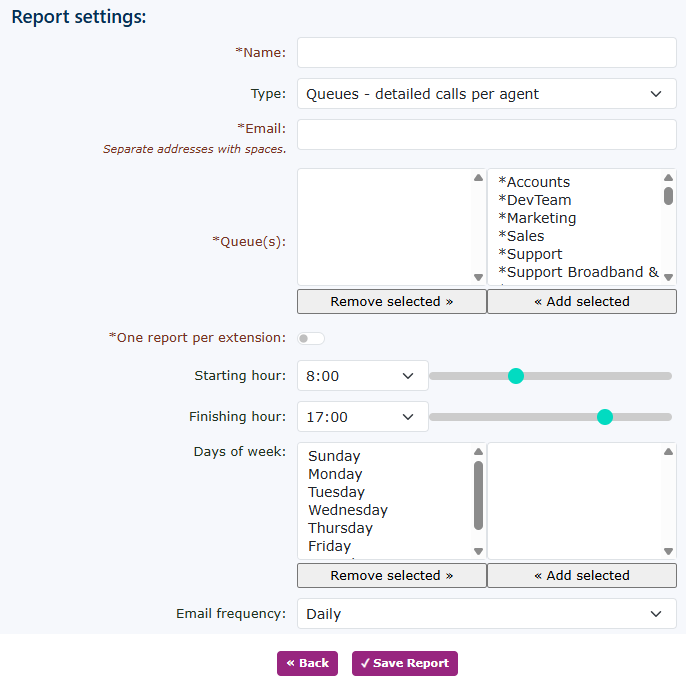
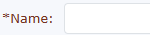
First, enter a name related to this new report. This will appear in the email subject line, so it's essential to use a name that best describes the report or the information you are looking to report on. The report type you have chosen, 'Queues - detailed calls per agent', provides details of calls for the queue you are reporting on.


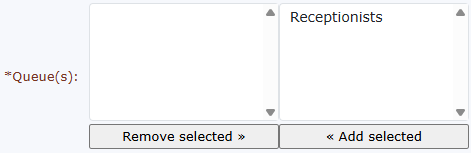


 Finishing time is the point at which the email reporting system will stop reporting on the calls.
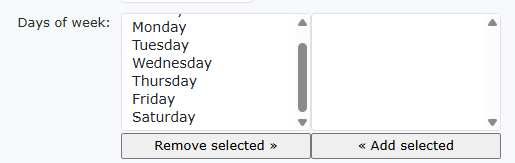
You can choose the days of the week you wish for the email reporting system to produce reports against. If you don't work weekends, then unselect Saturday and Sunday.
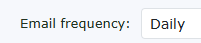 You can choose how often you receive the reports. This can be set to hourly or daily.
Don't forgetforget to click the save button to start the report working.