
Black List
This function can be found under Features Advanced - The Blacklist.
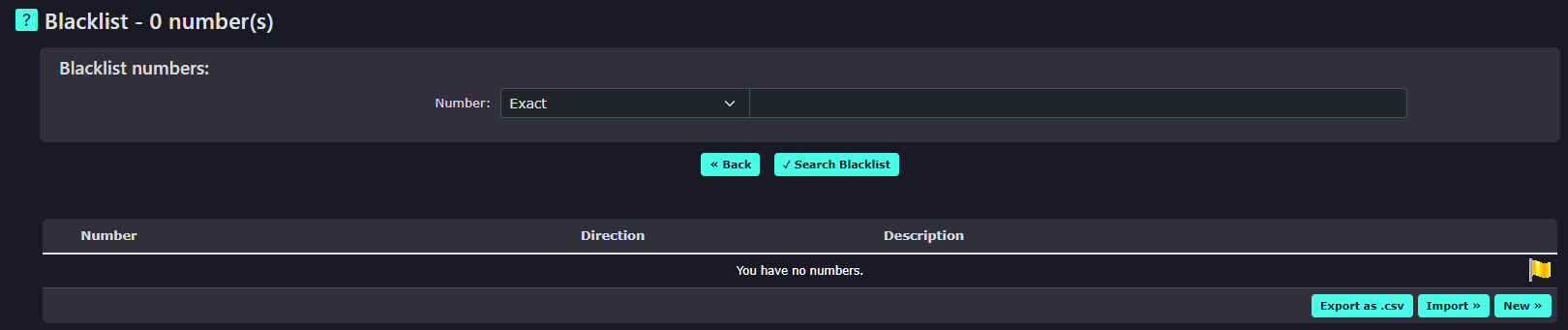
The Blacklist is designed to hold a large volume of numbers (100,000). Numbers entered must be 10 or 11 digits long and always start with a zero. This works similarly to the classes of service (COS) feature but is built to store whole numbers. It is used to stop telephone Extensions from calling these numbers. This is ideal for cold-calling companies and adding the numbers people ask them never to ring again. This isn’t a replacement for our TPS/CTPS service.
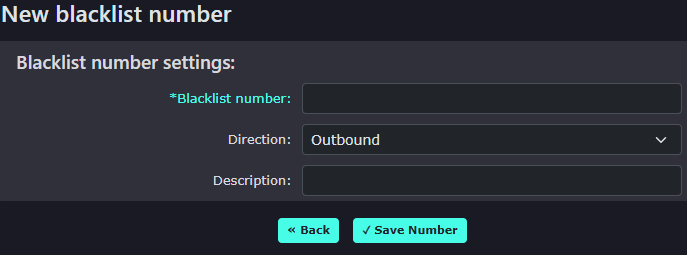
| To add a single number to the Blacklist, click New on the right-hand side of the portal. |
|
|
|
Enter the number in the top box. |
|
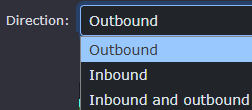
Choose whether you want to stop being able to dial the number from an extension, stop the number from being received inbound, or choose both.
When selecting inbound, please keep in mind that the number will be blocked on all inbound numbers for this customer |
|
| When you enter a large number into the system, it will display only the first 100 numbers. This is because it is designed to handle large numbers, and you must either export the numbers to see the full list or use the search function at the top of the page to check whether the number exists. Don’t worry if you enter a number again; the system will let you know it is already there. |
|
|
|
If you import a large volume of numbers (we don’t recommend more than 5000 at once), it will check the numbers and only enter the new ones. |
|
|
|



To use the Black List, go to Features—Extensions and click on the extension you wish to add the service to.
|
|
Change the setting ‘use blacklist’ by toggling the switch. This will then enable the black list feature and stop this extension from dialling any blacklist numbers. |

|
You can also use the Bulk change on the right side of the Extensions list. To do this, click on the bulk change under other options.
Select the Extensions you wish to change in the bulk change and then select ‘use blacklist’ under new settings to ‘yes’ and click save. |
 |
|
|
Change the use blacklist to Yes and click change at the bottom of the page. |

