Contacts (Cloud Phonebook)
|
Clicking the |
 |
 |
If this icon is missing from the menu bar on the left, please contact your service provider so they can enable the Cloud Phonebook for you. |
|
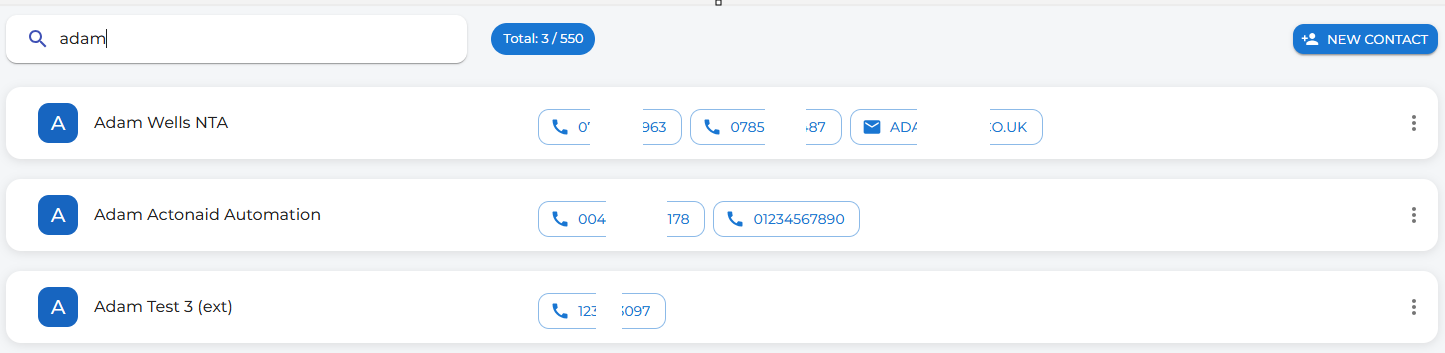
You can search through the contacts using the search bar at the top of the page. |
 |
Your Contacts will resemble this. When you search for a contact, it will show you how many matches your search returns out of your total avaiable contacts.
|
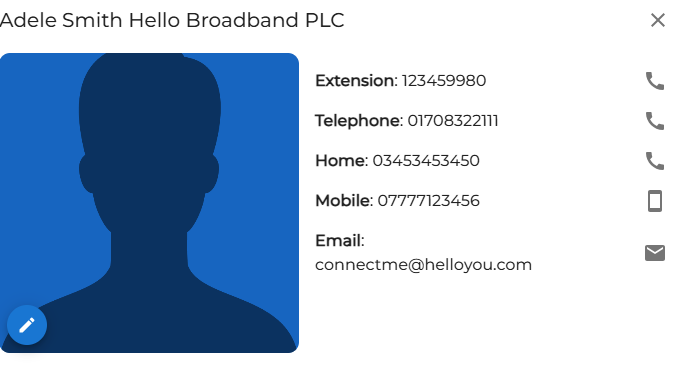
You can click the contact name to
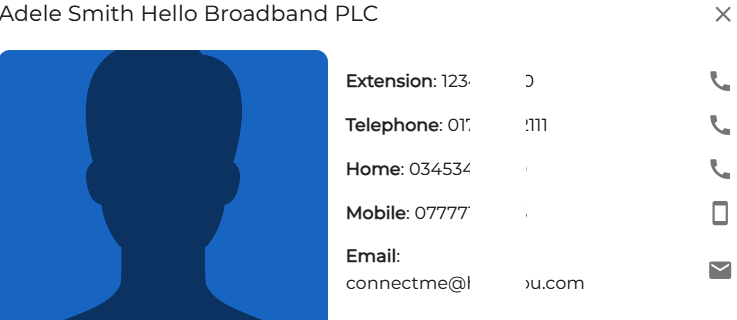
In this example, you can see that the contact, Adele, now
Use the icons on the right side of the screen to quickly dial or email the contact. |
|
|
|
You can also click a number directly on the main screen to make a one-touch speed-dial request. The number will automatically appear in the dial box, and the call will be placed for you. |
| Likewise, clicking on an email address |
|
|


By
Adding clickinga Cloud Phonebook entry
Click the new contact button on the 
| |
|
|
|
|
|
|
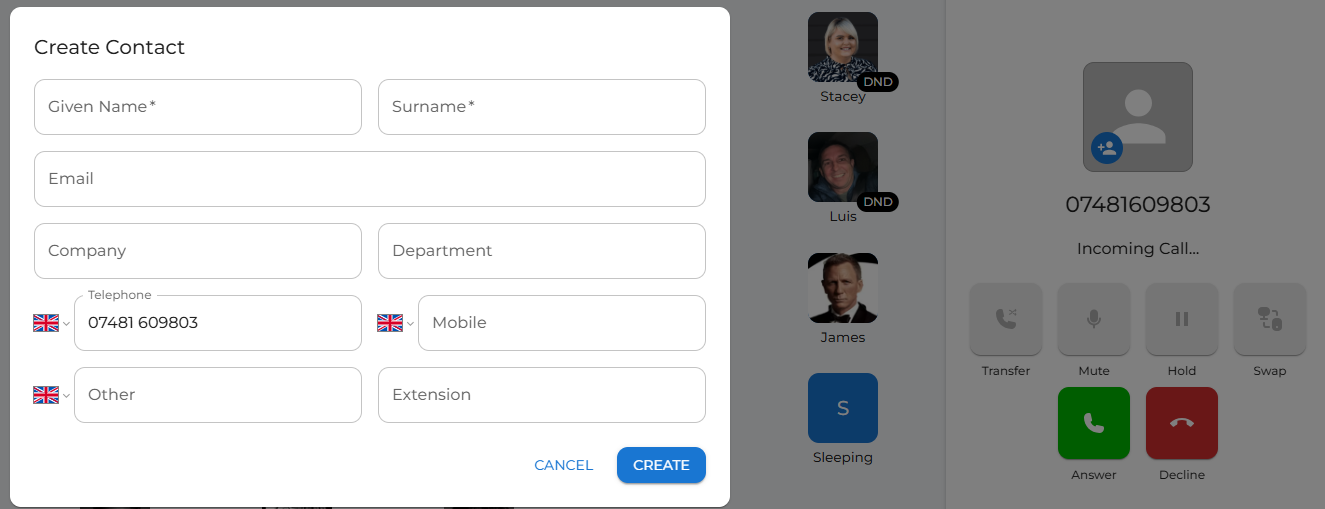
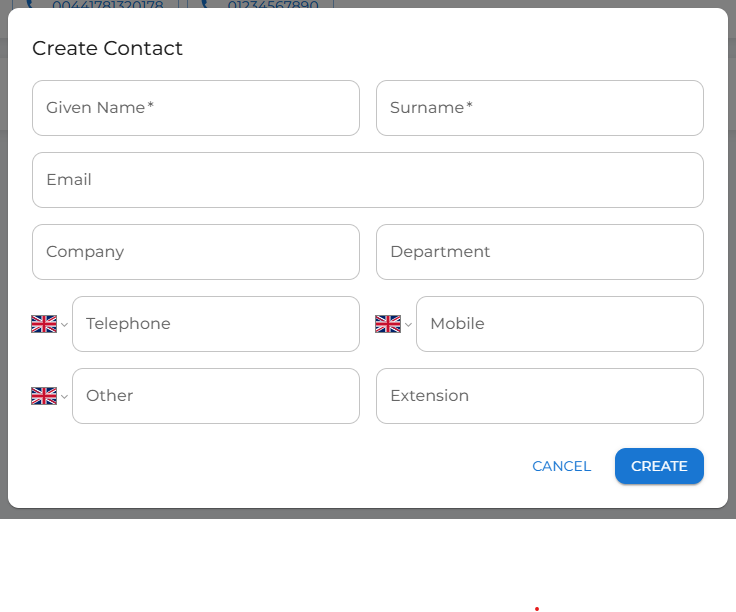
Enter the details in the pop-up window. This entry will appear in the global phonebook for your customer. Everyone who has access to the cloud phonebook, including desk handsets, will be able to see any new contacts created.
Click create after entering all the details. |
Cloud phonebook editing
|
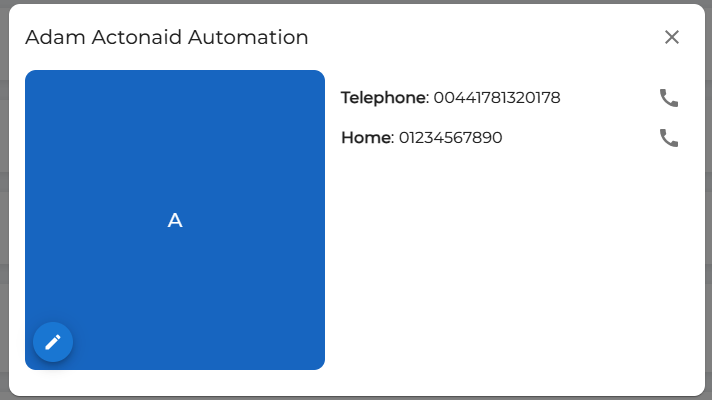
You can edit cloud phonebook contacts by clicking the contact name to open the full contact details, then selecting the edit icon in the contact’s avatar.
|
|
|
|
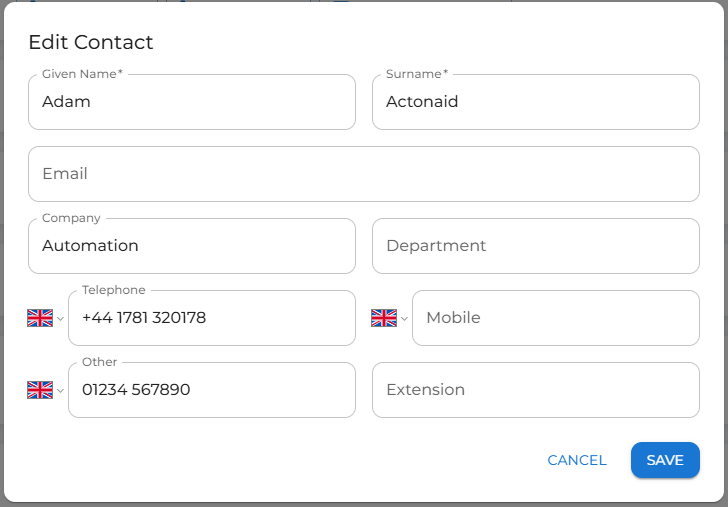
This opens the editing window, allowing you to change or add details to the existing contact.
Add or edit the details, then click the Save button.
The changes will update everyone’s cloud phonebook contacts in the customer’s system. |
|
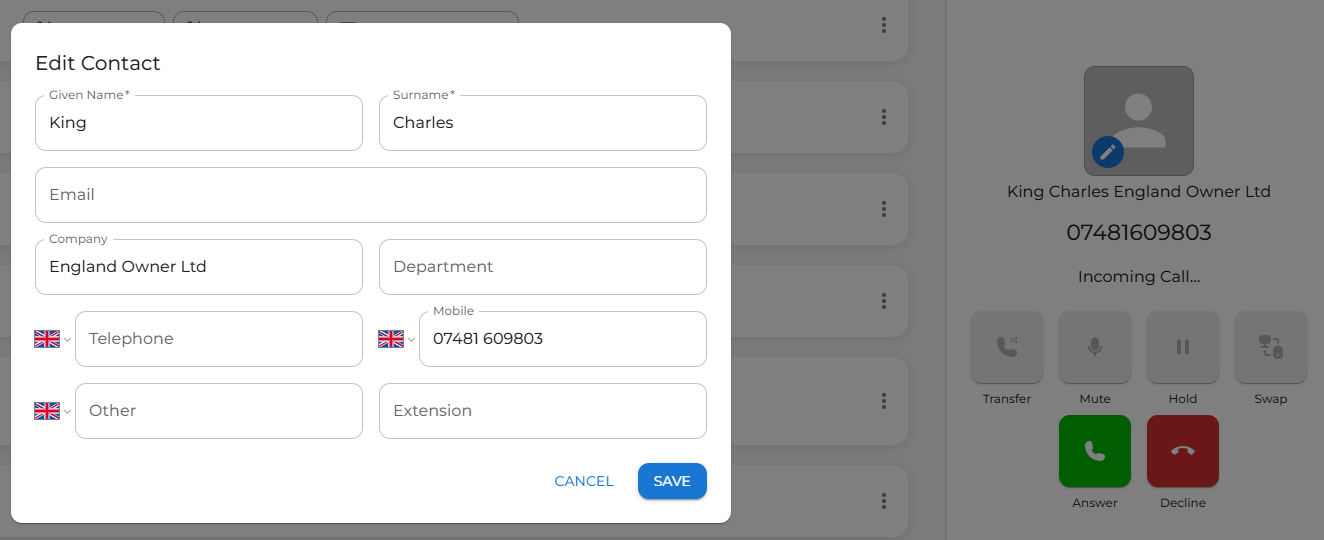
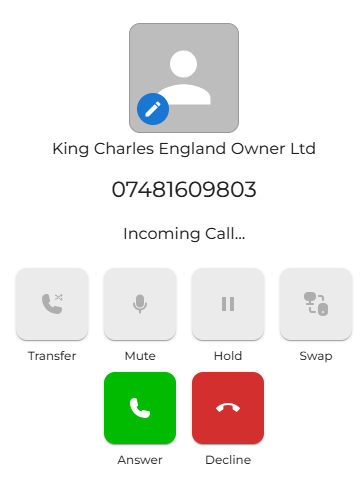
It is also possible to update a cloud phonebook entry while making or receiving a call. |
|
|
|
Once completed, click save. |
|
If the number calling hasn’t already been added to the cloud phonebook, click the edit icon to add it. |
|