Contacts (Cloud Phonebook)
|
Clicking the following icon will direct you to the Contacts page. People listed under your Contacts are saved in your Cloud Phonebook. |
 |
 |
If this icon is missing from the menu bar on the left, please contact your service provider so they can enable the Cloud Phonebook for you. |
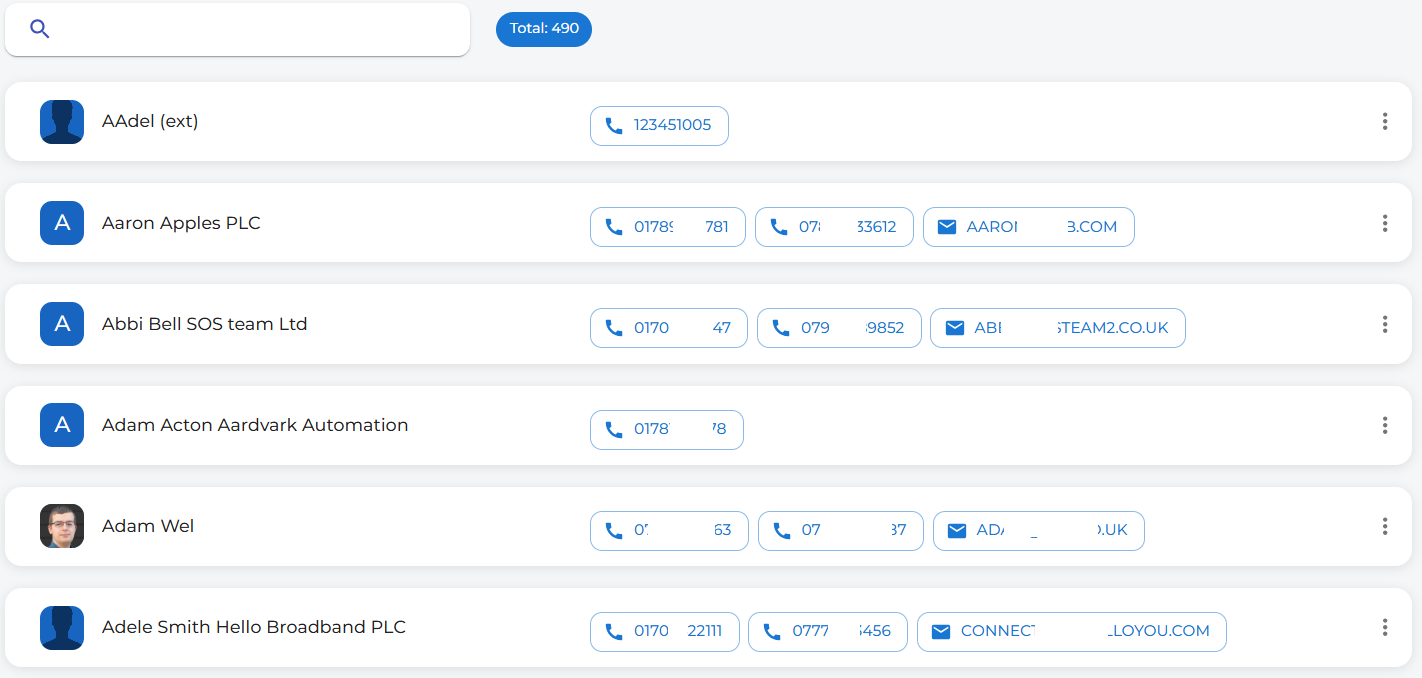
| You can search through the contacts using the search bar at the top of the page. |  |
Your Contacts will resemble this.
|
You can click
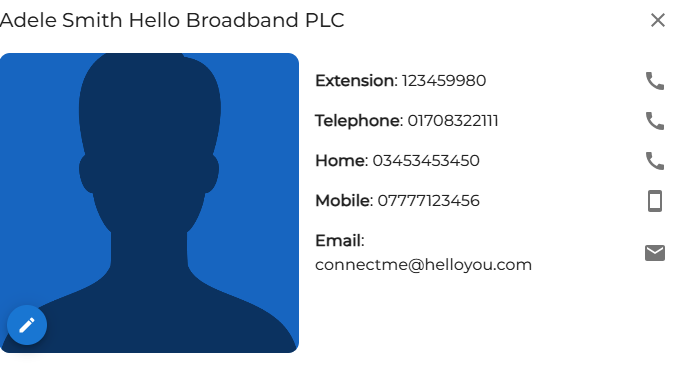
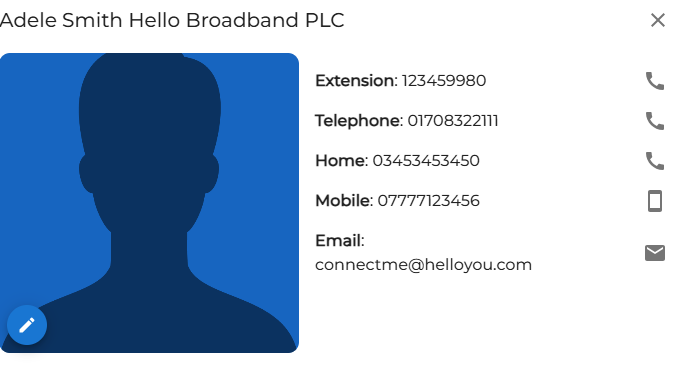
In this example, you can see that the contact, Adele, now shows additional phone numbers along with her extension.
Use the icons on the right side of the screen to quickly dial or email the contact. |
|
|
|
You can also click |
| Likewise, clicking |
|
|
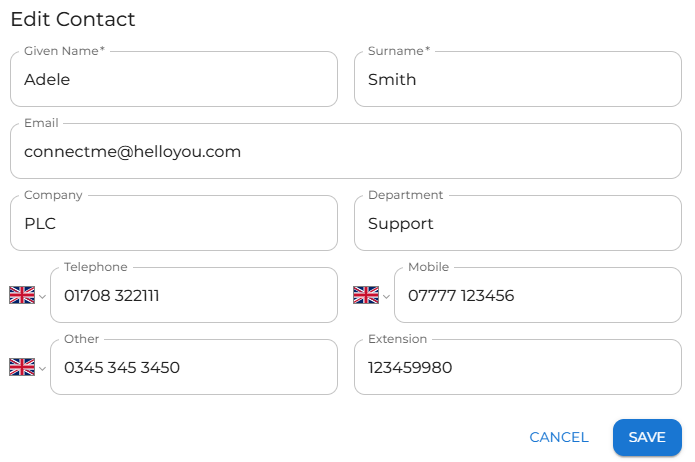
By clicking on the pencil
|
|
Make the changes required, then don't forget to click save to keep the changes. |
|