
Logging in to MobeX UC

|
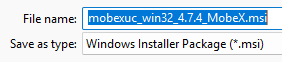
Once your service provider has set up your MobeX licenses, go to the following link and download the installation file. |
Windows users - https://downloads.mobex.app/download/mobexuc/win32
Mac users - https://downloads.mobex.app/download/mobexuc/darwin |
|
|
Click the link, and you will be taken directly to the MobeX
|
|
Once downloaded, click on the |
|
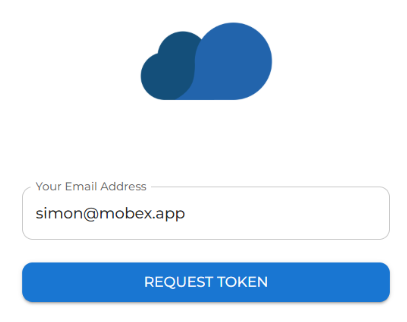
| Enter your email address to be sent a one-time password (Token) |
|
|
|
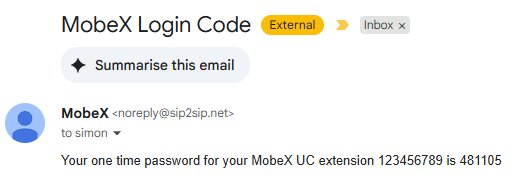
You will receive an email similar to this. Don't forget to check your spam folder in case the password email is there. |
| Once entered, you will be logged in to the initial presence window. |
|


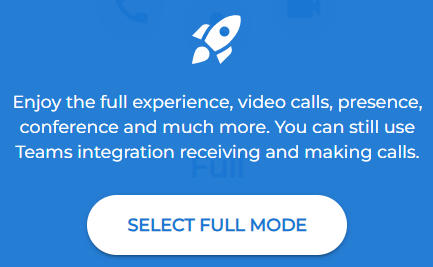
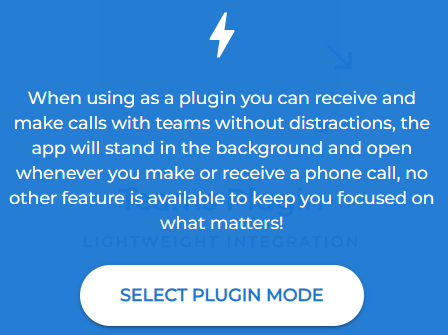
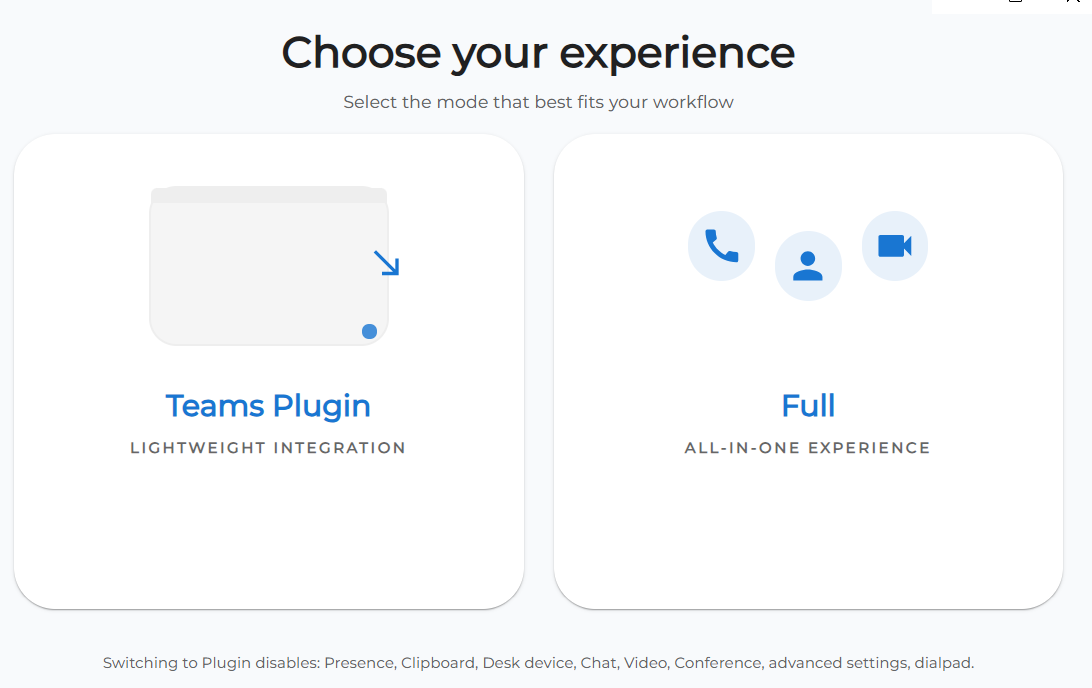
You will then be asked to choose if you would like the Microsoft Teams Plugin version of MobeX or the Full MobeX experience, which offers video, chat, and voice calling.
If you decide on the Teams Plugin version, after selecting, please visit our section on MobeX 4 Teams lower down in this manual.