Logging in to MobeX UC
|
Once your service provider has set up your MobeX licences,
Go to the following link and download the installation file. |
https://downloads.mobex.app/download/mobexuc/win32 |
|
 |
Click the link, and you will be taken directly to the MobeX
|
|
Once dowenloaded, click on the executable file and install the program on your windows PC |
|
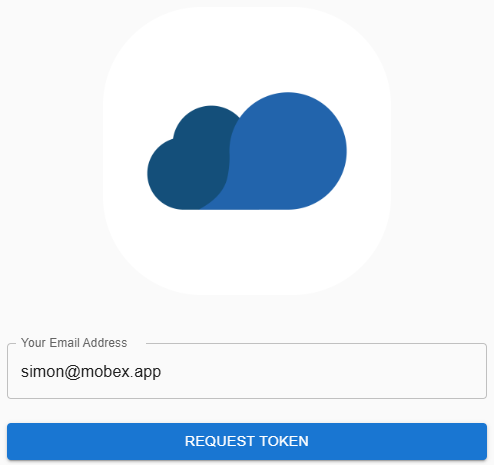
| Enter your email address to be sent a one-time password (Token) |
|
|
|
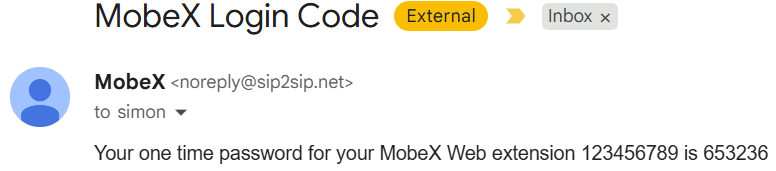
You will receive an email similar to this. Again, don't forget to check your spam folder in case the password email is there. |
| Once entered, you will be logged in to the initial presence window. | 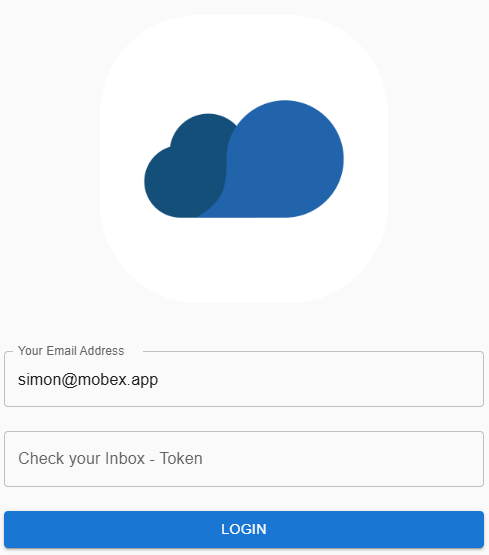 |
|
|
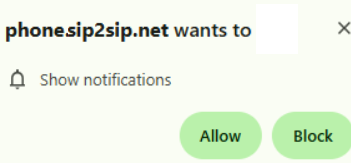
After logging it, you may need to grant some permissions to enable the MobeX service to function correctly. Click on the triangle to view the required permissions. |
| Show notifications are essential for receiving calls and making your PC ring, or for allowing a pop-up window to appear. |
|
|
|
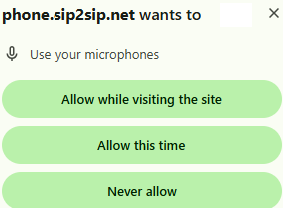
The software also requires the use of your microphone for voice and video calls. |
|
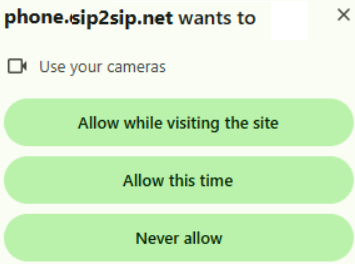
Finally, please allow for the use of your camera for video calls. |
|