Transfer
Call Transfer
|
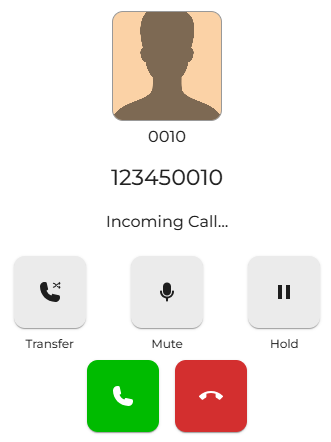
You can transfer a call to another party in several ways. You can even transfer a call before answering it. To perform a pre-answer transfer, follow this method.
Press the Transfer key to open the next screen. |
|
|
|
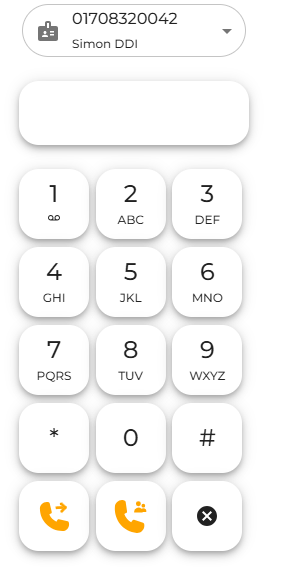
Once this screen is open, you can transfer in a few different ways here as well. You can enter the number in the box provided using the number keys. Once you have the number on the screen, press
or
|
|
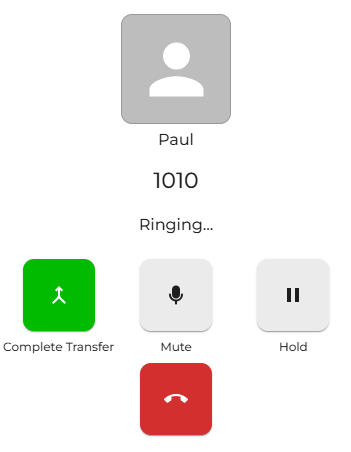
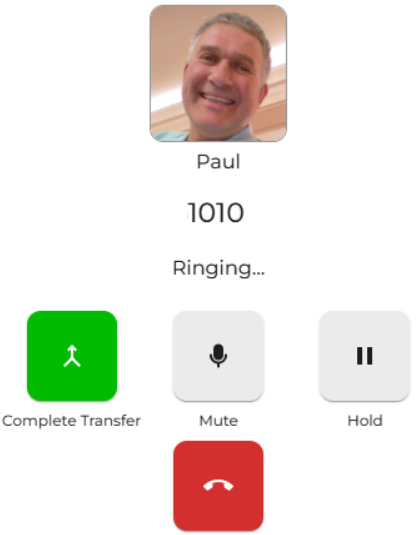
After the person has answered the call and you have announced the first party caller, press the Complete Transfer button to move the call to the third party.
Keep in mind that the attended transfer method can take more time and if the first call hasn’t been answered yet, it may time out before you complete the process.
Blind transfer would be the better option. |
|
|
|
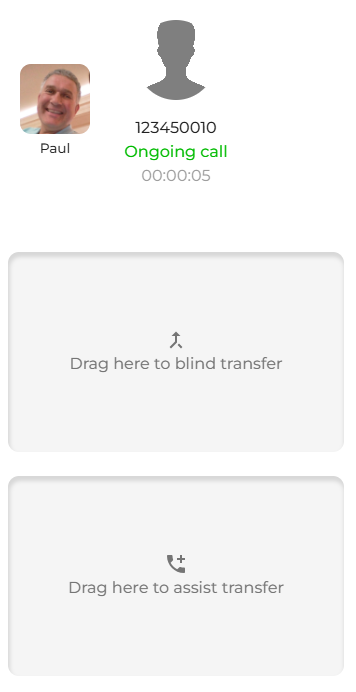
The other way is to drag the picture avatar over to the dial pad where the current inbound call is ringing.
If you drag and drop the avatar into the blind transfer box, the call will be blind transferred to the person with the extension corresponding to the picture avatar.
or
If you want to announce the call before transferring, drag and drop the avatar to the attended transfer to proceed to the next screen below. |
|
After the person has answered the call and you have announced the first-party caller, press the "Complete Transfer" button to transfer the call to the third party.
Keep in mind that the attended method takes more time, and there's a chance the first call could time out before you have a chance to complete the transfer, especially if it hasn't been answered yet.
In these cases, a blind transfer may be the better option. |
|