Connecting your MobeX account to the device
OnceAfter completing your Google account details, you havewill loggedalso intoneed theto enter your MobeX touchlogin device, use the following method: You will see everything set up for you via the network telephone portal.credentials.
Logging in
| Click on the |
|
|
|
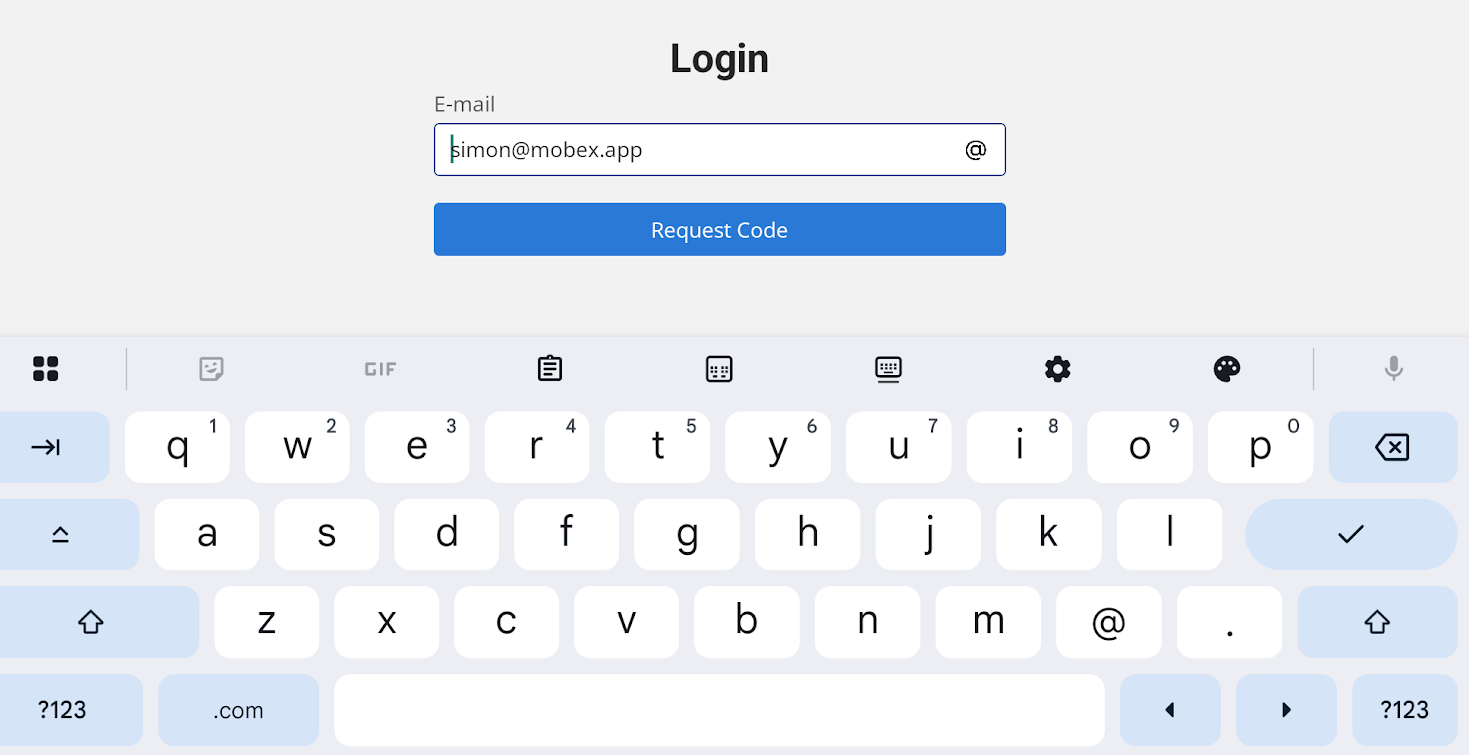
Enter your email address. |
|
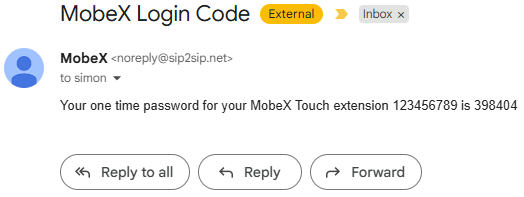
Check your email system to see if you
If you don't see it immediately, be sure to check your spam folder. It may be worth adding the email address to your contacts so you don't have any issues with future notifications, such as voicemail. |
|
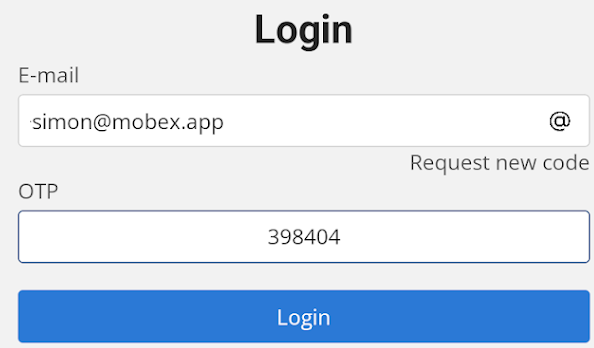 |
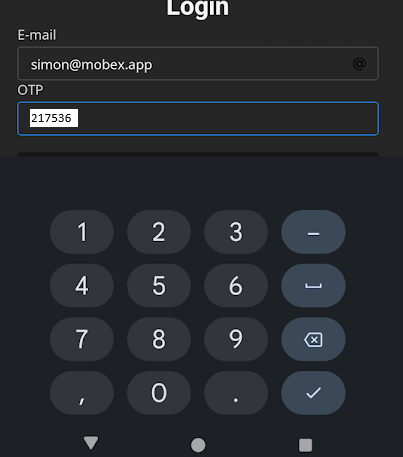
Enter the OTP from your email. |
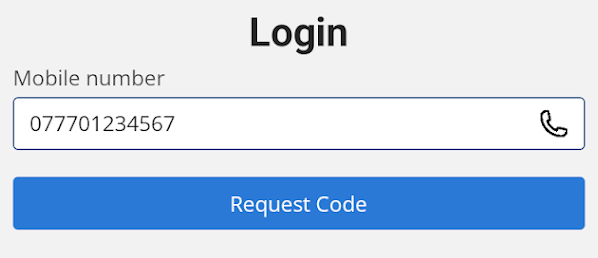
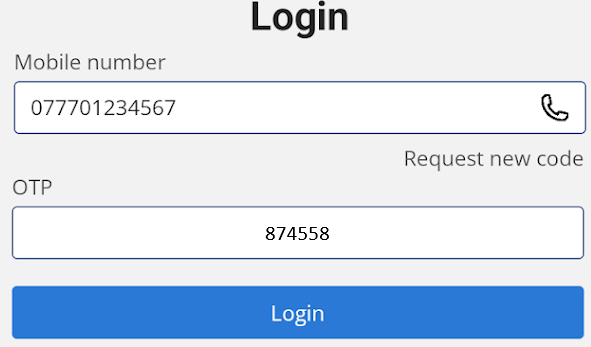
| Alternatively, you can press the @ sign on the right-hand side and switch to a screen that allows you to enter a mobile number instead. |
|
|
|
Press the request code button. |
|
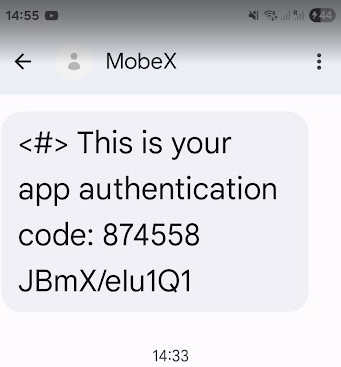
You will |
|
|
|
Press Login.
|
|
|
If you wish to |
| If you were logged in to another MobeX Touch and you decide to The otherdevice will receive this message. |
|


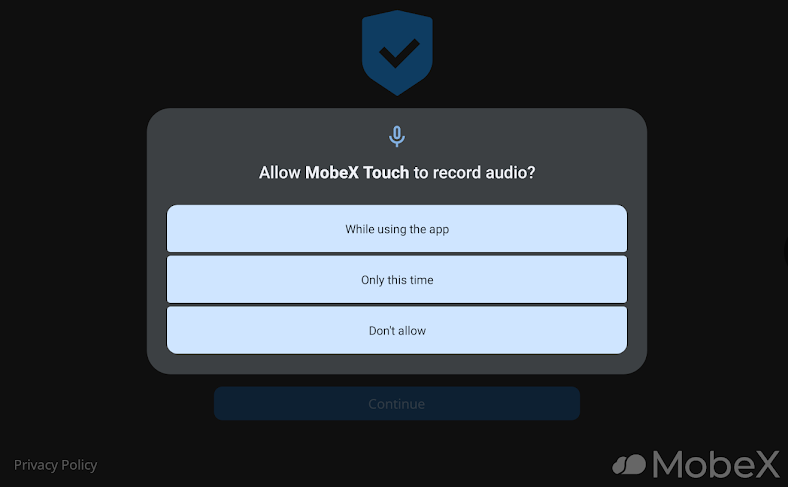
Select while using the App, to allow the microphone.
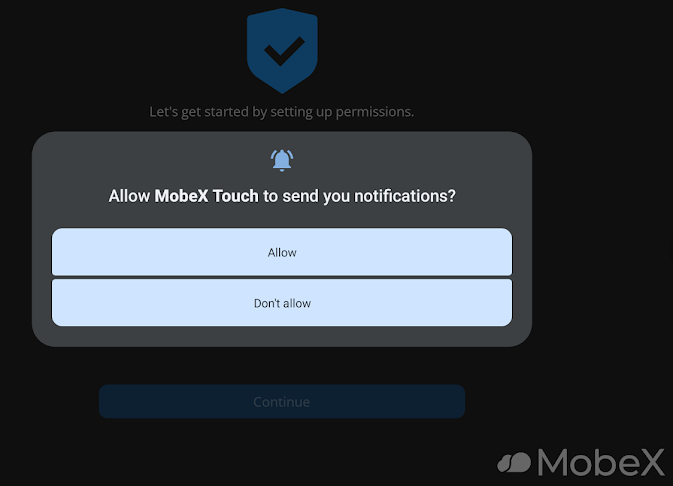
Allow for notifications.
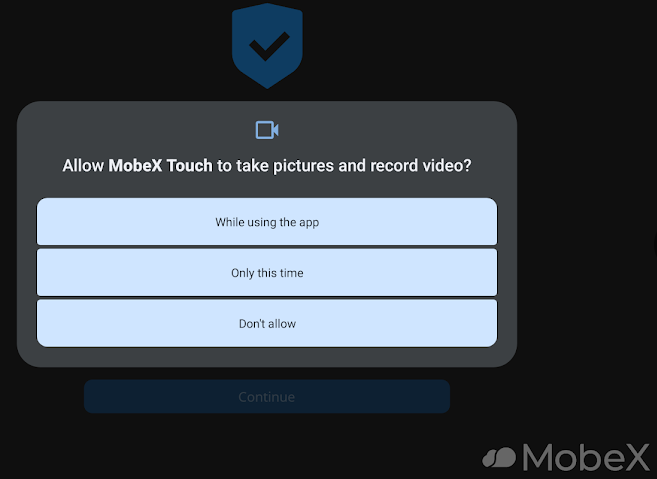
While using the App, for accessing the cameras for video calling and taking pictures.
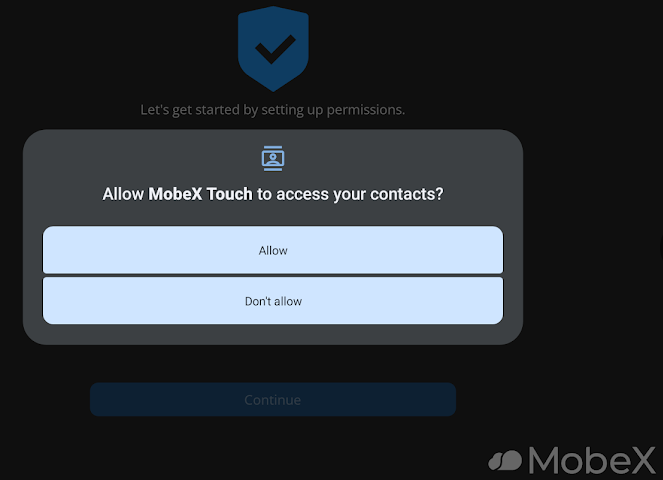
Allow to access your contacts.
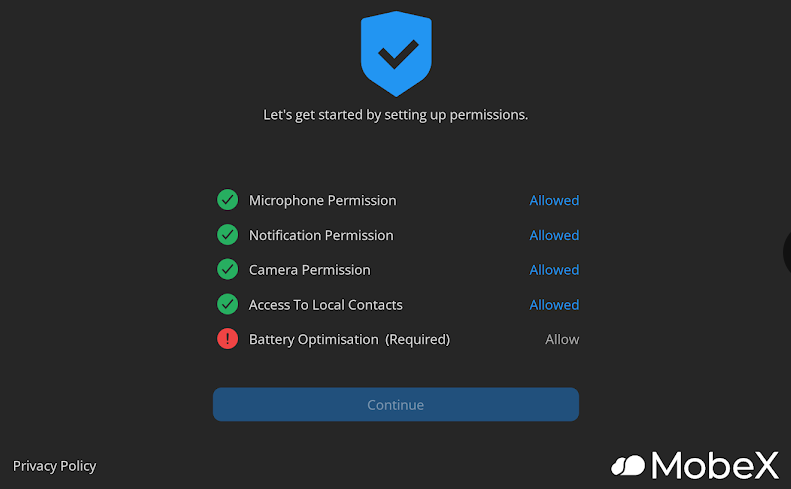
Then the last one is to allow battery optimisation so the app never sleeps and is always available.
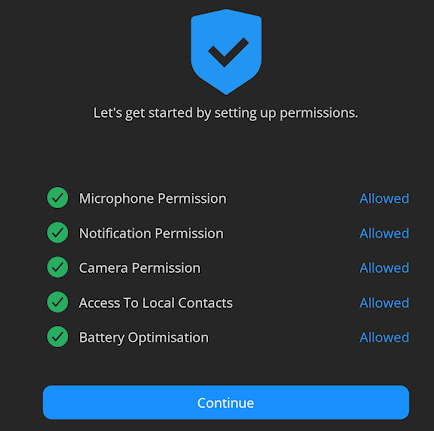
Once you have allowed all the settings, you can click continue.
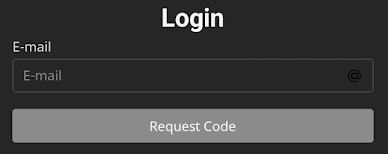
Please enter the email address that was registered with the telephone system portal. Please check with your service provider if you are having any login issues.

Then, once entered, press request code.
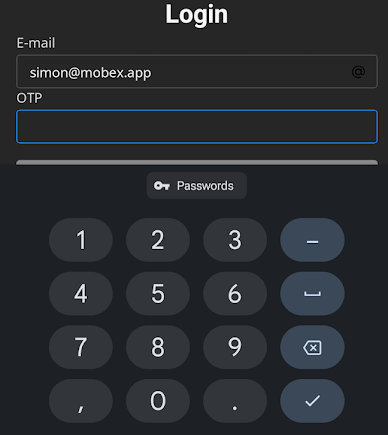
You will then be emailed your extension number and a 6-digit OTP (One time password).
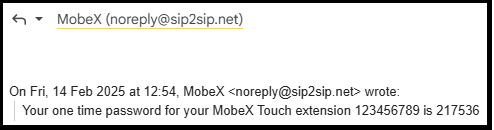
The password for this email is 217536. Please check your junk mail just in case it has arrived there. The OTP email is sent within 1 minute, so if you don't get it immediately, check your junk mail box just in case.