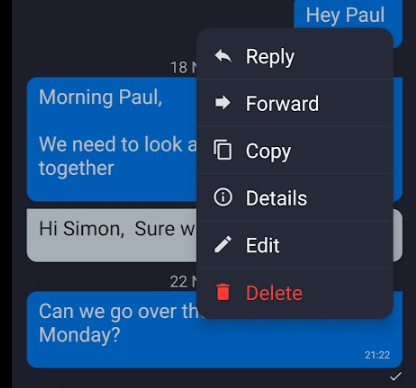
| After sending a message, you will see a single white tick to show the message has been sent. |

|
|
|
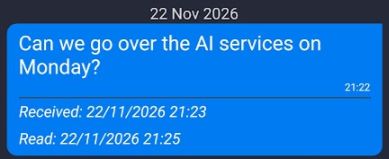
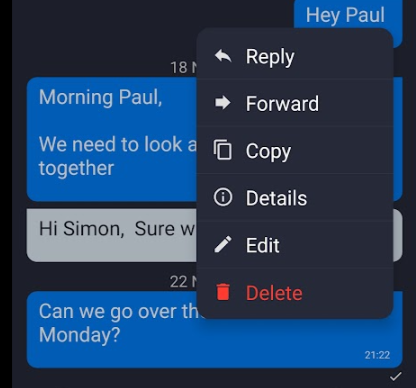
IfPress youand hold your finger on the message you have sent, and you will get the following pop-up window. Click on the details option to show more information about the message sent. |
|
In this case, is it just showing that the message has been acknowledged?
|

|
|

|
When you see two white ticks, this shows that the message |
|
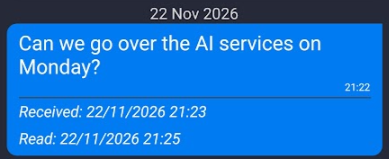
Again, if you press and hold your finger on the message you have sent, you will getsee the pop-up window. Click on the details option to show more information about the message sent. Now, with the two ticks, it shows the time and day the message was received.
|

|
|

|
Finally, when you see two green ticks, it shows that the message has been read |
|
Finally, if you press and hold your finger on the message you have sent, you will getsee the pop-up window. Click on the details option to show more information about the message sent. You can see the two green ticks when the message is read.
|
|