Receiving files
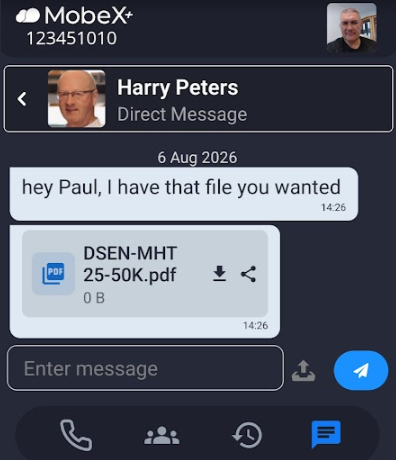
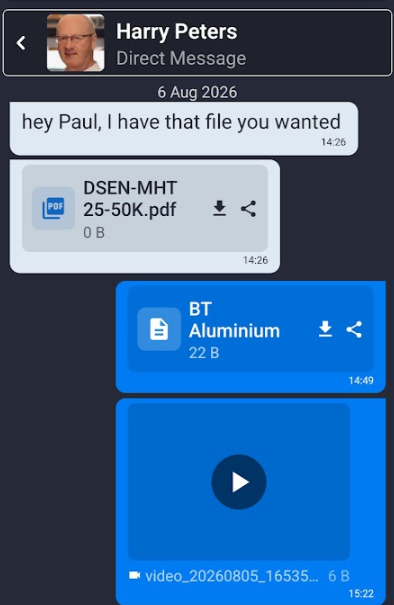
| Receiving files in chat is easy. |
|
|
|
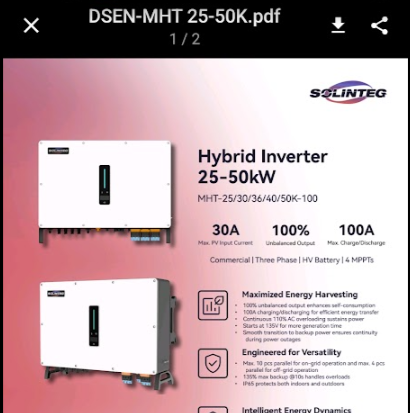
Once you have received a PDF file you can click on it to show an in-screen preview. |
| Scroll up and down to preview your PDF. |
|
|
|
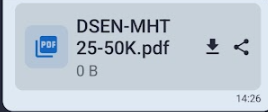
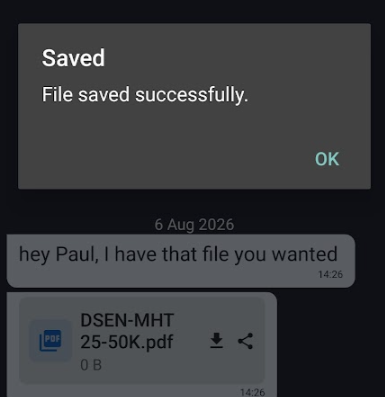
Click the download icon to save to your phone locally. |
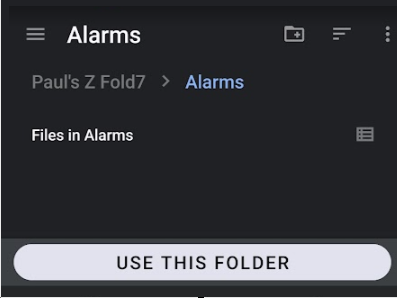
| Choose your folder and click the 'Use this folder' button. |
|
|
|
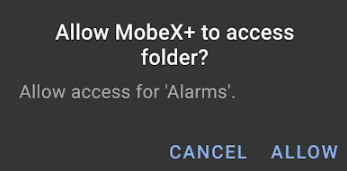
First time use of the folder, you may need to give MobeX access to the folder. |
| Confirmation of the file saving will be given. |
|
|
|
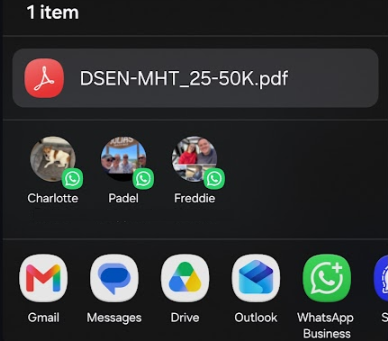
You can also share files. Click the share icon. |
| Select the app you would like to use to share your file. The other app will open to complete the task. |
|
|
|
Any pictures cans be previewed. |
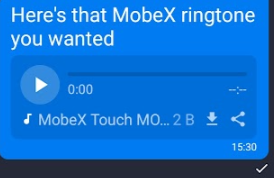
| Audio files can also be played inside MobeX. |
|
|
|
You can also receive other file types, but you may not have a preview of all files. Files such as Word documents and video & Audio files can all be received. |