Cloud Phonebook
Cloud Phonebook 

|
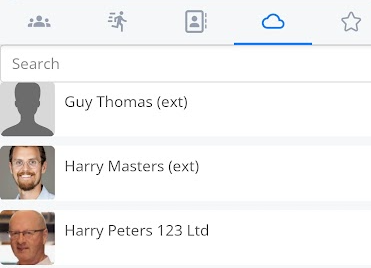
The cloud phonebook (CPB) functions similarly to the local contacts tab. The cloud phonebook tab
Please get in touch with your service provider for more details if you don't have this information |
|
|
|
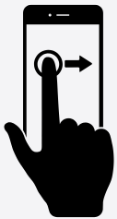
You can swipe right to go to your favourites screen. |
|
Or you can swipe left to return to your local contacts screen. |
|
|
|
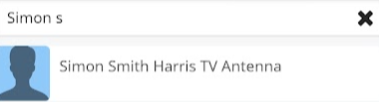
Using the search bar at the top of the screen can help drill down to the contact you are looking for. |
| Click |
|
|
|
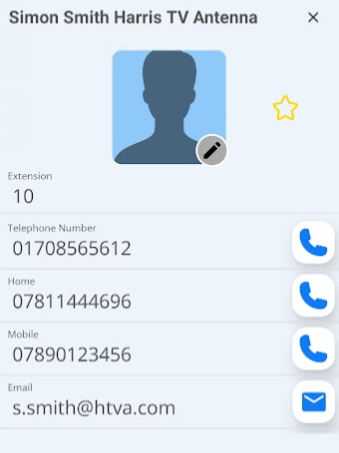
You can now contact the person by phone or email by clicking the relevant icon. |
| By pressing the outline of the star, you can add the cloud phonebook entry to your favourites. |
|
|
|
A solid star now indicates which of your contacts are in your favourites list. |
|
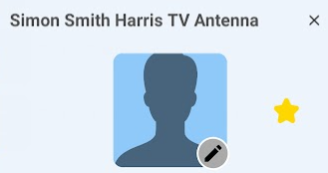
You can also edit the current Cloud Phonebook contact by clicking on the edit icon on the outline avatar. |
|
|
|
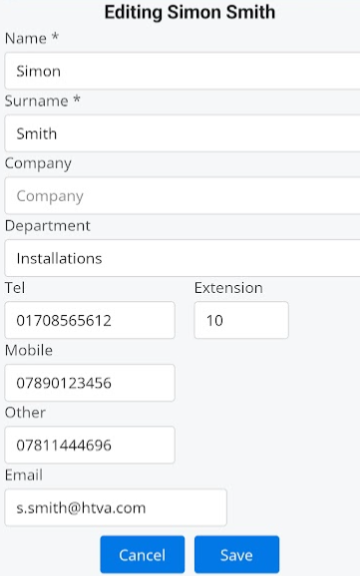
Make the changes you want, then click the save button.
Any changes you make will affect the entire company Cloud Phonebook, so keep in mind that others will see the names when they use the CPB to dial out or receive an incoming call that matches this CPB entry. |
|
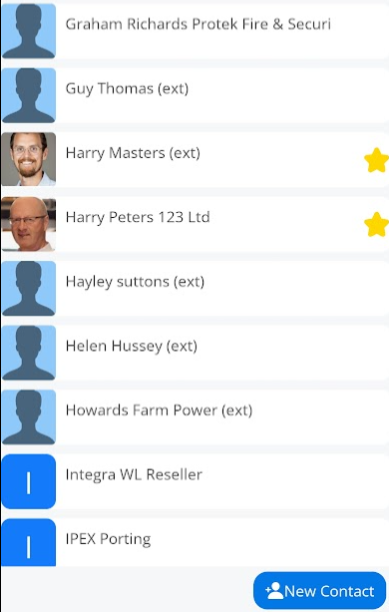
You can also create a new CPB entry by selecting the New contact button at the bottom of the screen.
|
|
|
|
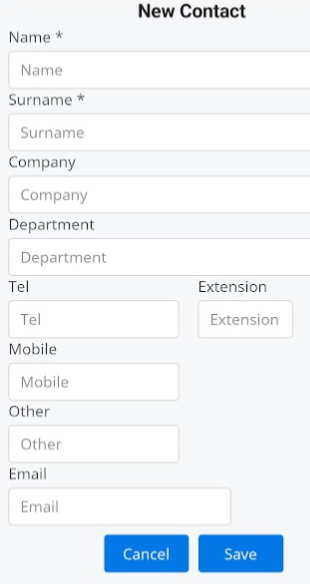
Complete all fields you can so others can benefit from the information.
Then click the save button.
|