
Beginning a chat session - simple chat message
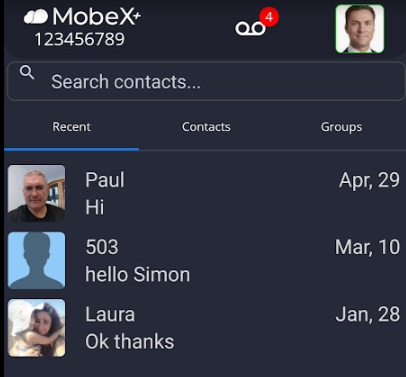
| When you want to start a chat or look at any messages, select the message icon at the bottom of the app, highlighted here in blue |
|
|
|
When it opens, you will see your conversations, with the most recent at the top. |
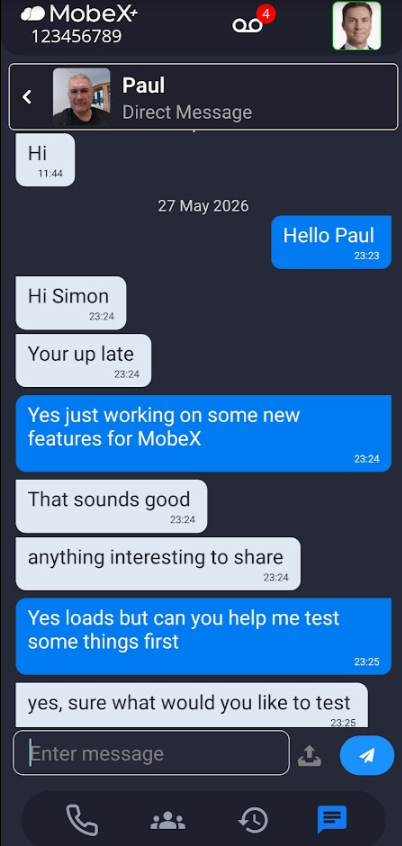
| Click on the person you would like to chat with and, once selected, you will see all recent activity with that person. |
|
|
|
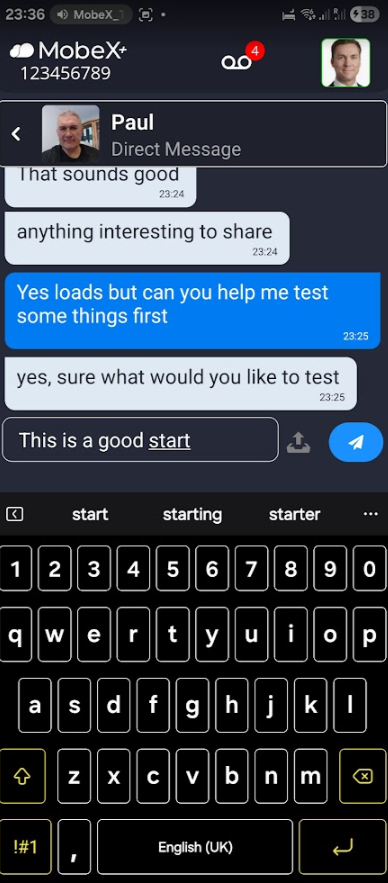
To send a chat message, enter your message in the box provided. |
|
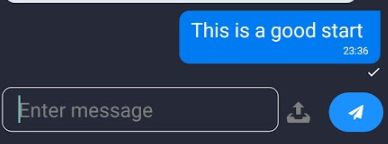
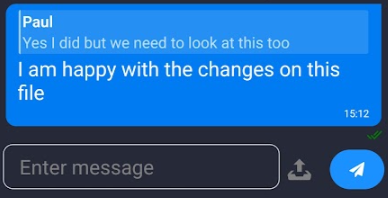
When they receive the message, a tick will appear under the message you have sent. |
|
|
|
You can also reply to a particular message by clicking and holding on the message you wish to reply to. Click on reply |
|
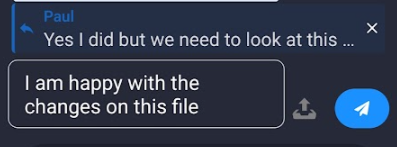
Type in the message you want to send. Press the Blue send arrow. |
|
|
|
Your message will be appended to the bottom of the message you were replying to. |

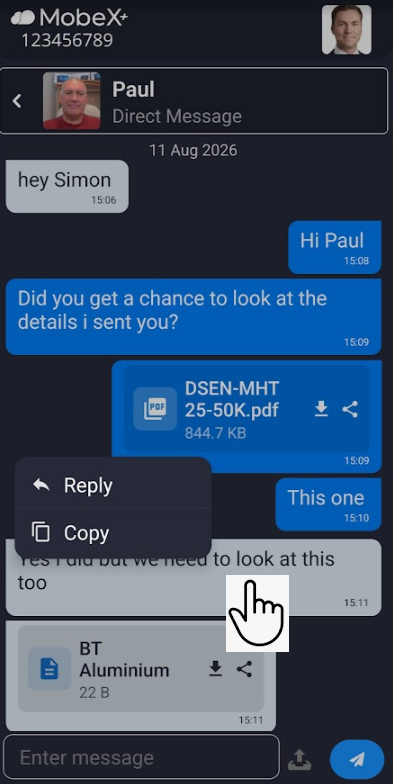
Once a message has been sent, you can press and hold the message to review some more options. You can reply to your own message, copy your message and see the message details.
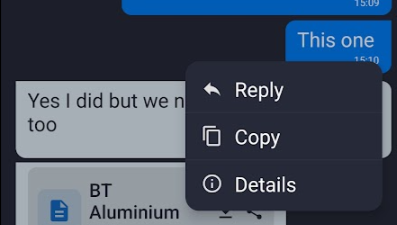
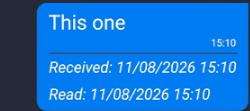
It will give you the information about the message and when it was received, and also when it was read.