HaloPSA Setting inside the MobeX UC Client
| After the system setup has been enabled on the portal, new settings will be available within the MobeX UC client. These appear on the settings page. Click your avatar to access the settings page. |
|
|
|
Then click on the system settings option |
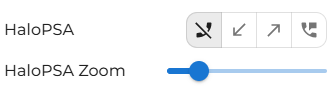
| Under the Features section, you will then see new options for the HaloPSA software. |
|
|
|
Hover over each tab to choose what to work with. Halo is best suited for telephone calls.
|
| This option will not open the Halo page within the MobeX UC client. |
|
|
|
This option will only open the Halo page for inbound calls. |
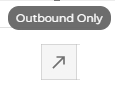
| This option will only open the Halo page for outbound calls. |
|
|
|
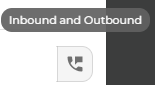
This option will open the Halo page for inbound & outbound calls. |
| Due to the configuration settings in HaloPSA and MobeX UC, you can adjust the zoom level of the Halo page to make it easier to read or to display more information on screen. The zoom level can be reduced to 75% or increased up to 150%. |
|