
Agents
AI agents normally involve a fair amount of programming and tweaking. Because we have already done the hard part of embedding the Agent directly into the system's core network, the clever stuff is already set up and ready to roll out as soon as you set some basic information for the Agent.
Agent initial setup
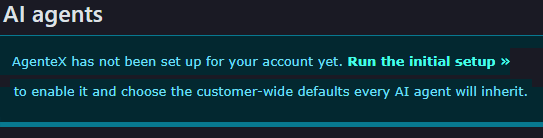
When you first enter the Agent screen, you will be required to set up basic customer information.
Click on 'Run the initial setup' to complete this process. |
|
Customer Defaults


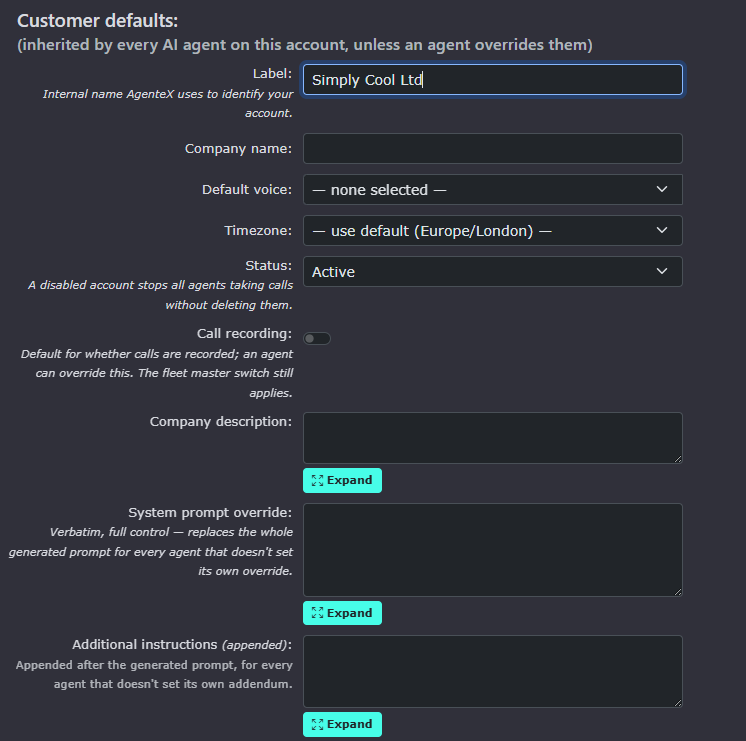
This is the name of the customer's account and is only used for reference.
Company Name is the default name the agent will use when greeting a caller. It is worth remembering to write the name as you want it said. So in this case, Simply Cool Ltd should be written as Simply Cool Limited to stop the agent spelling out L T D as individual letters. This, of course, is easily changeable, so you can adjust it as you go along to get the best results.

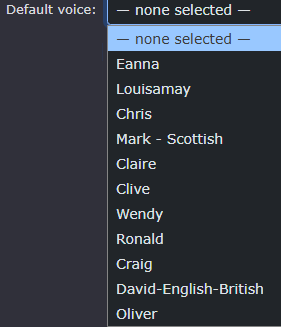
The Default voice will be used by all agents if no voice is selected on a per-agent basis. There are many to choose from.
When you have selected a voice, a play  icon will appear, allowing you to listen to the voice before selecting it. Again, nothing is set in stone, so you are welcome to come back and make a change at any time.

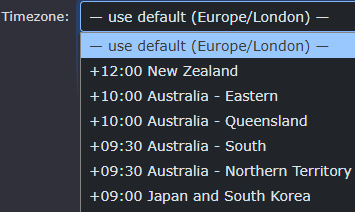
Timezone works with your default business hours and helps agents understand the time. The default for the system is Europe/London GMT, but you can select other time zones if need be.
This enables or disables all agents on the customer's system and stops agents from taking calls. The default is 'Active'

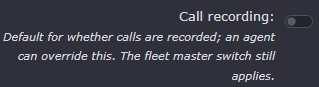
The call recording system will capture all calls made and received by the agents. It is on by default.
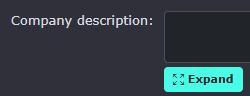
The company description is the set of details agents will use as background to help them understand what they should say when answering a call. This is particularly useful if the agent is working as a Receptionist.
The Expand button just makes the screen bigger so it is easier to read all the information provided in the company description
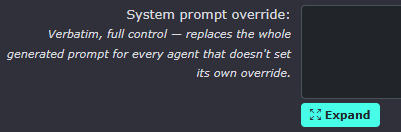
System prompt override. This will replace all the clever, predetermined network control over how the agent performs. These settings can be removed if any issues occur; however, we recommend trying the default system prompt first before overriding for all agents. This setting is recommended for expert setup only.
The Expand button just makes the screen bigger so it is easier to read all the information provided in the system prompt override.
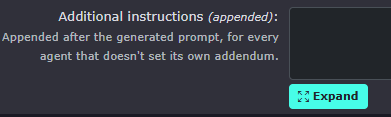
Additional instructions. These are appended to the default prompt. This is a good way to provide a bit more clarity on how you want the agent to respond or act.
The Expand button just makes the screen bigger so it is easier to read all the information provided in the additional instructions
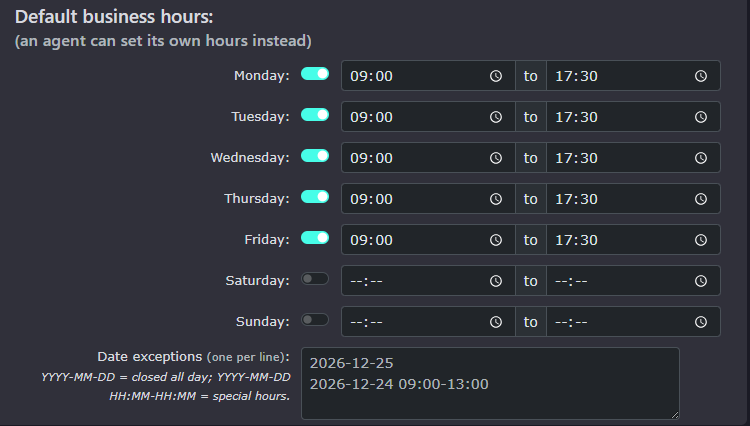
Default business hours
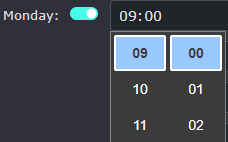


Keep in mind that all these defaults can be overridden by any and all agents. This is to set up the most frequently used settings to make each agent's setup easier.