
Logging in to MobeX Web
| Once your service provider has set up your MobeX licences, you will receive an email like this. |  |
| https://phone.sip2sip.net |
Click the link, and you will be taken directly to the MobeX login portal. If you don’t receive an email, check your spam folder or go to the following link: |
| Enter your email address to be sent a one-time password (Token) |
|
|
|
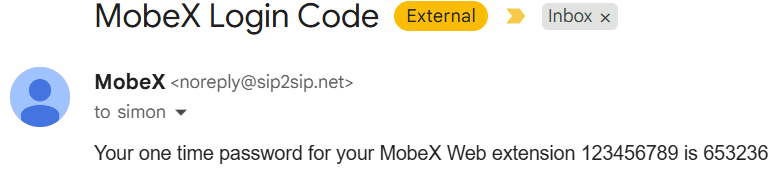
You will receive an email similar to this. Again, don't forget to check your spam folder in case the password email is there. |
| Once entered, you will be logged in to the initial presence window. | 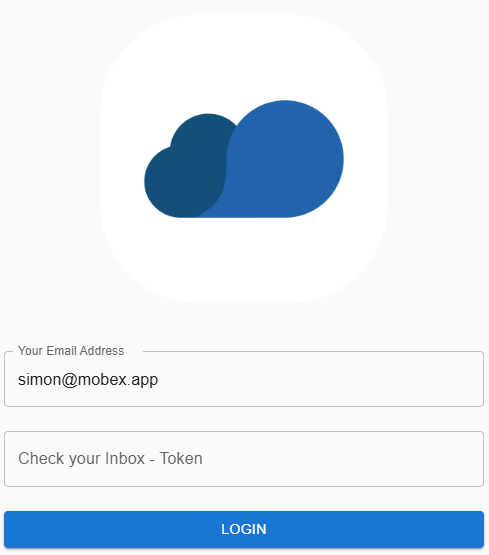 |
|
|
After logging it. You may be required to allow some permissions to be activated to allow the MobeX service to work correctly. Click on the triangle to see what permissions are required. |
| Show notifications are essential for receiving calls and making your PC ring, or for allowing a pop-up window to appear. |
|
|
|
|
|
|
|
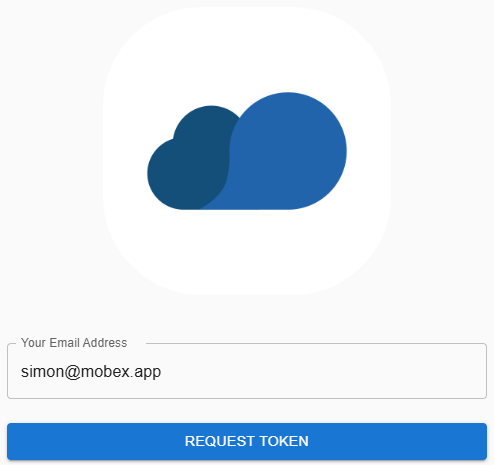



This screen will greet you. Please enter the email address you provided to your service provider for MobeX.

You will then receive a further email with your login token.

Copy and paste your token into the box below when it appears on your screen, and click login.

Please ensure you grant your browser access to MobeX using the permissions that appear.


You may also receive pop-up windows requesting permission to receive notifications. Select Allow to ensure we can notify you of an incoming call.
To use your microphone, please select ‘Allow on every visit’ so you don’t need to keep allowing it to be used.


Finally, you will be asked to allow the use of your camera. This will pop up if you want to make a video call. Again, allow on every visit for a seamless experience.
You are now logged in and ready to go.
