Home Page
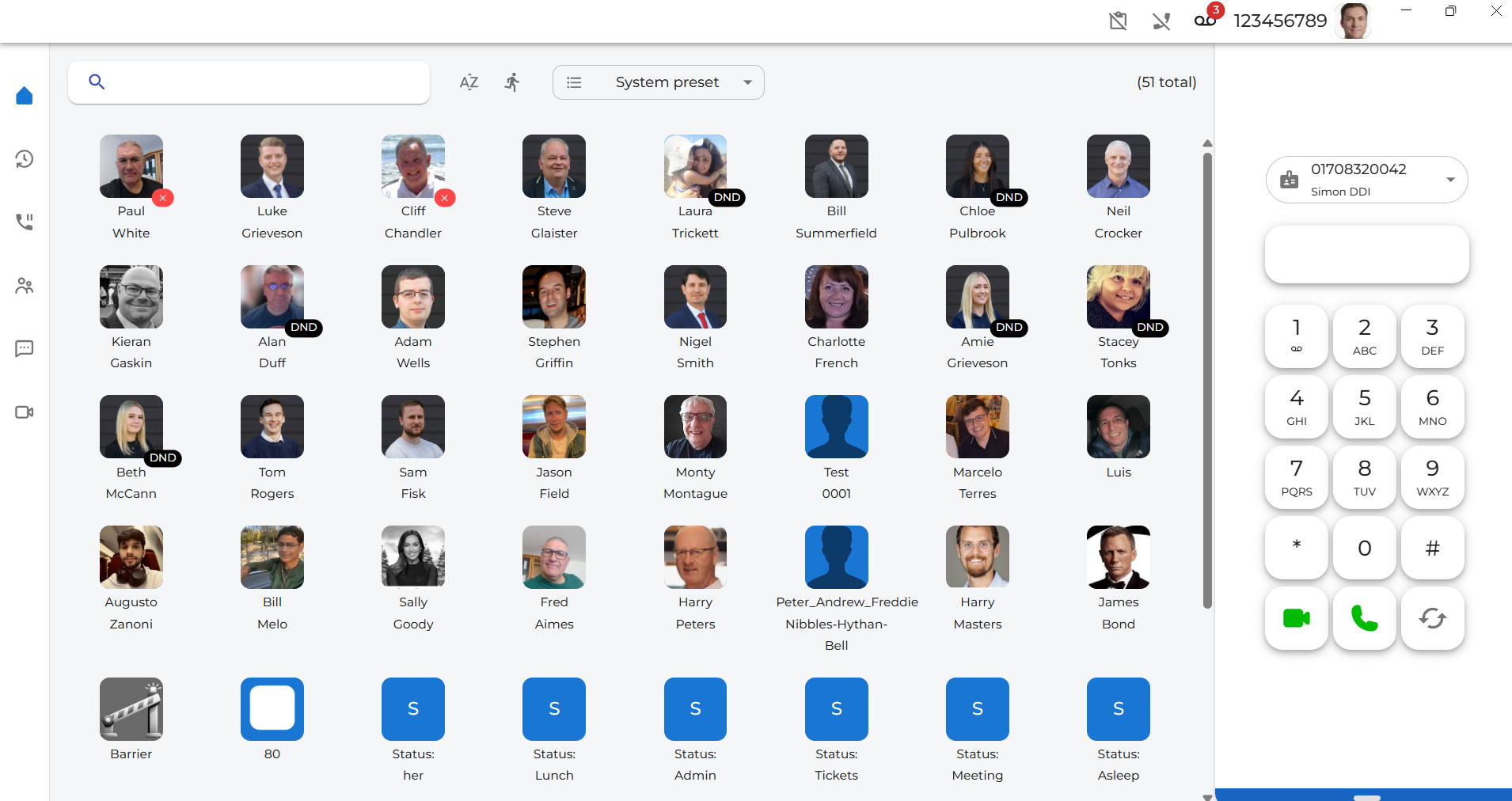
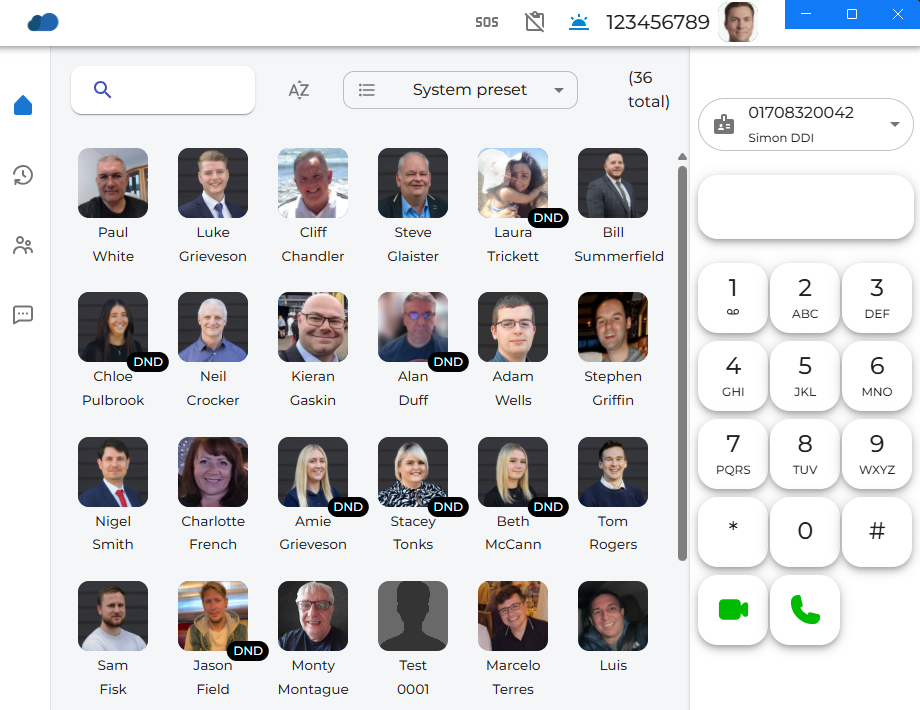
| The Home page gives a visual indication of your work colleagues. It allows you to see the availability of all other users on the system. Laura is in Do Not Disturb, and Paul is unavailable. |
|
|
|
On the right-hand side is a dial pad for manually entering numbers to make a |
|
On the left-hand side, there is a menu to navigate around the rest of the system.
This is a handy way to switch between services you may want to use throughout the day.
|
|
|
|
There is an easy search option on the top left. Just enter the name of the person you are looking to contact. |
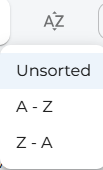
| You can sort the presence icons you see in A to Z order, Z to A order, or use the default order set up for you on the telephony portal by leaving them in the unsorted state. |
|
|
There is a quick button key to switch to show just your speed dial options. |
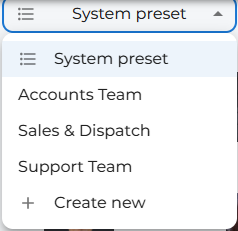
| The System Preset option lets you create different groups of people, like a Sales or Accounts group. |
|
|
In the top right-hand side of the screen, you will see various icons appear as and when you need to be notified of statuses that are current on the system. You may not see them all at the same time depending on your current status.
|
| You can also choose to minimise the app window. As the page size decreases, fewer avatars will be shown depending on the available space. |
|
|
|
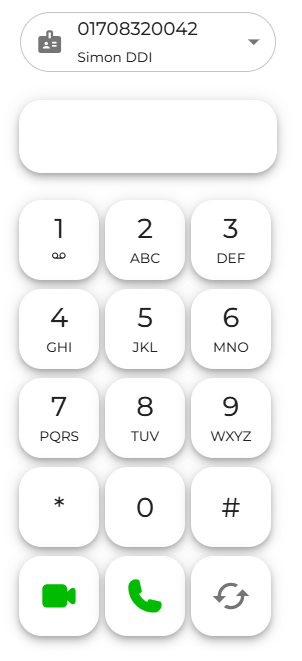
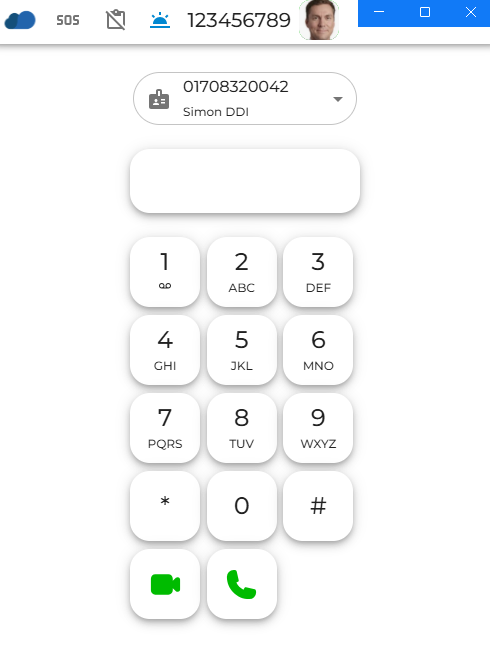
If you shrink it further, only the keypad, answer keys, and number entry box will be visible. |