Contacts (Cloud Phonebook)
|
Clicking the following icon will direct you to the Contacts page. People listed under your Contacts are saved in your Cloud Phonebook. |
 |
 |
If this icon is missing from the menu bar on the left, please contact your service provider so they can enable the Cloud Phonebook for you. |
| You can search through the contacts using the search bar at the top of the page. |  |
Your Contacts will resemble this.
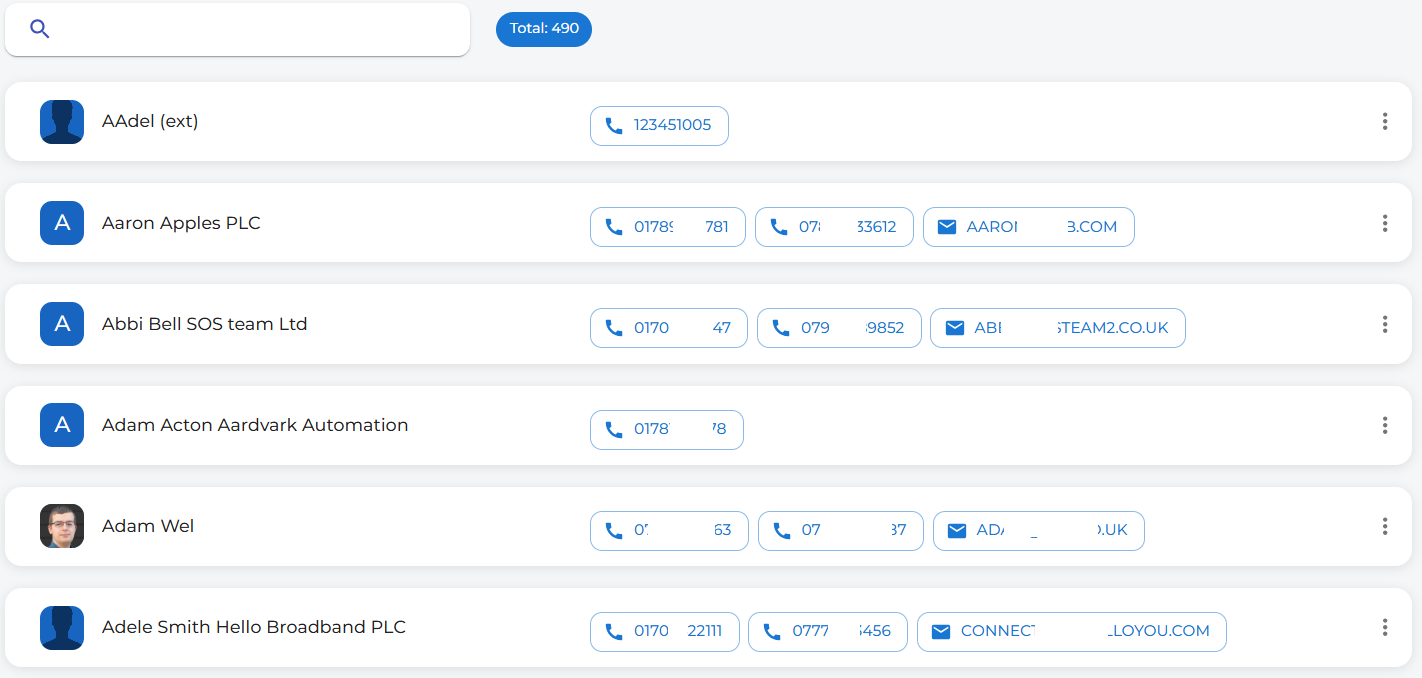
|
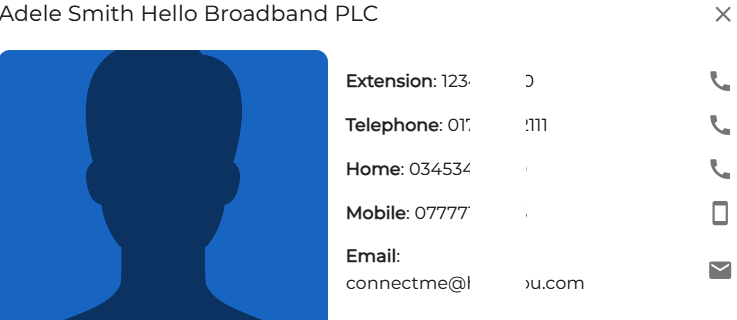
You can click
In this example, you can see that the contact, Adele, now
Use the icons on the right side of the screen to quickly dial or email the contact. |
|
|
|
You can also click directly on a number in the main screen to make a one-touch speed dial request. The number will automatically appear in the dial box and the call will be placed for you. |
| Likewise, clicking on an email address will open your default email client, allowing you to send an email to the contact instantly. |
|


Cloud phonebook editing
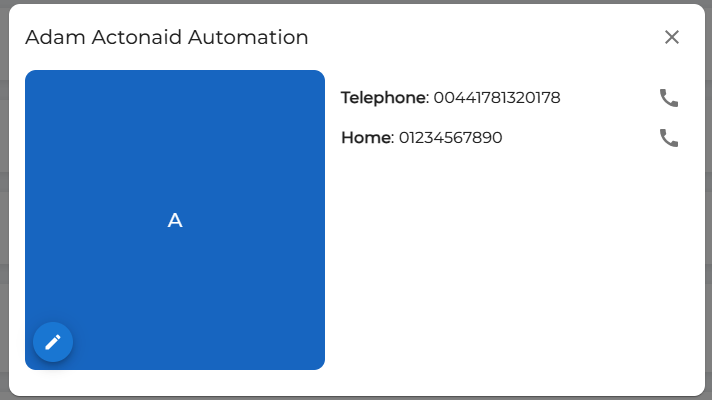
| You can edit cloud phonebook contacts by clicking the contact name to open the full contact details, then selecting the edit icon in the contact's avatar.
|
|
|
|
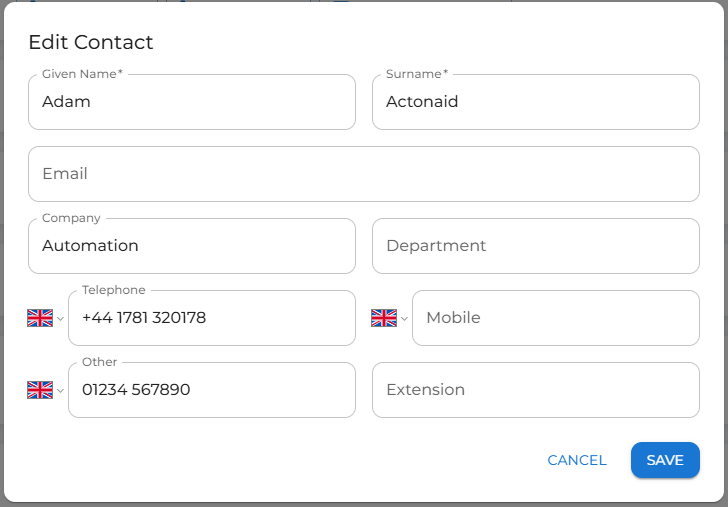
This will open the editing window to allow you to change or add additional details in the existing contact.
Add or edit the details and then click the save button.
This will update everyone's cloud phonebook contacts in the customer's system. |
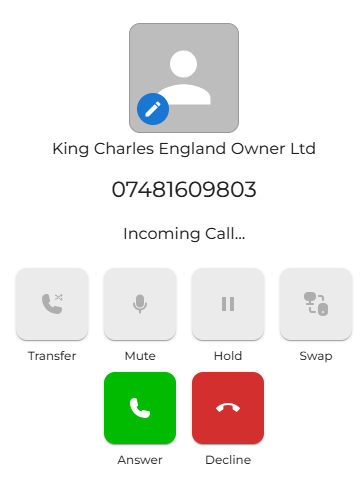
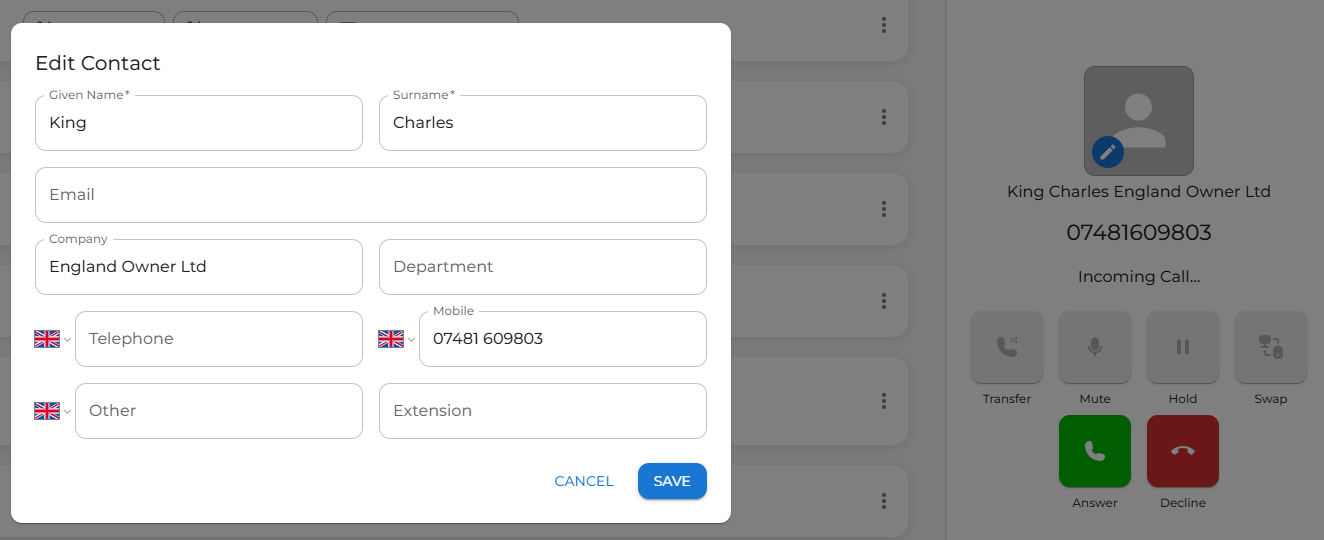
| It is also possible to update the cloud phonebook entry whilst making or receiving a call. |
|
|
|
Once completed, click save. |