Chat Messaging main page
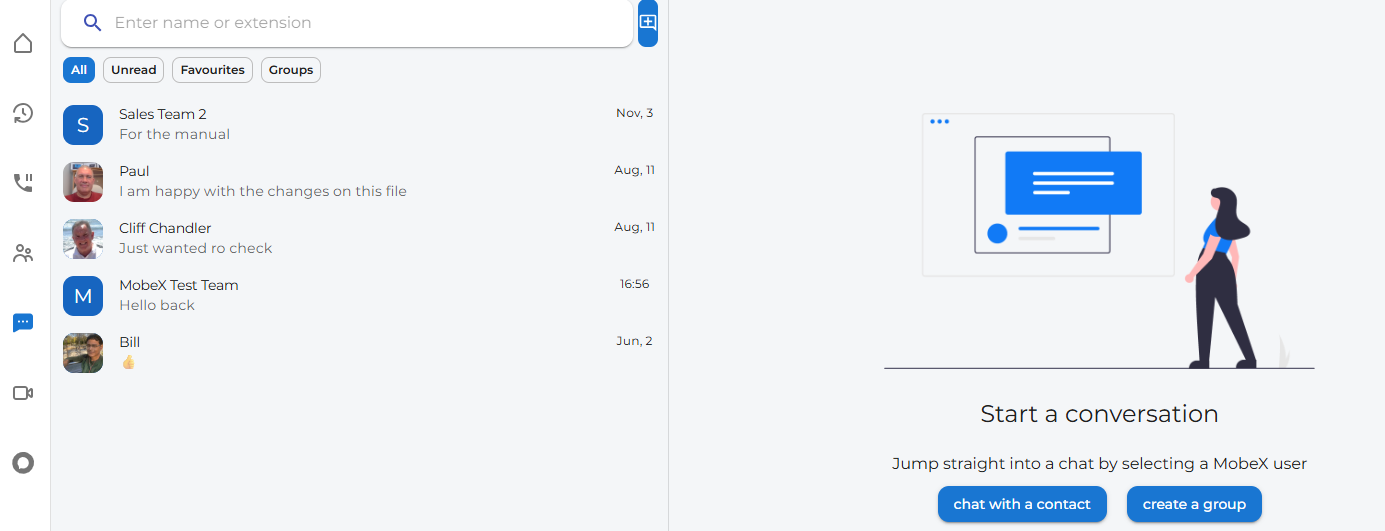
Start a chat
|
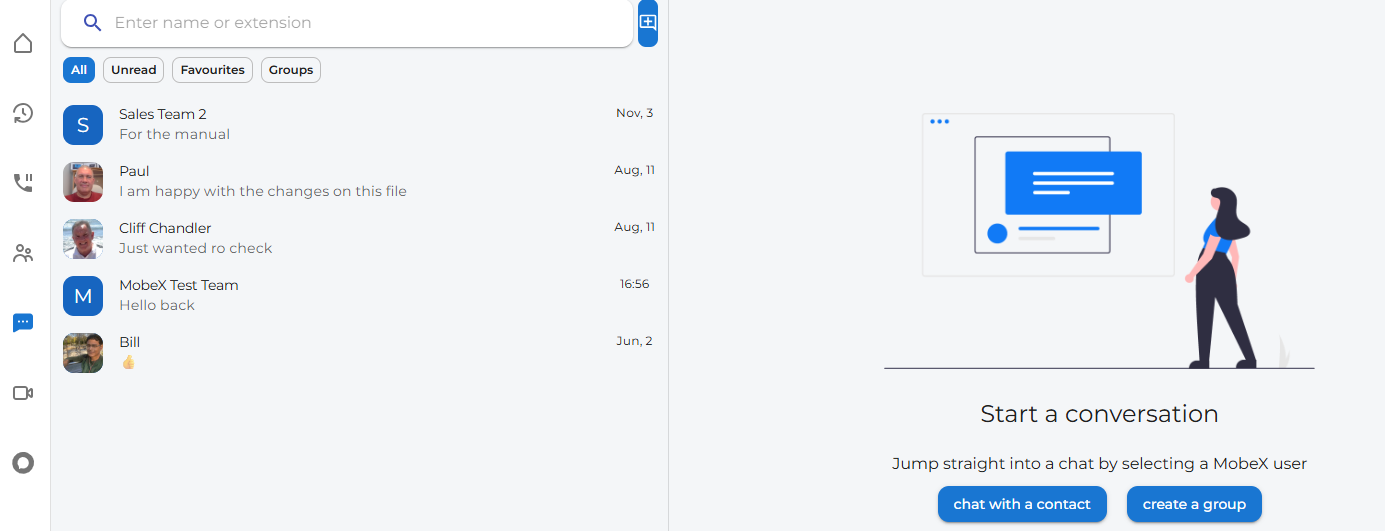
At the top of the chat page, you will find a chat + icon.
Click on this to start a new chat with someone
|

|
|
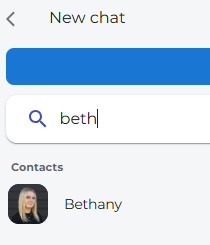
|
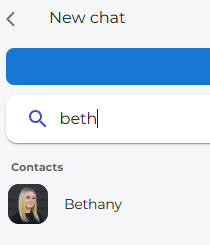
Enter their name in the search bar, then click on their avatar. |
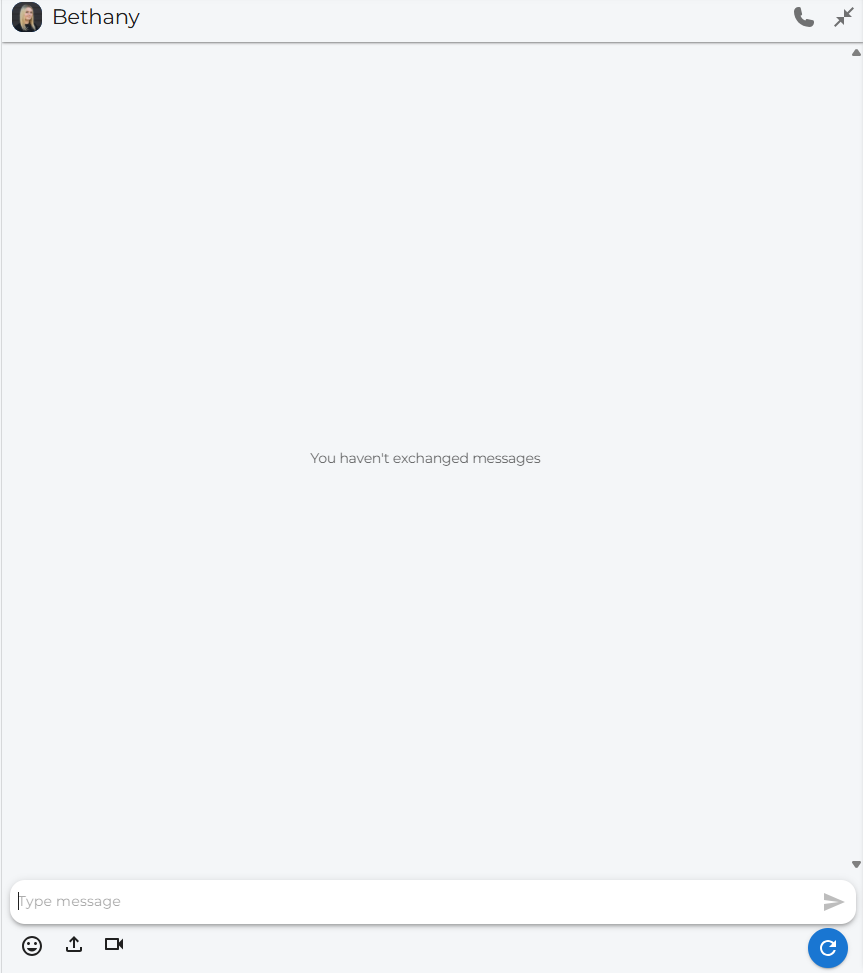
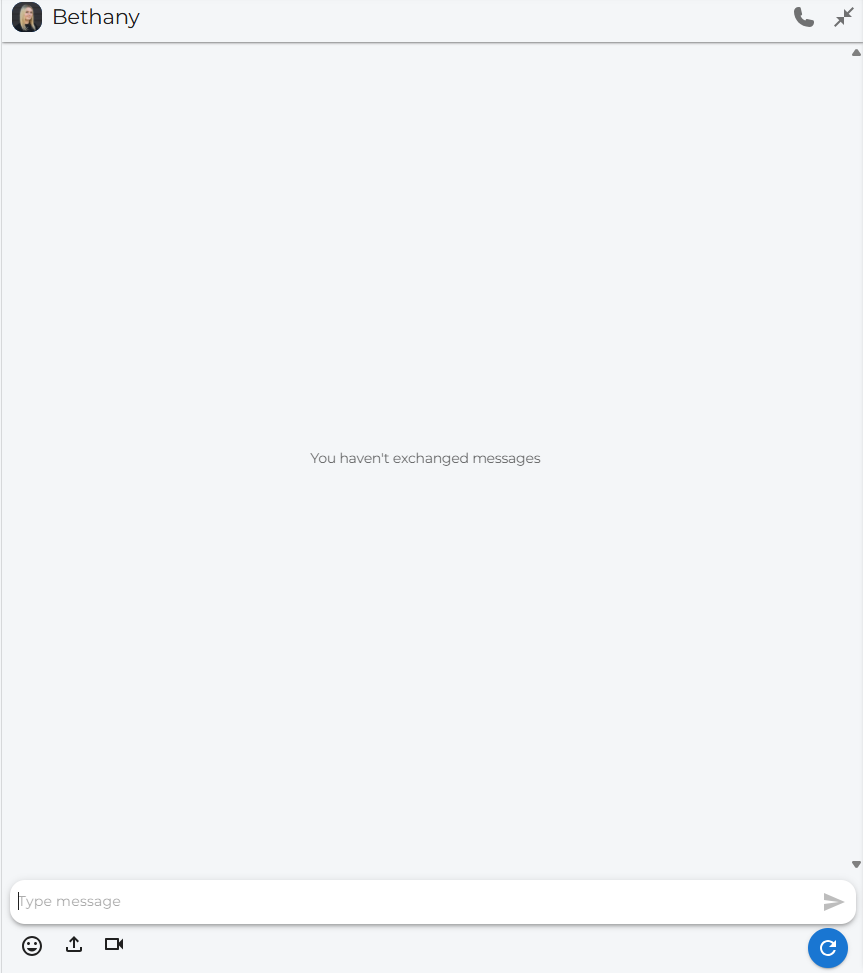
| A completely new chat will appear if this is your first time chatting with this person; otherwise, a previous chat will appear. |
|
|
|
Add a Chat to Favourites
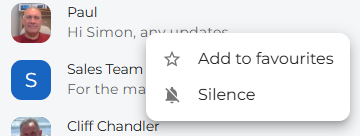
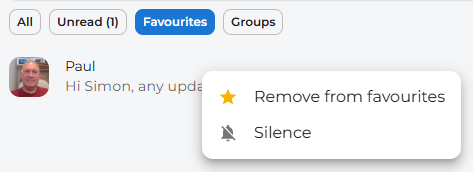
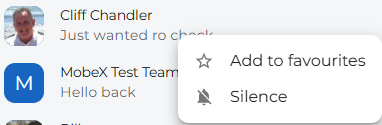
You can add any chat to your favourites tab by right-clicking on the chat you want to add.
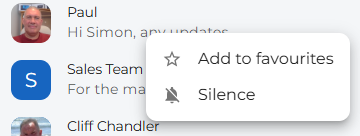
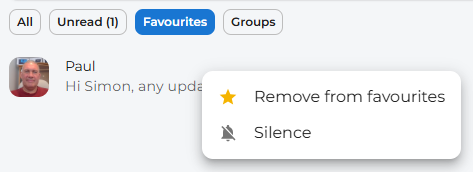
To remove the chat from your favourites tab, simply click on remove from favourites
Silent a chat notification
To silence a chat notification, right-click on the chat you wish to silence.
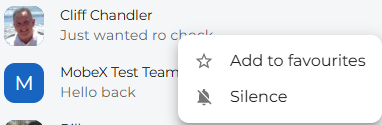

The chat will now appear with a bell crossed out to show that this chat has now been silenced for notifications.
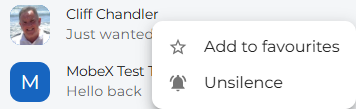
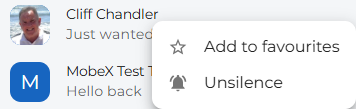
To re-enable chat notifications, right-click the chat and click on Unsilence. This will also remove the bell with the line through it.
On the left, you can see previous chats.
|

|
You can preview the last message sent/received and the time/date it was sent/received.
|
|

|
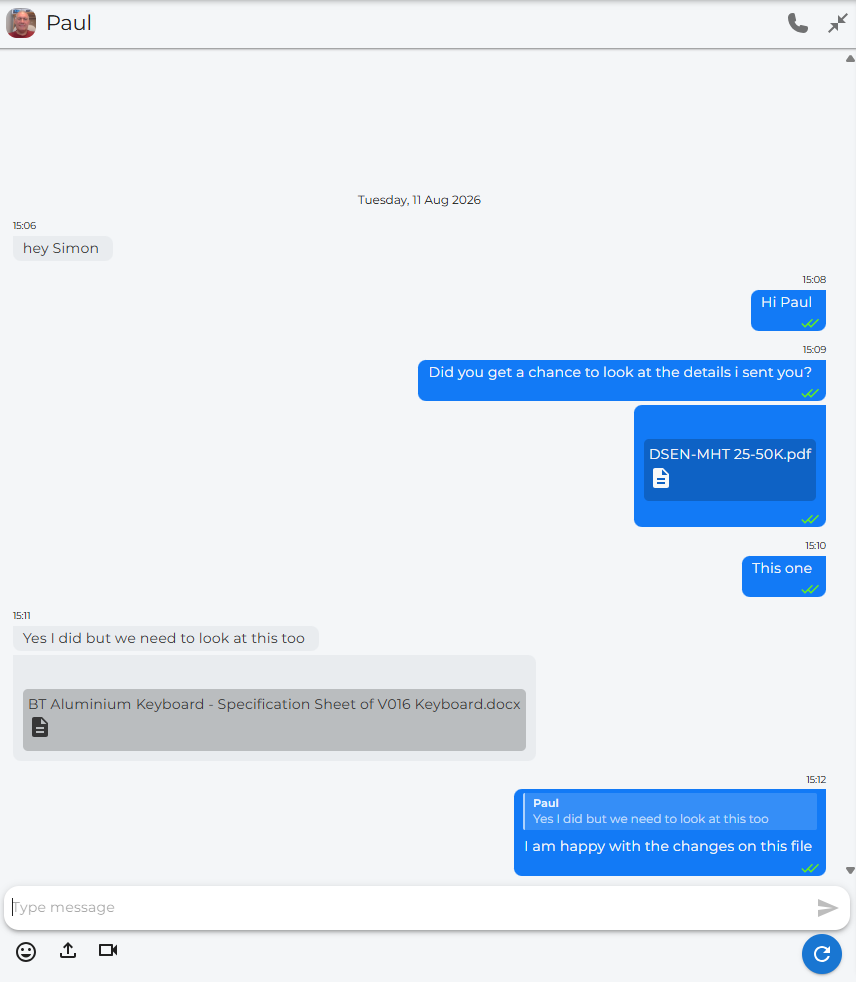
Click on the Icon or message to open the large chat window.
|
Message Screen Example: