Adding User Statuses
|
To help others understand your current availability within the operation of the phone system. You can change your status.
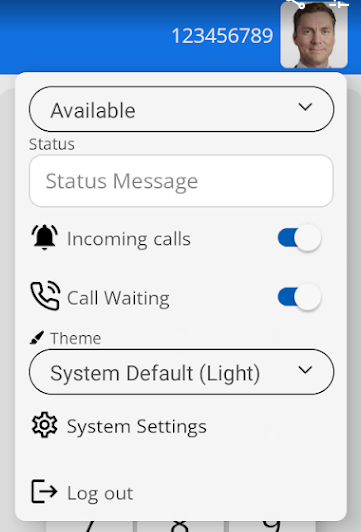
Click on your picture avatar to open the settings page. |
|
|
|
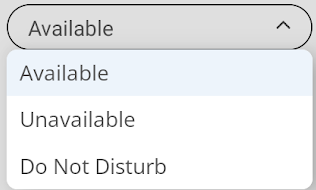
There are three statuses to choose from. Available, Unavailable, and Do Not Disturb
|
|
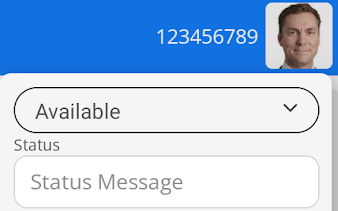
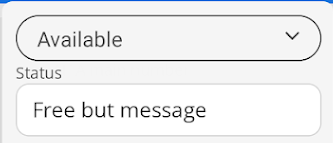
When you set your status as Available, you will see your avatar on your device screen. Other users will also see your avatar in this format.
|
|
|
|
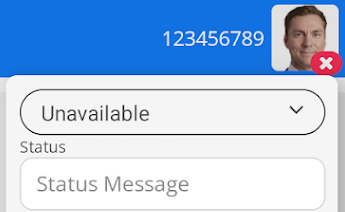
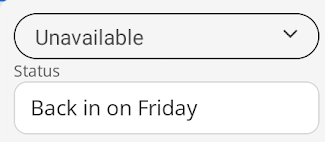
If you cannot take calls, you can set yourself as unavailable. Your avatar will appear on your device screen like this.
It will appear like this to other users.
|
|
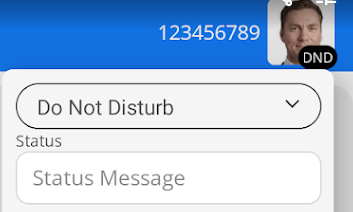
To stop people being able to ring your telephone number, you can set your extension into do not disturb (DND). You can see you have set yourself in to DND mode by the DND badge underneath your picture avatar.
Others will see your picture avatar looking like this.
|
|
|
Tip:
|
Keep in mind that once you are in DND, none of your telephone devices will ring until DND is removed. You can remove this from any of the MobeX suite of software, as well as from any desk handsets you may use. |
| You can also add a free text message to your status to provide additional information. |
|
|
|
|