
MobeX+ Settings
MobeX+ Settings page

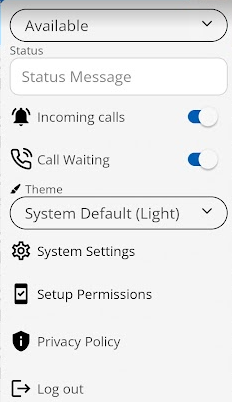
Here you can control most of the options for the mobile phone app.
User status can be set using the two options. The first is to choose your MobeX status bar. This will be shown to other users, making them aware if you can be contacted or not.
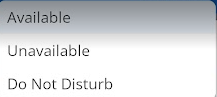
The default option is set as 'Available'. Clicking here will give you more choices; you can also choose 'Unavailable' or 'Do Not Disturb'
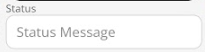
There is also a free text status allowing you to enter a personal message.
EG You may have set your status to Unavailable, but could put in the free text 'call on mobile if urgent'
You can enable or disable incoming calls from this device. Other devices will continue to ring under the same extension, except for this device, if the option is set to disable.


You can set whether you want to receive more than one call at a time. If set to disable, your calls will be routed to your default busy function. This would typically be voicemail.
The Theme allows you to choose your app colour mode.
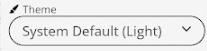
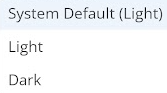
You can choose Dark Mode, Light Mode, or let the device automatically switch between them as daylight changes. This will automatically switch between dark and light modes throughout the day as needed.
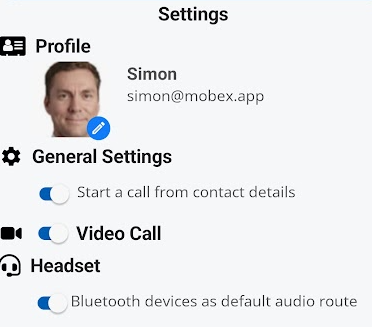
The System Settings tab will open a new page, showing you more options below.

|
Incoming calls By switching the incoming call notification to off will STOP calls being received on this device. It is important to be aware that it doesn’t turn the ringing off, it completely stops calls to this device. This allows you to work at a desk using MobeX Web or a physical desk phone without multiple devices ringing at the same time. Dark Mode Switching your Mobile to dark mode makes it easier to use the app during the night. Debug Mode This is used to help your service provider fix potential bugs or issues you may be experiencing with MobeX. This is switched off by default and it is recommended that you switch this on if an issue arises to help fix issues quickly. Do Not Disturb This will switch your phone and all other devices into DND which means you will not receive any incoming calls.This may also be activated on another device and will appear in the main screen with this icon You can also also click on the ‘Privacy Policy’ link to find out our latest terms and conditions with regards to our Privacy terms. You can also log out at the bottom of the page which will instantly log you out. You can log back in by simply entering your mobile number again and use the activation code. Finally, the version number which is useful to know if you require help |
|

