
Making a call
There are many ways to make a call. Below are some examples and methods.
Starting a call
|
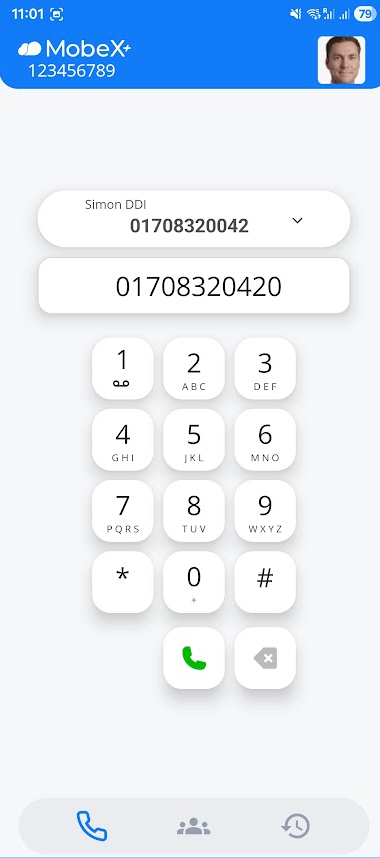
Using the blue handset button at the bottom of the screen
You can navigate to the dial screen.
Using the keypad, you can enter an external or internal telephone number.
Sometimes, you may see the call key greyed out.
This means there is no connection to our voice servers. Please check your internet connection and try again.
Once you have a solid green handset key, you can now make calls.
If you have made any mistakes when entering your number, you can delete the number by using the X arrow key.
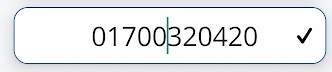
If you have incorrectly entered a number in the middle of the dial screen, you can click on the number to correct just that number.
Use the X arrow to remove the number.
Put the correct digit in and then press the tick at the end of the number to save the corrected number.
|
|



In call options
|
|
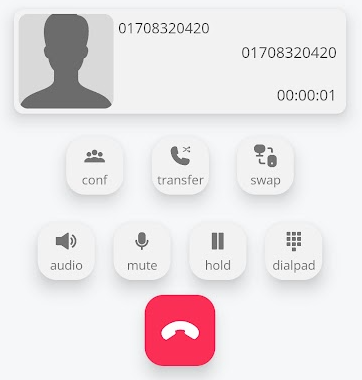
Whilst you are in a call, any buttons that are in a solid state can be used to perform different functions.
Pressing the Hold key will place the other party on hold.
You can also press the mute key to disable your microphone.
|


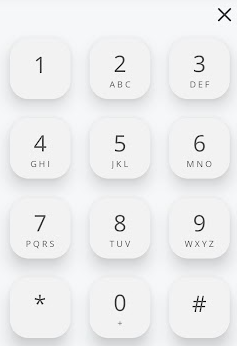
UponPressing makingthe dial pad key will enable a pop-up screen displaying a dial keypad. This can be used to enter digits for automated attendants (1 for sales 2 for admin) or receivingto aenter call,digits thisrequested iswhen putting passwords in over the screen you will be presented with:phone.

Press the top right X to return to the standard call control screen.

Call screen Icons & meanings
|
|
|

Mute/Unmute
Hold
Dialpad
Transfer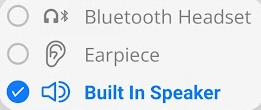


call will automatically

resume on the

chosen


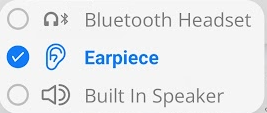
Device Swop
Conference
Do Not Disturb


device.