Call Transfer
Transferring calls.
By pressing transfer, the call will be placed on hold and you will be presented with the following screen where you can add the number of where the call needs to be transferred to. You can also select a person from the presence screen or even call history.
Then press the

Blind transfer key again.

|
do
|
|
|
|
|



You can then choose one of two options for transfer: the blind method or the attended method. If you choose the blind method, the call will be transferred to the

You will receive a pop-up notification indicating that the

key to return toof the originalscreen caller.for just a couple of seconds.


Attended Transfer
Whilst you are on a call, you can transfer the call to a third party. To do this, press the transfer key.

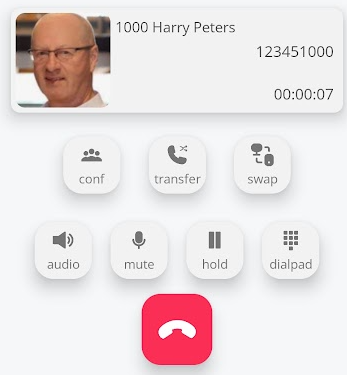
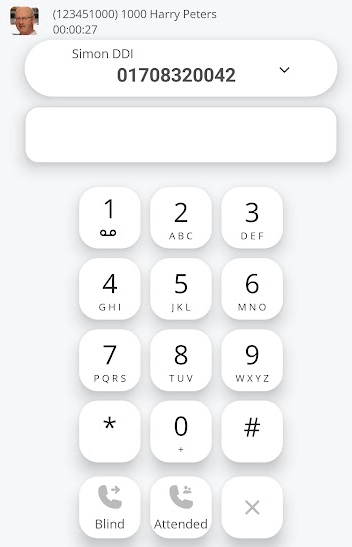
Once you have pressed the transfer, you will see this new screen. This allows you to enter a number manually.
.
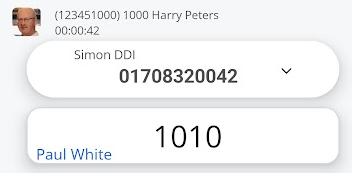
By pressing the attended transfer key, it will keep the person you are transferring on hold, whilst it connects the third party to you.

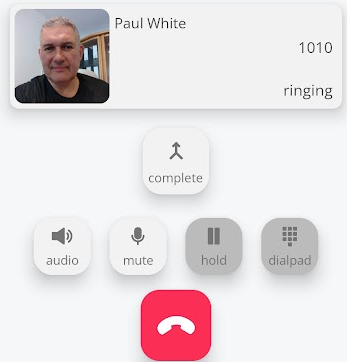
Wait for the third party to answer, or you can terminate the attended transfer by pressing the hang-up key.

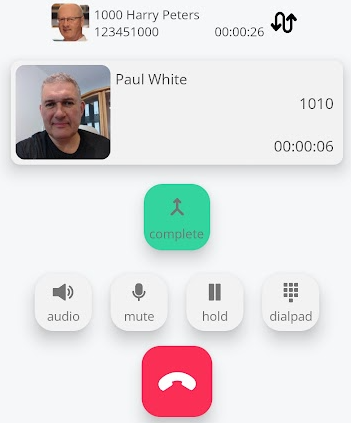
Once the third party has answered, you can press the complete key to push the call to the third party.

You may also switch between the hold caller and the third party by pressing the switch button