
Contacts
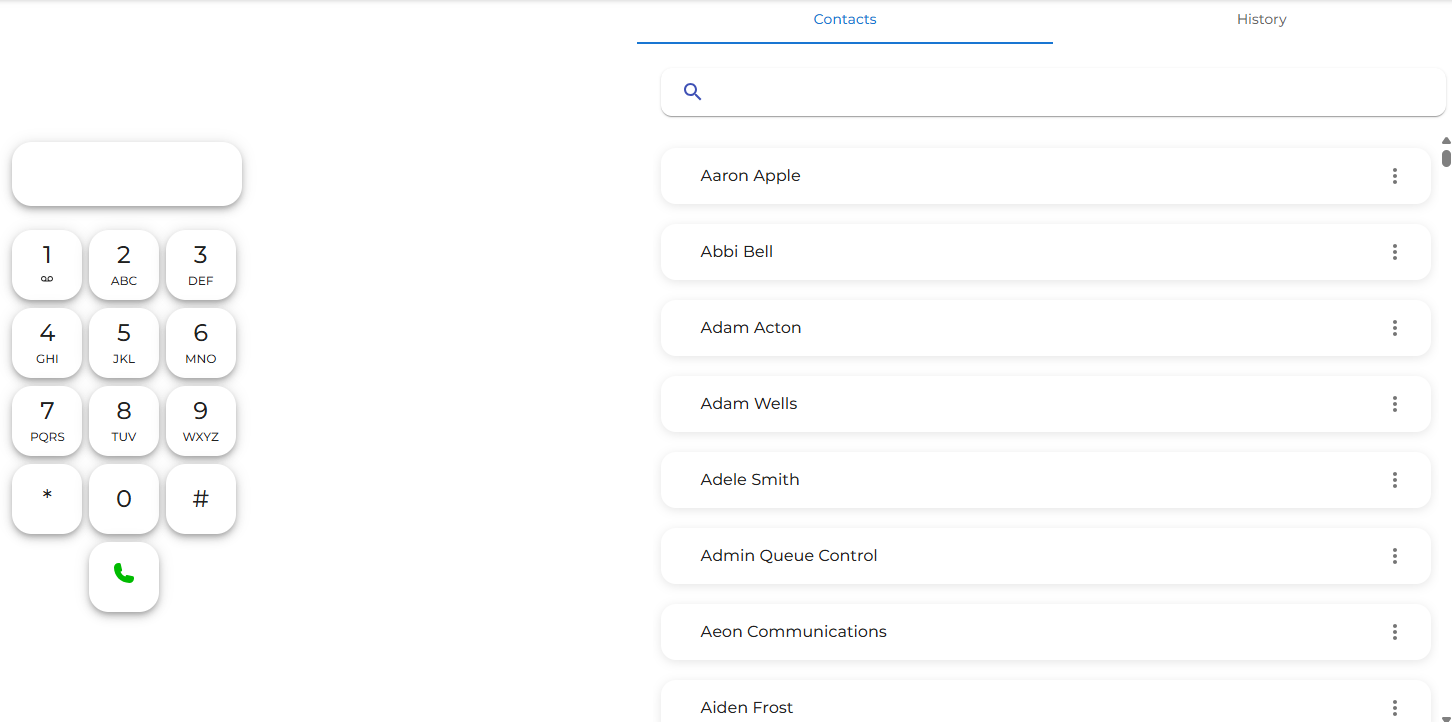
If the Cloud Phonebook is enabled in the hosted telephone portal, all your contacts will sync and appear as follows:
|
|
|
|
On the desktop or web app, the Contacts appear on the right-hand side of the screen.
You can search for a number at the top or scroll through your contacts to find the one you need.
|
|
|
|
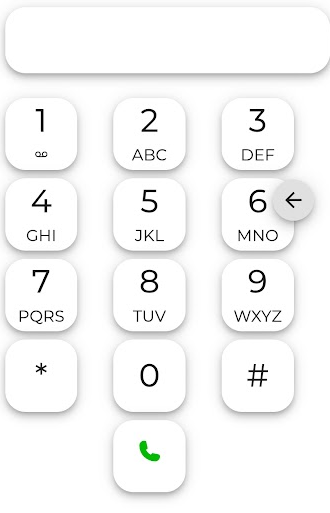
On the mobile app, an arrow next to the number 6 on the keypad opens your Contacts page if clicked. |
| Once opened, you can search for a number at the top or scroll through your contacts to find the one you need. | 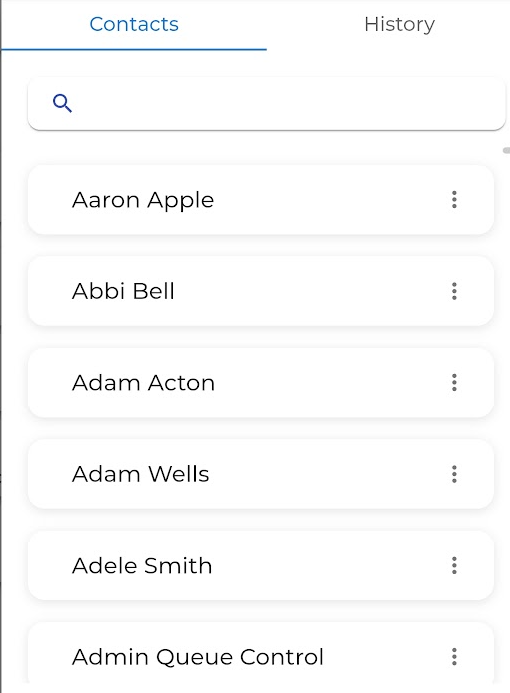 |
To dial a contact, click the three dots on the right side of the contact.
You can then pick the number you wish to call for that contact.
Then click the dial icon  , the call will start immediately, and MobeX UC will pop open again.