Presence Tab
Presence Tab

|
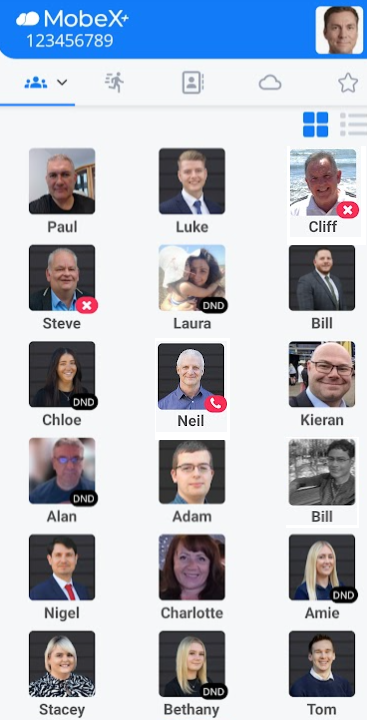
The first tab will display your presence, also known as BLF (Busy Lamp Field). Here you can see whether your colleagues are on a call, in DND, calls forwarded, available or unavailable.
Neil is currently on the phone.
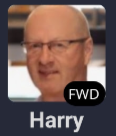
Harry has his phone forwarded.
Cliff has set his extension to unavailable.
Bill is unregistered in the system. His picture is greyed out/ halftone-coloured and appears like this when unavailable.
|
|
|
|
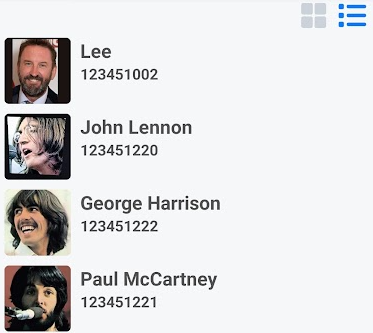
You can swipe left to move you to the next screen. This will take you to the speed dial screen. |
|
|
Clicking the |
|
Clicking the |
|
|
|
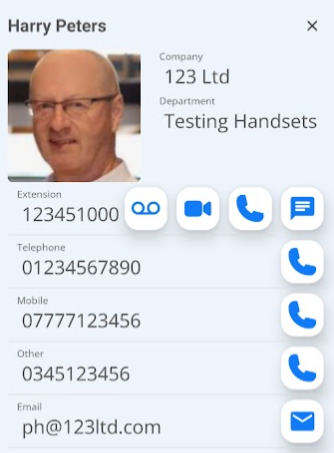
By clicking on one of the picture avatars, more information about that person will be displayed.
You can start a video call
You can click the email icon
You can also click the voicemail icon |
|
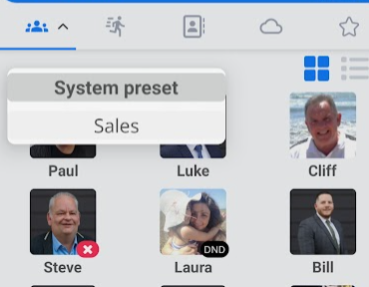
Next to the Presence icon there is a dropdown arrow.
This allows you to see other custom boards that have been set up via Mobex UC or Mobex Web. |
|
|
|
By clicking the drop-down arrow, you will see other custom boards you have previously created via the different apps.
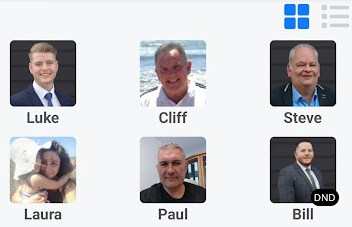
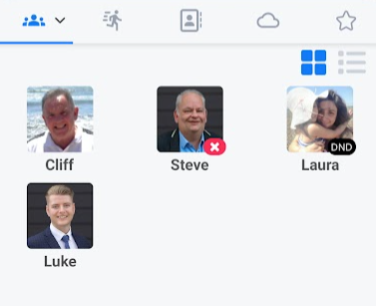
Select the custom board you want to use (in this case, Sales), and it will display the new Sales custom board. |
|
This example shows the salespeople assigned to this custom board.
Custom Boards are not available to create on the MobeX+ Mobile app due to size restrictions and complexity in moving the presence avatars around the screen. |
|