Copy Dial
| When on a web page, an Excel spreadsheet or in any application that allows you to copy. You can use copy to dial. | |
|
|
You can easily turn the copy dial function on or off from the icon at the top of the page. |
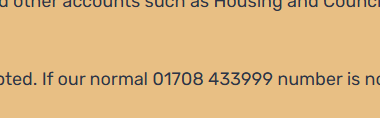
| When you see the number you wish to call. |
|
|
|
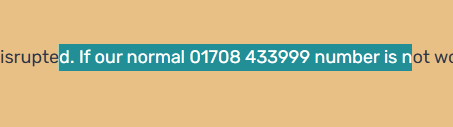
Highlight the number you wish to call. It doesn't matter if you copy text too; the app will remove unnecessary characters. |
|
Click copy |
|
|
|
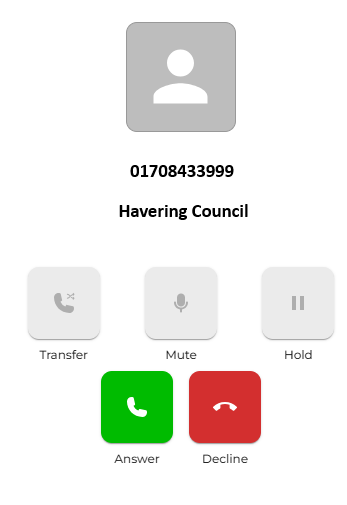
A pop-up window will appear in the bottom right-hand side of the screen.
You can edit the number in the dial number window or you can press the |
|
The call will then ring on the app, just like dialling the call yourself.
If you are using the desk device. The call will be delivered there instead.
Remember, you can set the use of 'desk device' to auto-answer or ring. With auto-answer, the desk device goes off-hook and dials out straight away. A compatible desk device needs to be used.
|
|